


Doctor and Clinic Website Script with Appointment Requests
Doctor and clinic website with an appointment request form, departments, team and gallery, managed from an admin panel









Language note
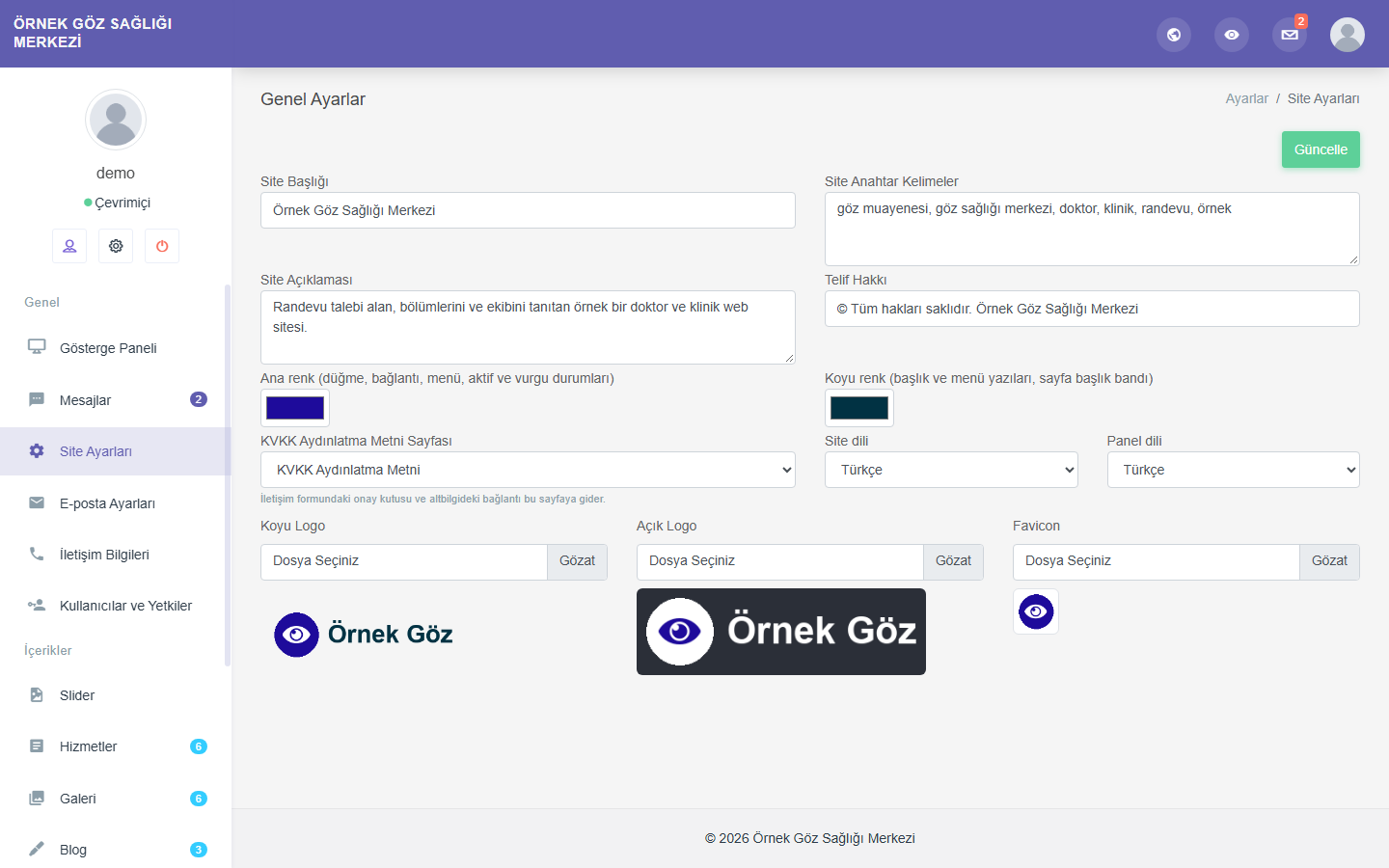
The interface of the website and the admin panel comes in Turkish and English. You choose the site language and the panel language separately under “Site Ayarları” (Site Settings), and you can also switch the panel language with the globe icon at the top right of the panel.
More languages can be added: copy the en.php file in the dil folder of the package and translate it (the steps are in dil/OKUBENI.txt). The language you add appears automatically in the language lists of the site settings, and updates do not touch your language files. Texts that are not translated appear in English; if you prefer, they can be shown in Turkish.
The content you publish (services, pages, blog posts and so on) is not translated; it stays in the language you write it in. Warning messages and date formats follow the selected language. The form e-mails sent to you are written in the panel language.
Where this page names a section of the panel or of the site, the name is given as it appears in the Turkish interface, in quotation marks, followed by its translation in parentheses; in the English interface the same sections appear under their English names.
Who it is for
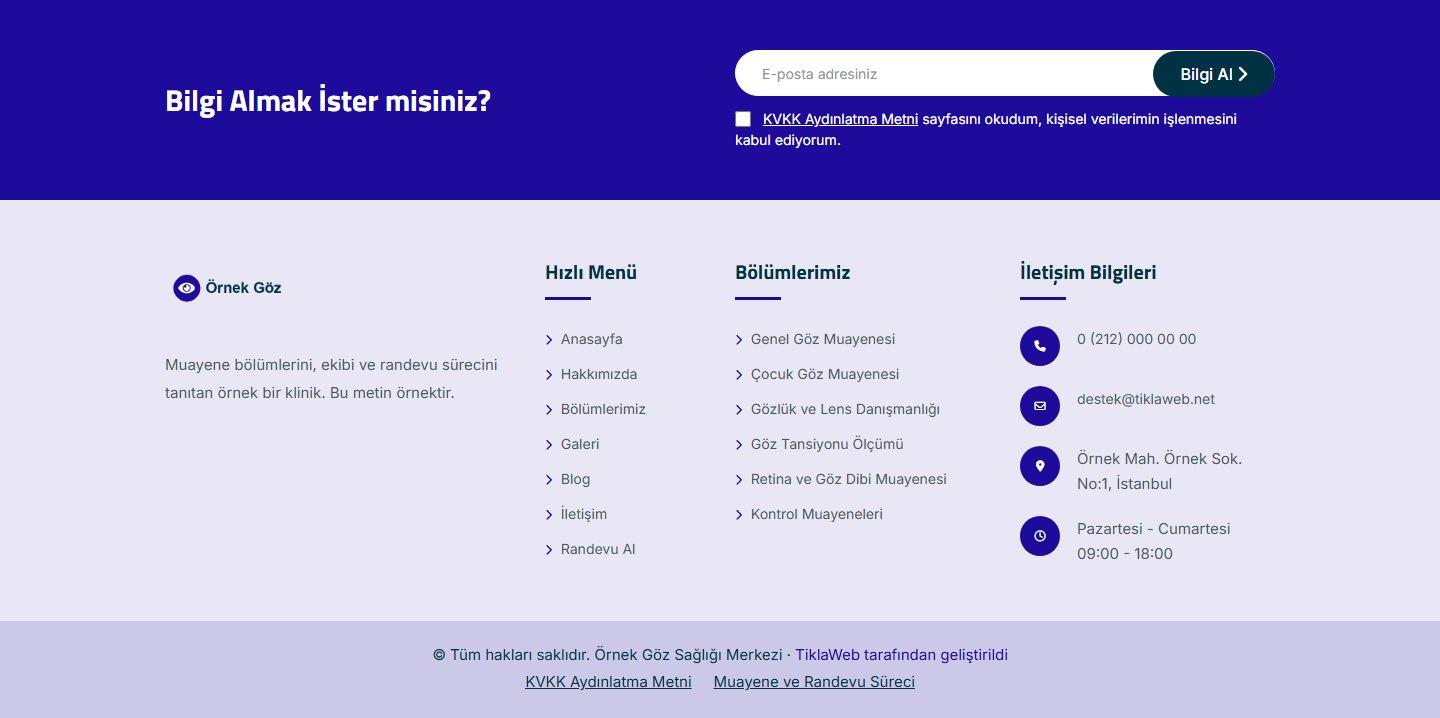
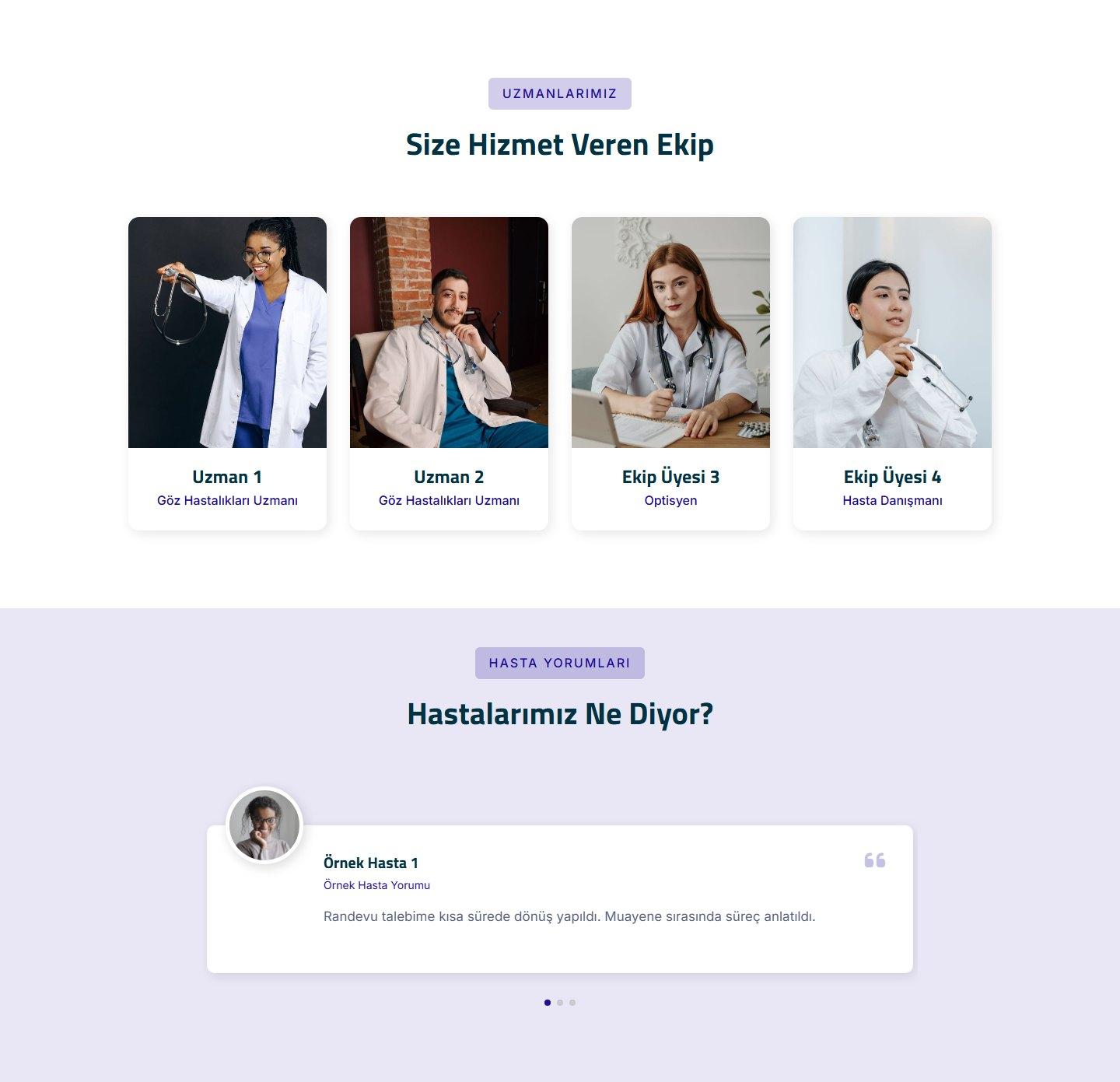
Made for doctors’ practices, clinics, dentists, health centers and the agencies that build sites for them. On the home page, after the hero area come the “Hakkımızda” (About Us) summary, your departments (icon cards), the counter band, the team, patient reviews, the appointment call-to-action, the gallery, the latest posts and the reference logos, in that order. In the “Bilgi al” (Get information) band at the bottom of every page, visitors leave their e-mail address.
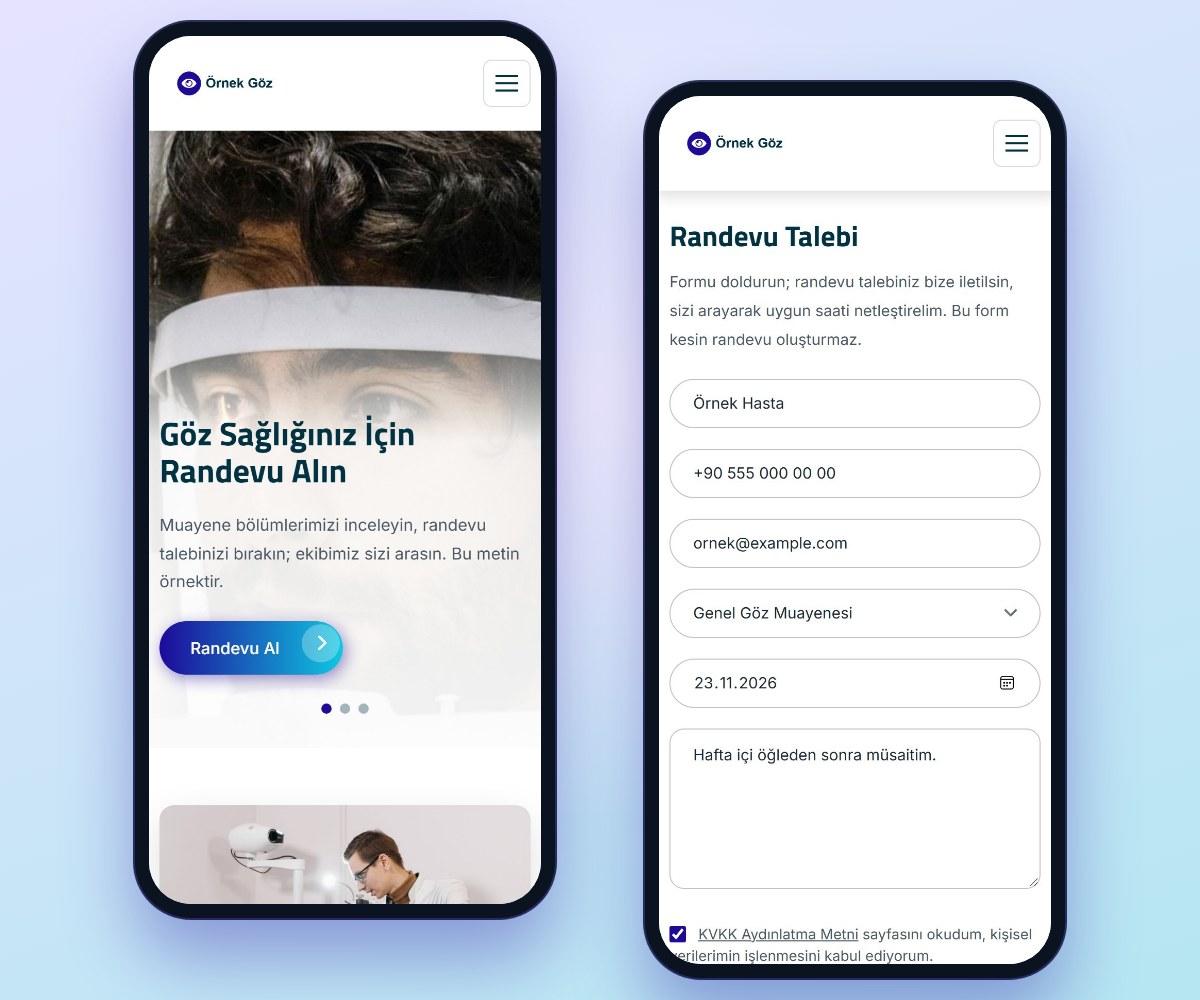
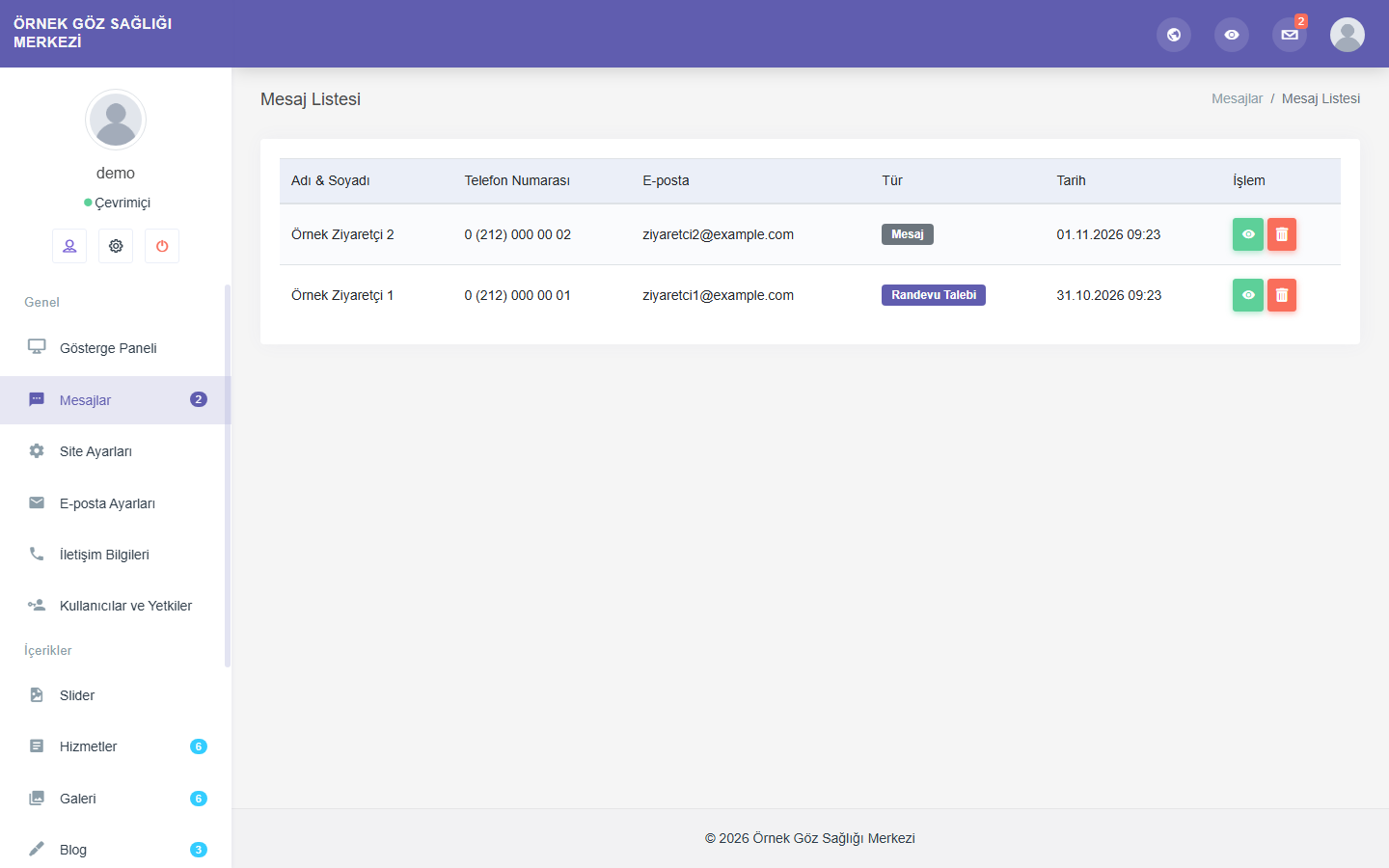
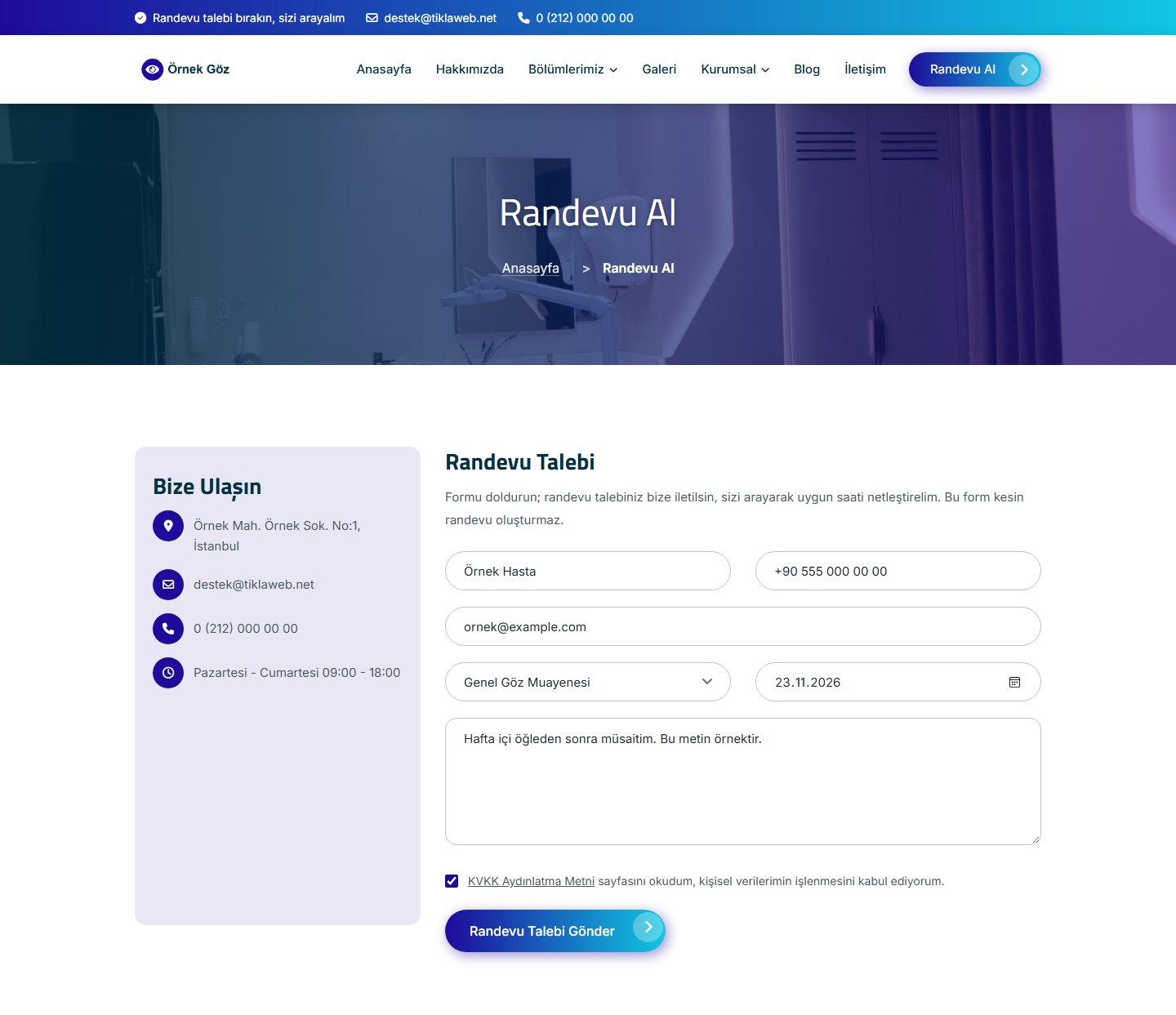
On the “Randevu Talebi” (Appointment Request) form the visitor writes a name, a phone number and an e-mail address, and may add a department and a preferred date. The request lands in the “Mesajlar” (Messages) list in the panel with the type “Randevu Talebi” (Appointment Request) and is counted separately on the “Gösterge Paneli” (Dashboard). You call the visitor and settle the time. The site has no online appointment system: the form does not create a confirmed appointment, offers no calendar or time selection, and you answer the requests yourself.
You do not need to know how to code. The browser wizard handles the installation, and you enter your content in the admin panel.
Scope
This script is an information website. Services are presented as “departments”: each department has a card, an icon and a page of its own. Next to the departments come the team, the gallery, the blog, the frequently asked questions and the appointment request form; there are no store features (product showcase, shopping cart, online payment). We recommend looking at the demos before you decide.
Website features
Home page
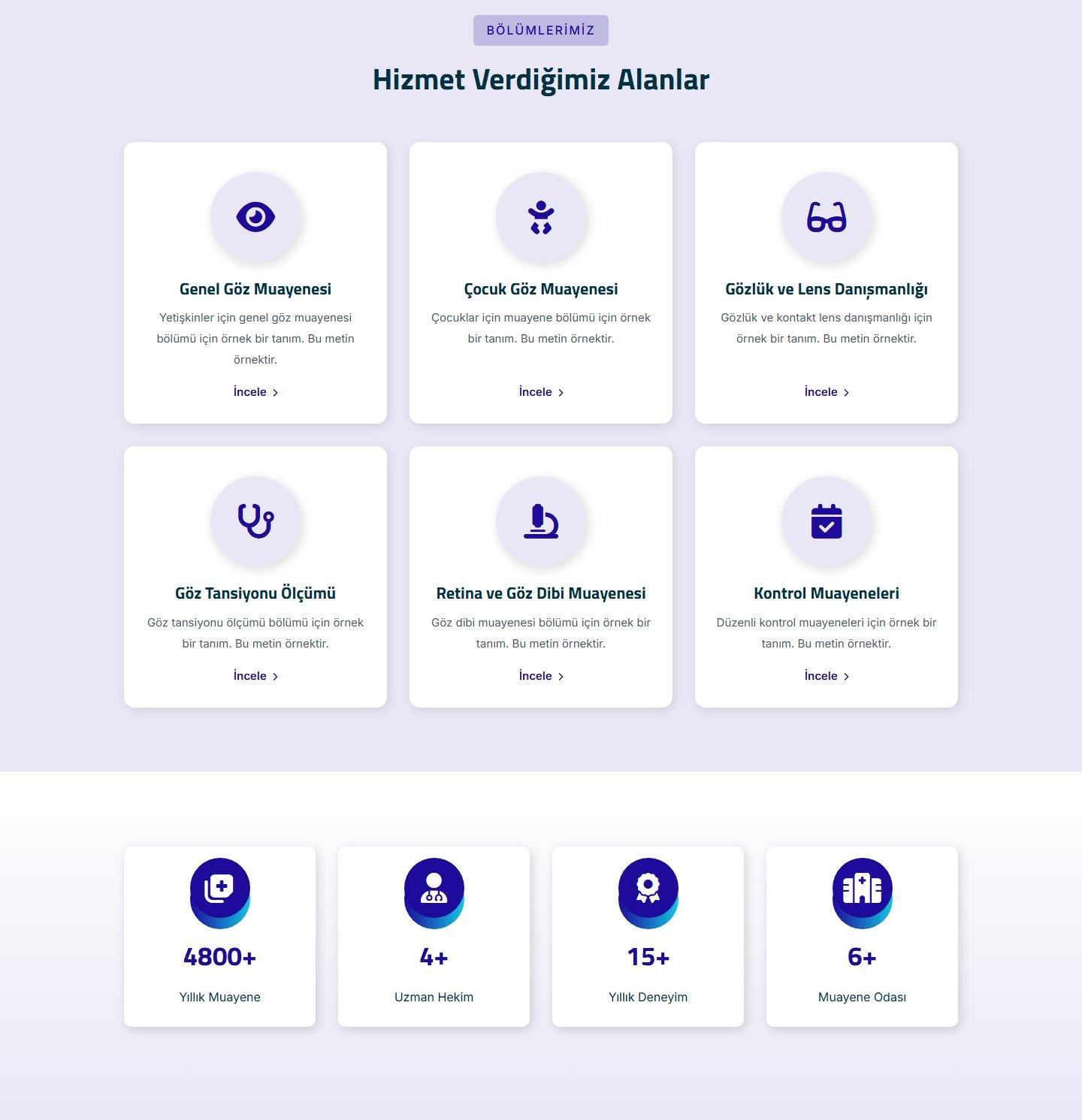
- Order on the home page: hero area, “Hakkımızda” (About Us) summary, departments, counter band, team, patient reviews, appointment call-to-action, gallery, latest blog posts and reference logos. A section with no entries does not appear.
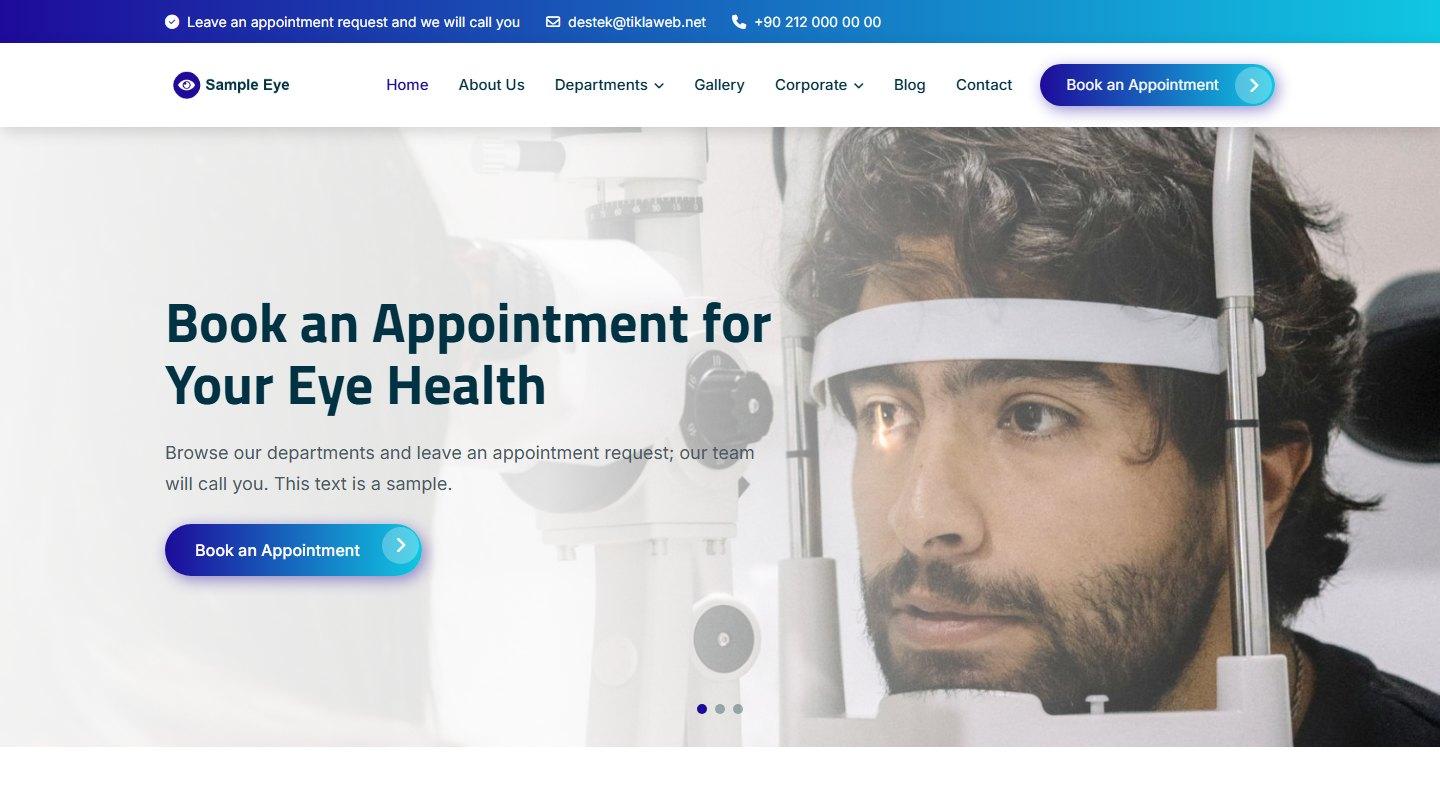
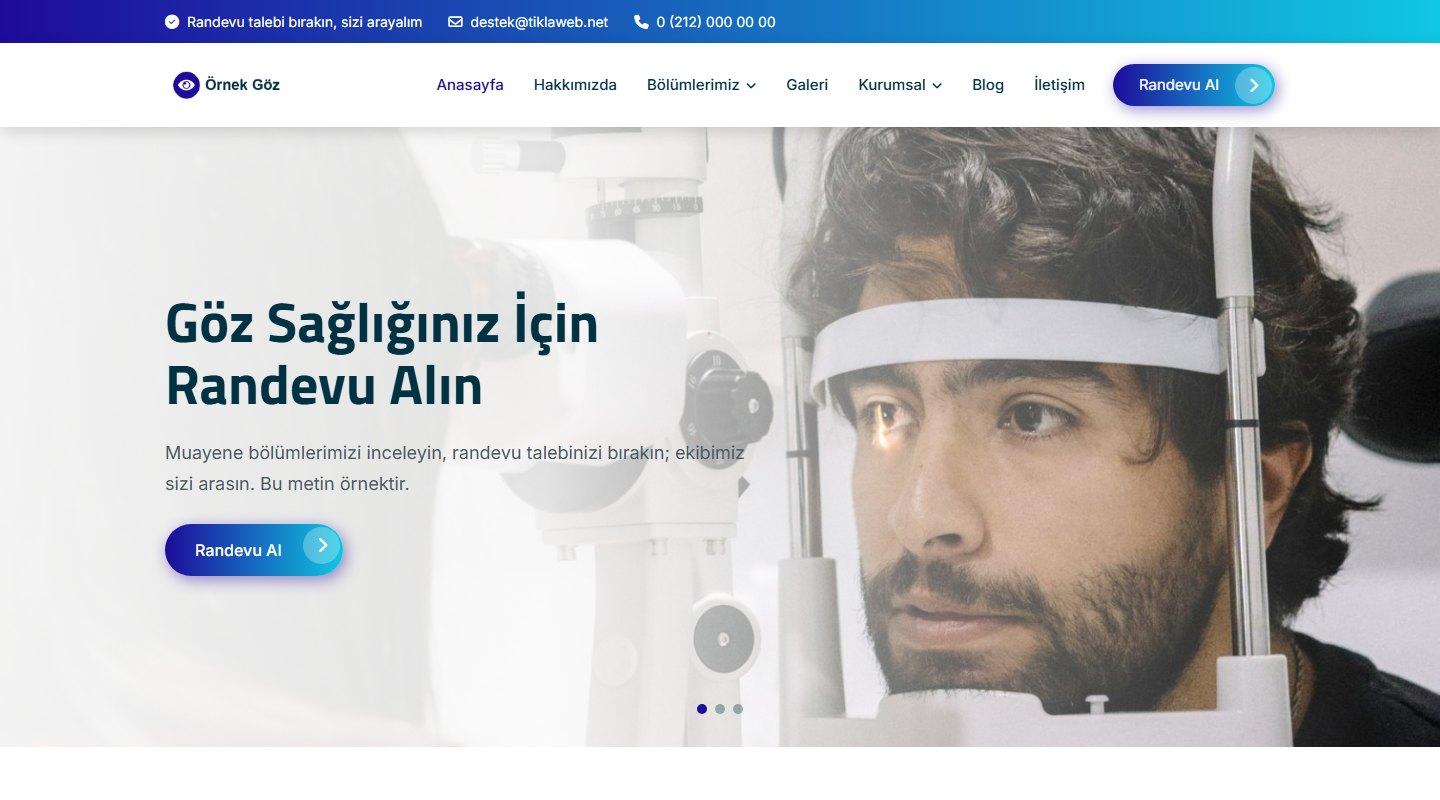
- Header and menu: at the top there is a short text you write in the panel, e-mail, phone and social media icons; below it come the logo, the menu and the appointment button. Details you leave empty do not appear. When you scroll, the menu stays fixed at the top of the screen. On small screens the menu turns into a drawer that slides in from the side.
- Multi-slide hero: you add slides under “Slider”. For each slide you enter two lines of text; the button text, the button link and the image are optional (the button is shown only when both text and link are filled in). The image becomes the full-width background of the hero area. The button link can be one of the site’s own pages (for example randevu, hizmetler, galeri) or an external address. At most ten slides are shown. With more than one slide, the hero area changes with a fade, dots appear at the bottom and the slides rotate by themselves; on devices with the reduce-motion setting on, the automatic transition is off. If you add no slide, the site title and description are shown.
- “Hakkımızda” (About Us) summary: the heading, a short text and an optional image on the home page; the “Devamını oku” (Read more) button below leads to the “Hakkımızda” page.
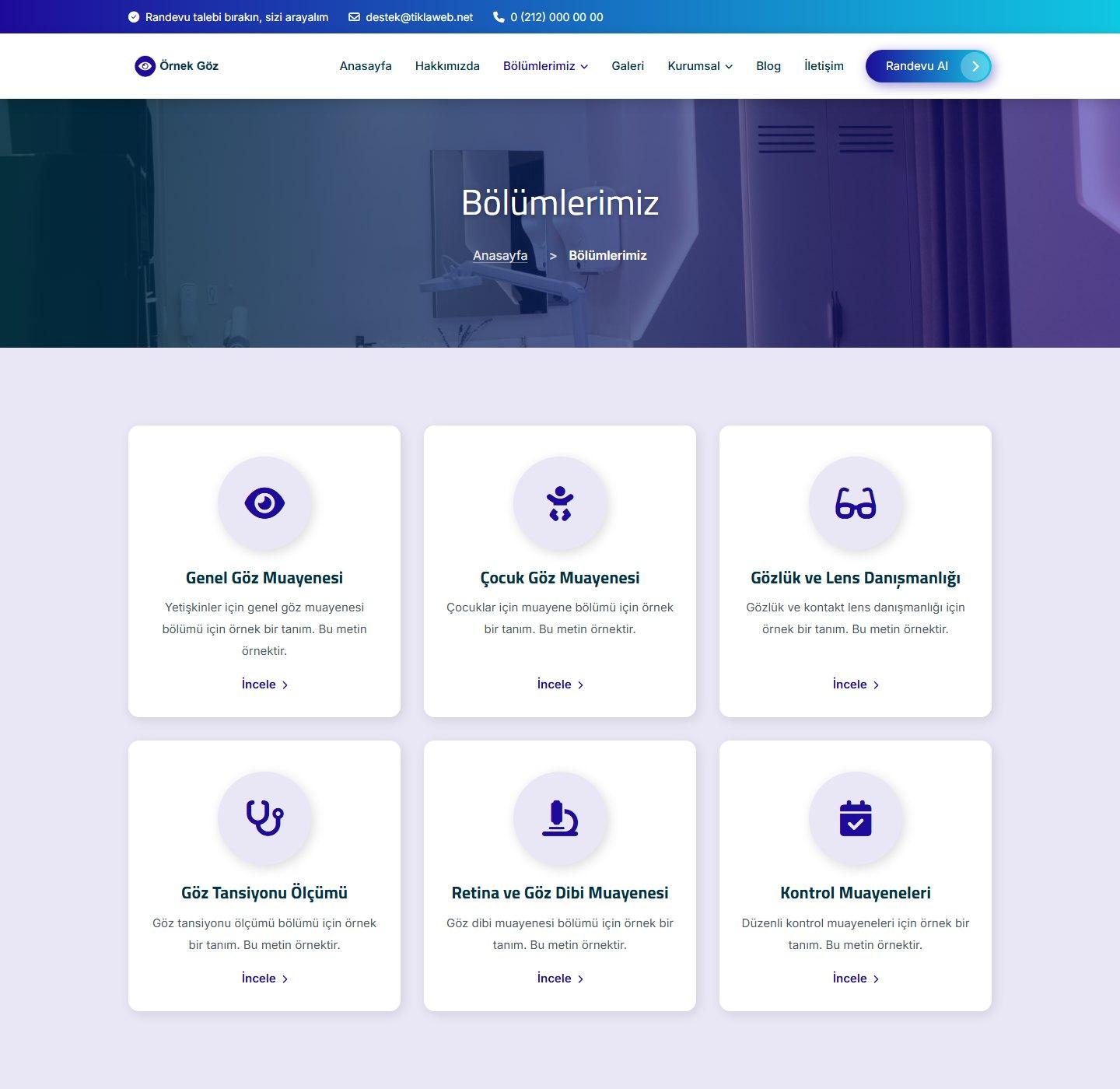
- Departments: the first six published departments are shown as cards: the icon you choose, the department name, a short description and an “İncele” (View) link. If you have more than six, a “Tüm Hizmetler” (All Services) button appears below the section. You choose the icon from a ready-made list of medical icons in the panel (stethoscope, doctor, eye, tooth, heart, baby, microscope and so on).
- Counter band: you enter your figures with a name, a number and an icon (for example the number of specialist doctors, years of experience). The numbers count up from zero when they come into view; on devices with the reduce-motion setting on, the value is shown directly. An entry with the value 0 is not shown, and with no entries the band does not appear.
- Team: the published team members are shown as cards with a photo, a name and a position; they appear on the home page and on the “Hakkımızda” page. This is where you introduce your doctors and the rest of the team.
- Patient reviews: reviews are shown in a slider: name, title line, review and an optional photo. With more than one review the slider moves by itself; you can also use the dots or swipe.
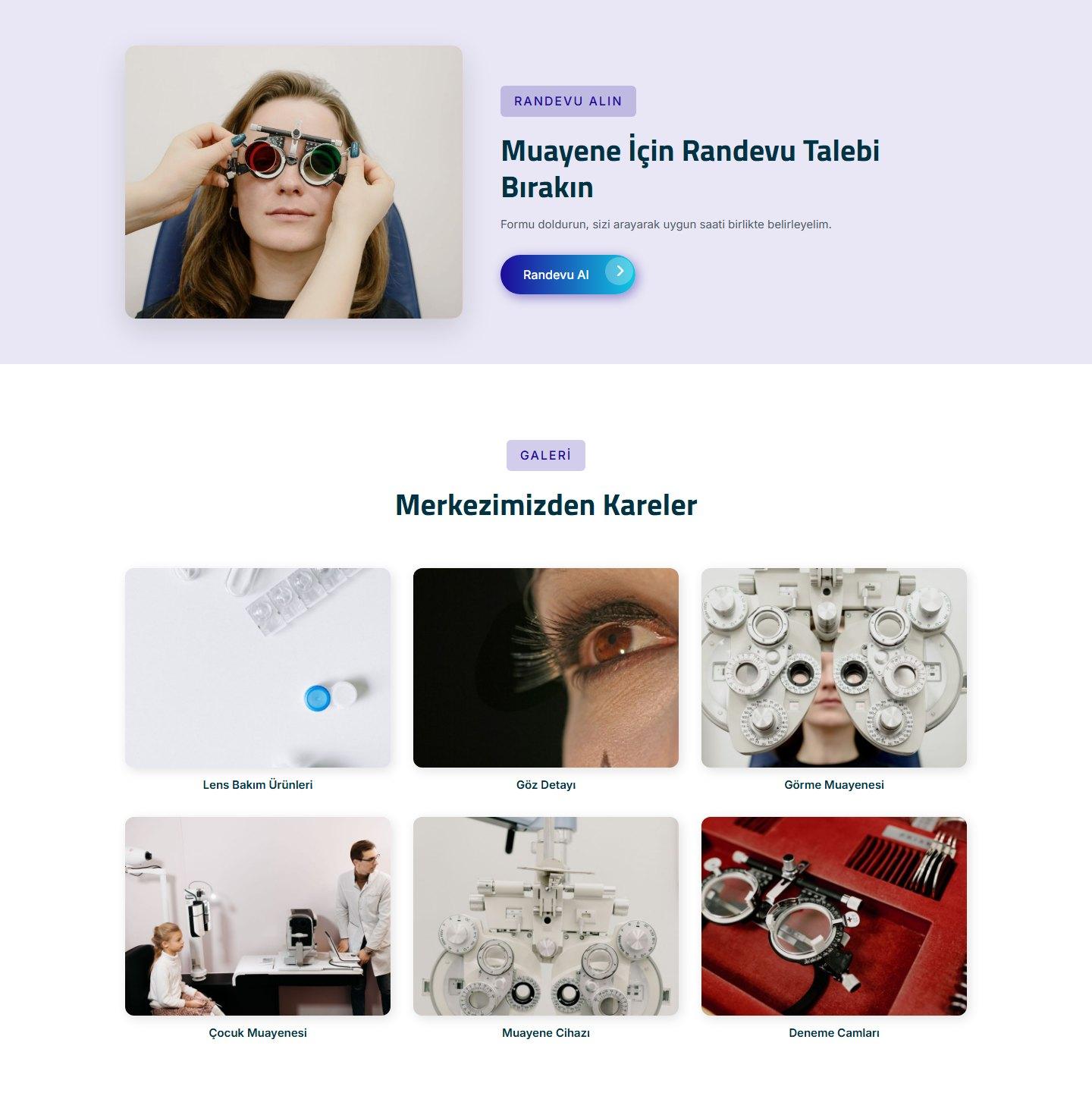
- Appointment call-to-action: a heading, a short text, an optional image and an appointment button. If “Randevu Talebi” is on, the button leads to the appointment page; otherwise (if “İletişim” is on) it leads to the contact page; if both are off, no button is drawn.
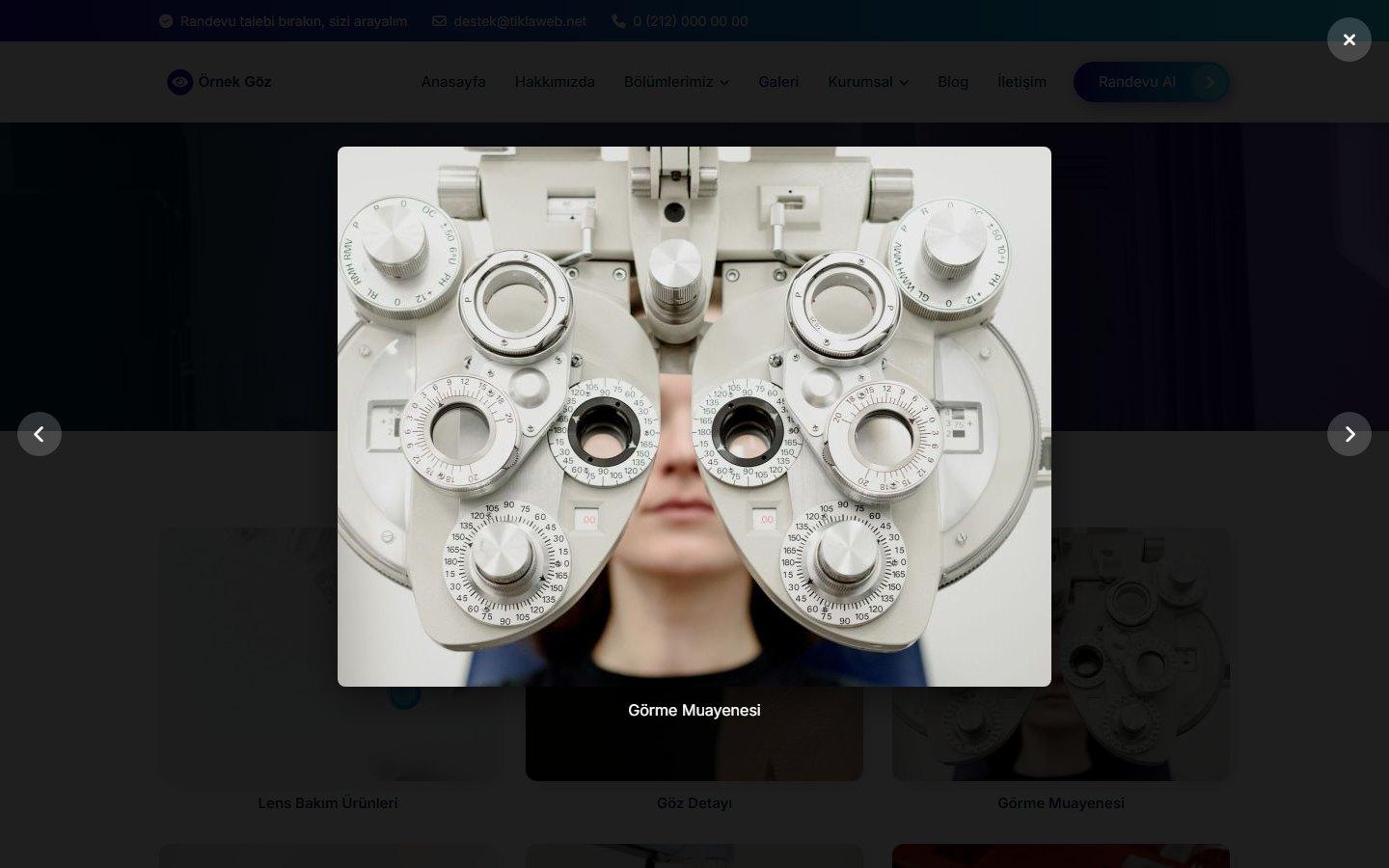
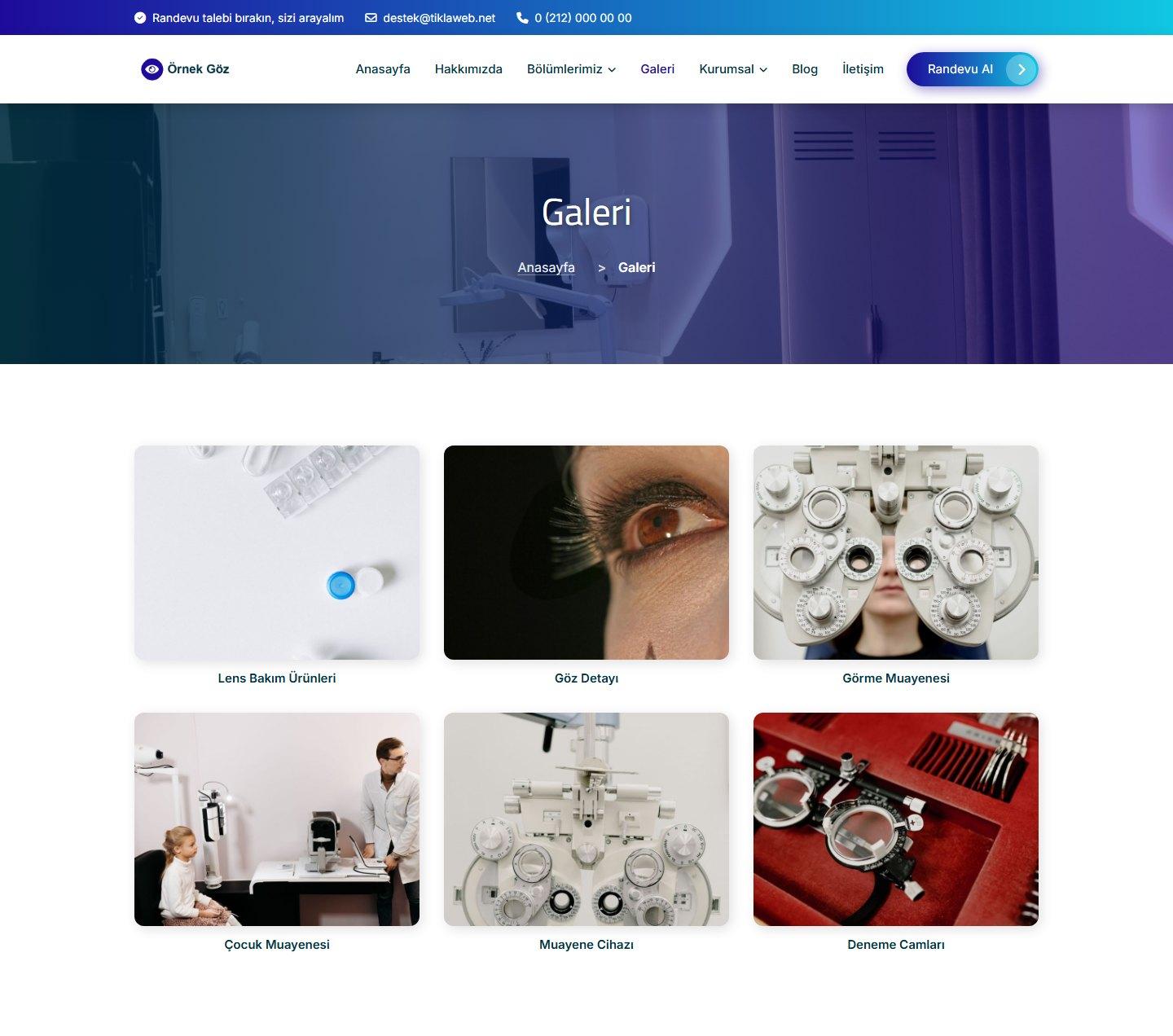
- Gallery: the last six images are shown on the home page; if there are more, a “Tüm Galeri” (All Gallery) button appears. Clicking an image opens a large view.
- Latest posts: the three newest blog posts are shown with an image, a date, the author and a short text.
- Reference logos: the logos sit in a slider at the bottom of the page; if there are more logos than fit on the screen, the slider moves by itself.
Departments and gallery
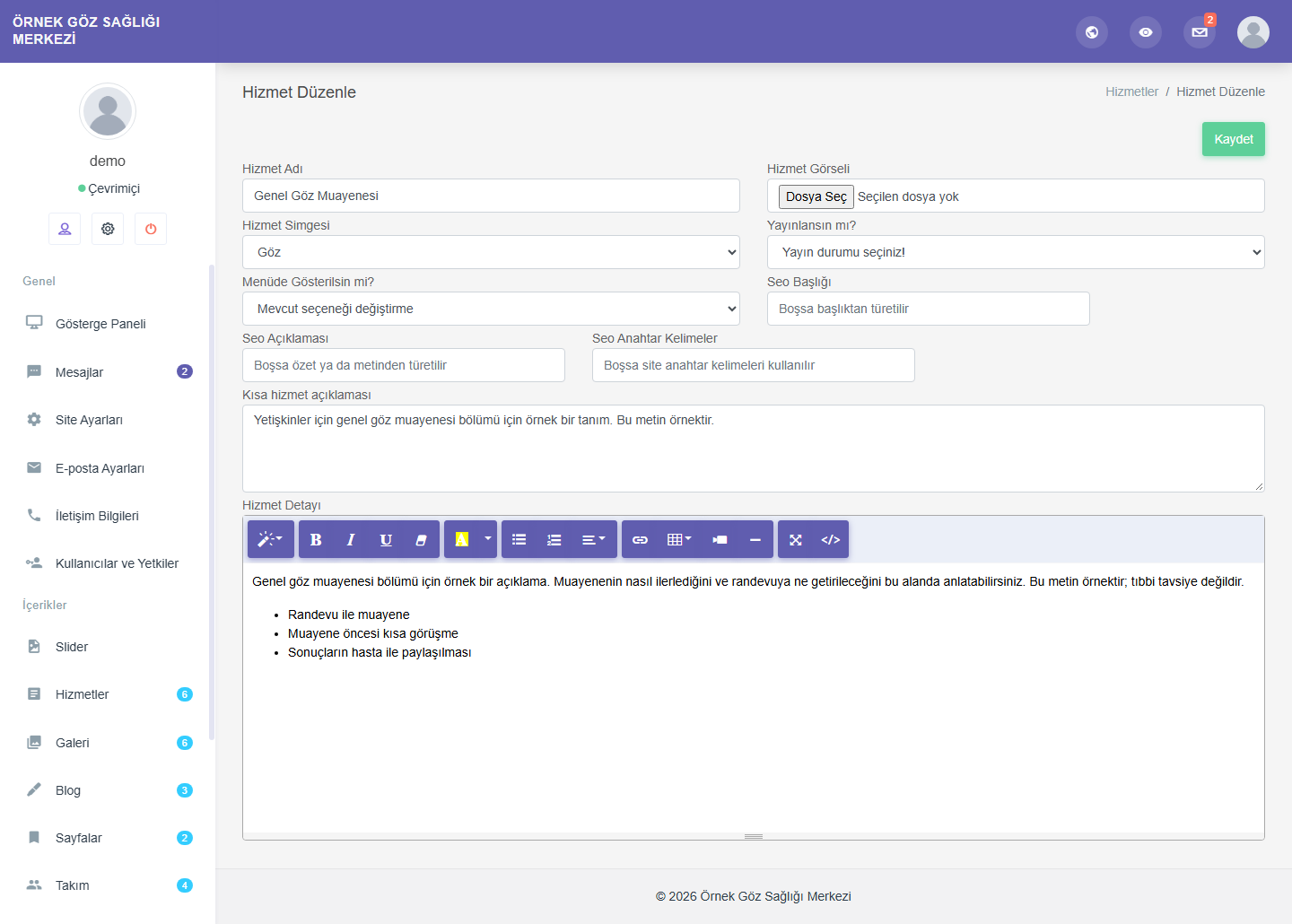
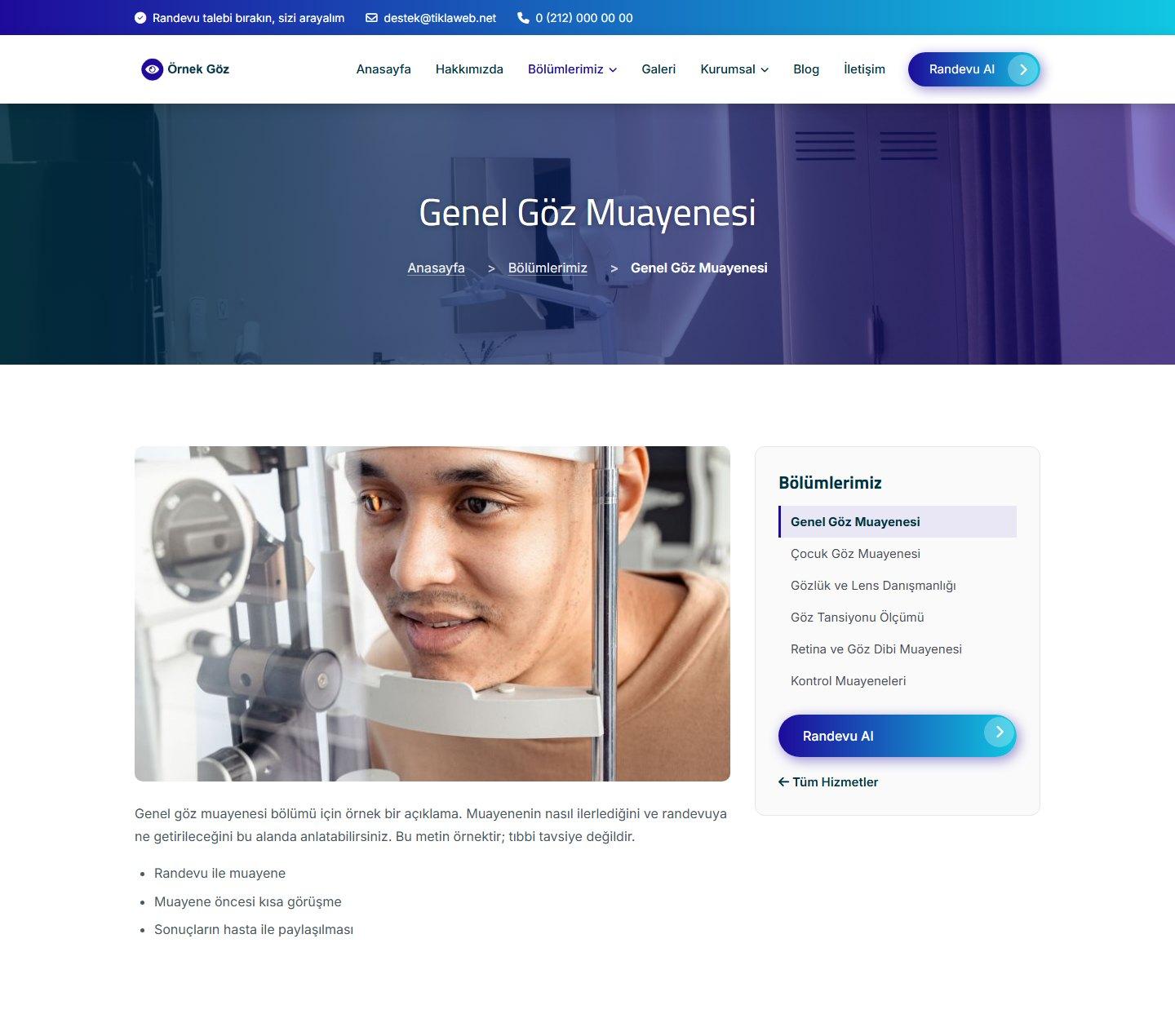
- Departments (services): for each department you enter a name, an image, an icon, a short description and a detailed text with rich formatting; there are options for whether it is published and whether it is shown in the top menu. All published departments are listed as cards on the “Hizmetler” (Services) page. Every department has its own page; the card next to it holds the department list, the appointment button and a “Tüm Hizmetler” (All Services) link. The departments you choose appear as a drop-down list in the top menu and in a separate column in the footer.
- Appointment request from a department: the appointment button on a department page opens the “Randevu Talebi” (Appointment Request) form with that department already selected. The visitor can pick another department or leave it empty.
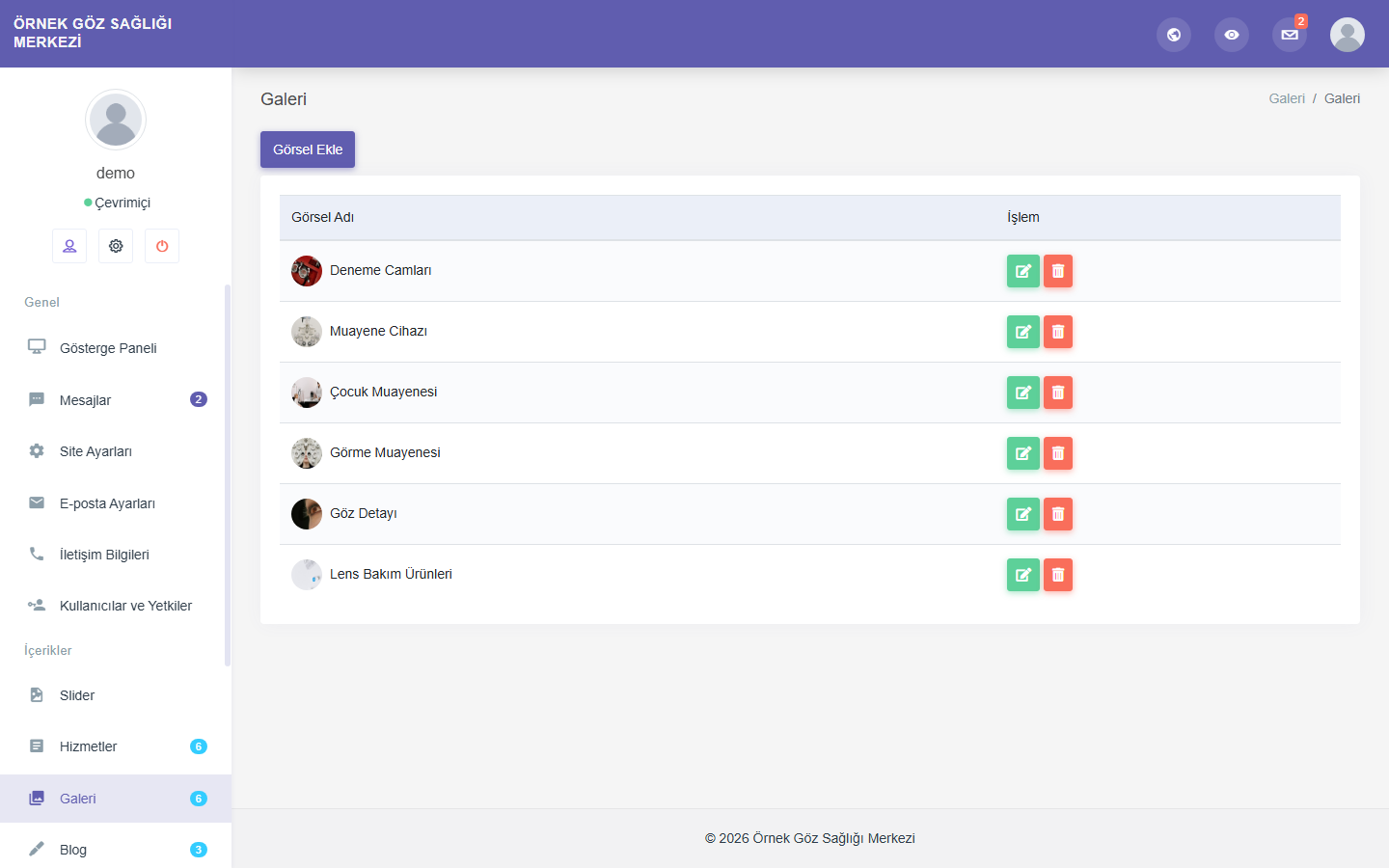
- Gallery: under “Galeri” (Gallery) in the panel you add records with an image name and an image. On the gallery page the images are listed in a grid; clicking opens a large view that closes with Esc on the keyboard and is browsed with the arrow keys or the previous/next buttons. If no image has been added, the menu link and the page do not appear.
Appointment request and contact
- “Randevu Talebi” (Appointment Request) page: full name, phone and e-mail are required. The department (from the published departments), a preferred date (from today up to one year ahead) and a note (at most 2000 characters) are optional. The KVKK consent checkbox is required. The page states that the form does not create a confirmed appointment; after sending, the visitor sees the message “Randevu talebiniz alındı” (Your appointment request has been received).
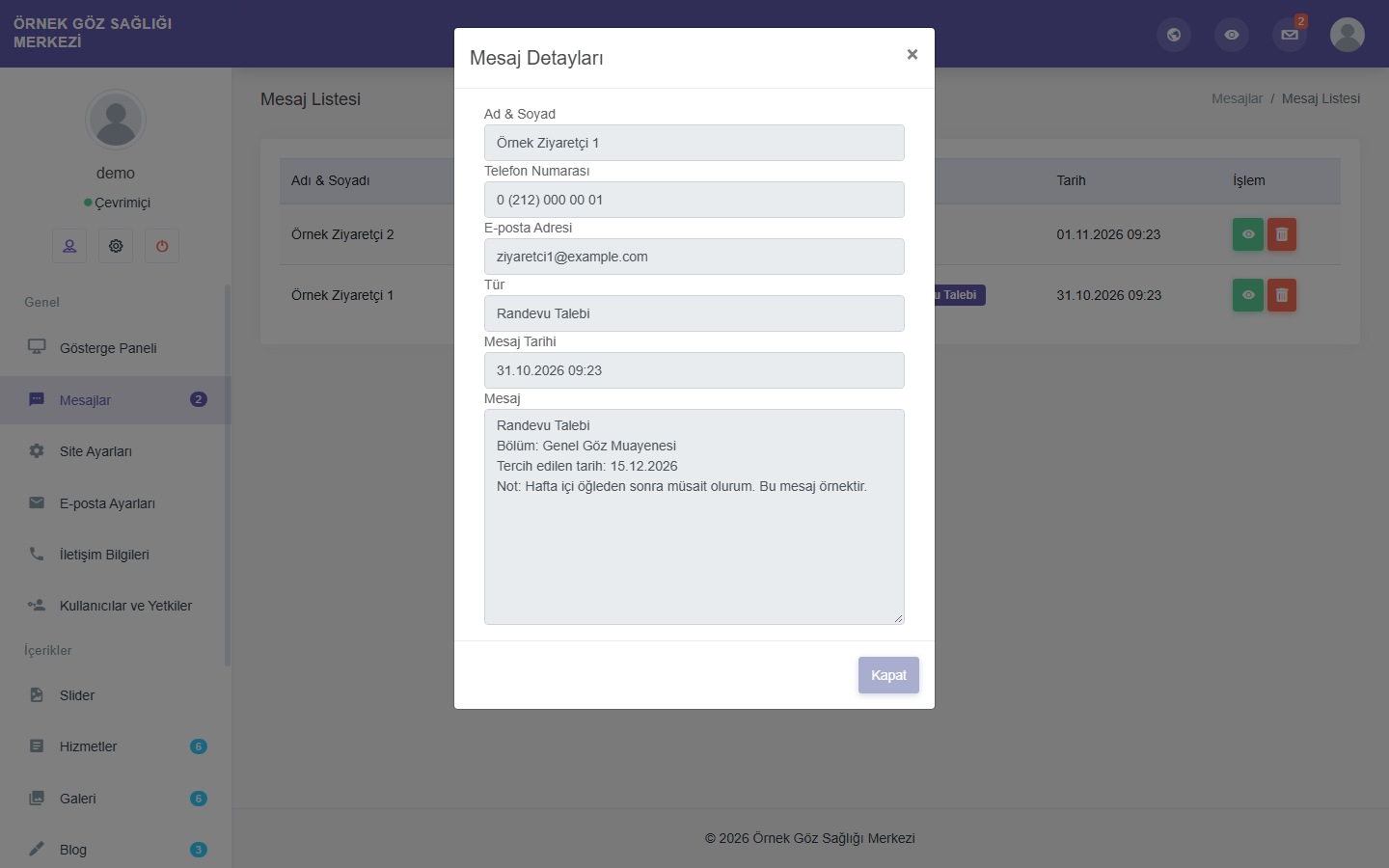
- How the request appears in the panel: the entry lands in the “Mesajlar” (Messages) list with the type “Randevu Talebi” (Appointment Request); the message text holds the department, the preferred date and the note. A Type column in the “Mesajlar” and “Gösterge Paneli” (Dashboard) lists separates appointment requests from contact messages; the “Gösterge Paneli” has an “Randevu talepleri” (Appointment requests) counter.
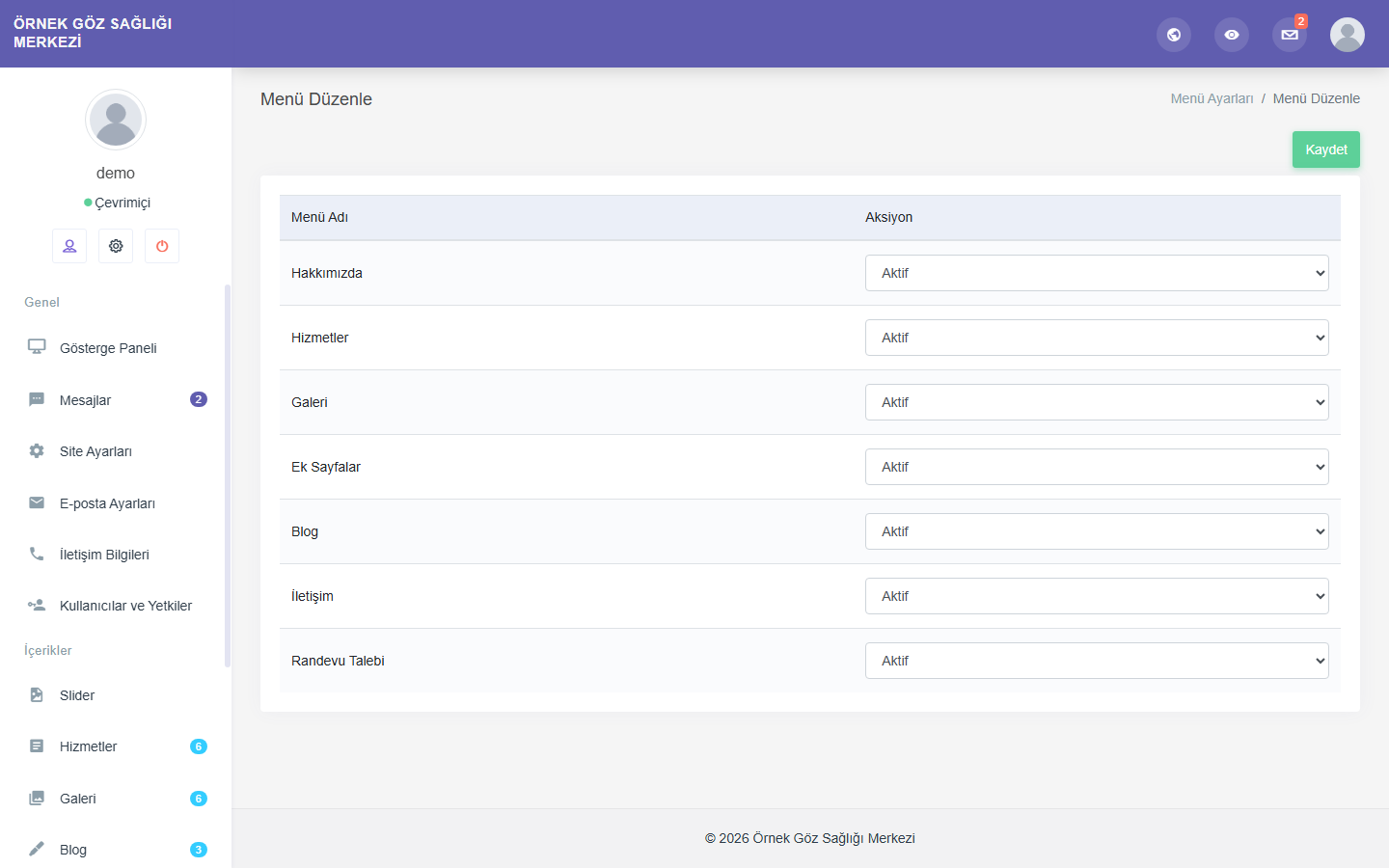
- Switching “Randevu Talebi” off: when you set “Randevu Talebi” to passive in “Menü Düzeni” (Menu Layout), the appointment page shows a “page not found” (404) page; the appointment button in the menu, the link in the footer and the appointment button on department pages are not drawn. You change the name of the button (“Randevu Al”, Book an Appointment) on the “Menü İsimleri” (Menu Names) page.
- Contact page: a form with full name, phone, e-mail and message fields, all required. The page also holds a list with address, phone, e-mail and working hours, social media icons and, if you like, a map (Google Maps or OpenStreetMap embed code); details and map you leave empty do not appear.
- “Bilgi al” (Get information) box: it sits in a band at the bottom of every page. The visitor writes only an e-mail address and ticks the KVKK consent; the entry lands in the “Mesajlar” (Messages) list. You change the heading and the button text of the band on the “Başlıklar ve yazılar” (Headings and Texts) page. The box works even if “İletişim” (Contact) is switched off in “Menü Düzeni” (Menu Layout).
- E-mail to you: once you set up “E-posta Ayarları” (E-mail Settings) and switch notifications on, appointment requests, contact form messages and “Bilgi al” (Get information) messages also reach you by e-mail. When you reply to the e-mail, the reply goes to the visitor’s address. Even if you do not set up e-mail, the entries are listed in the panel. No e-mail is sent to the visitor.
- KVKK consent checkbox: required in the appointment request form, in the contact form and in the “Bilgi al” (Get information) box. KVKK is the Turkish personal data protection law. The privacy notice link points to the page you choose under “Site Ayarları” (Site Settings); the same link also appears in the bottom bar of the site. The text that comes with the sample content is only a sample; you must prepare your own privacy notice with your legal adviser.
Inner pages
- “Hakkımızda” (About Us): heading, an optional image and rich text; below it come the “Why Us” cards, the team and the frequently asked questions. You enter the “Why Us” cards under “Öne Çıkanlar” (Highlights) in the panel (title, short description, icon) and the questions under “Sıkça Sorulan Sorular” (Frequently Asked Questions); the questions appear as an expandable list and the first one is open. A section with no entries does not appear.
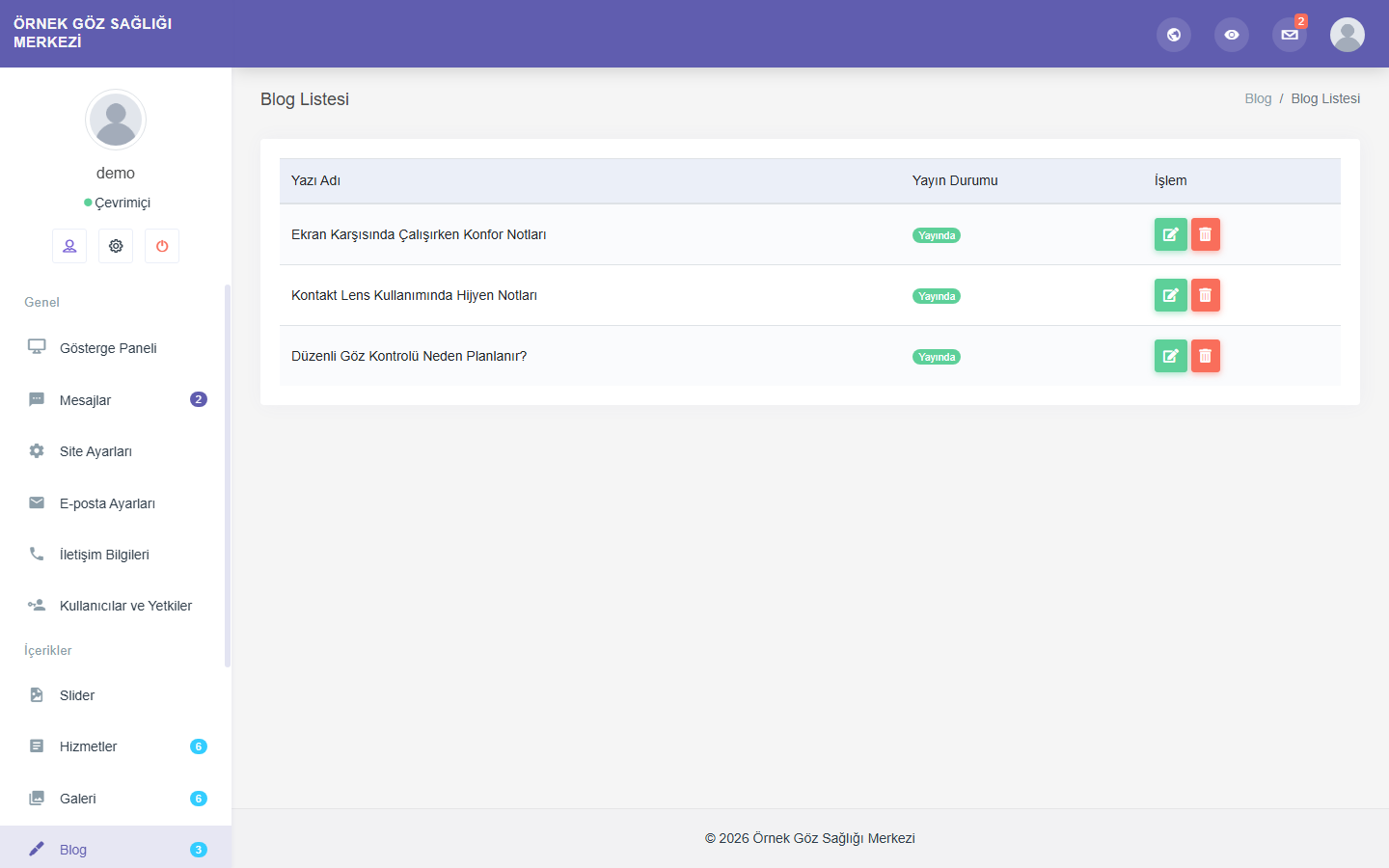
- Blog: you publish articles with a title, an image, a short text and rich text. The author name is optional. The date an article is added is saved automatically and shown as, for example, “25 Ekim 2026”. The list is sorted with the newest article first. An article that is not published does not appear on the site.
- Extra pages: you add as many pages as you like from the panel (for example the KVKK privacy notice or a careers page). Under “Menüler” (Menus) you create a menu heading and show the page under it in the top menu as a drop-down list; if you like, you also add it to the links in the bottom bar of the site.
Menu, headings and appearance
- Menu names and layout: on the “Menü İsimleri” (Menu Names) page you write the names “Hakkımızda” (About Us), “Hizmetler” (Services), “Galeri” (Gallery), “Blog” and “İletişim” (Contact), and the name of the appointment button, in your own words. On the “Menü Düzeni” (Menu Layout) page you switch “Hakkımızda”, “Hizmetler”, “Galeri”, “Ek Sayfalar” (Extra Pages), “Blog”, “İletişim” and “Randevu Talebi” (Appointment Request) on or off one by one. A section that is switched off disappears from the top menu and from the footer, and its pages show a “page not found” (404) page; the “Hakkımızda” summary, the departments, the gallery and the latest posts on the home page do not appear either. “Ek Sayfalar” are only shown or hidden in the top menu, and their pages always stay open; access to pages such as the KVKK privacy notice is not cut off.
- Headings and texts: with 22 fields on the “Başlıklar ve yazılar” (Headings and Texts) page you change the text of the top strip, the headings and sub-texts of the sections (About Us, departments, “Neden biz” (Why Us), frequently asked questions, patient reviews, appointment call-to-action, blog, team, gallery) and the heading and button text of the “Bilgi al” (Get information) band at the bottom of the site; each field states where it appears on the site.
- Colors: under “Site Ayarları” (Site Settings) you choose two colors. The main color is applied to buttons, links, the menu, active and hovered items and accents. The dark color is applied to heading and menu text, the “Bilgi al” (Get information) button and the title band of the inner pages. The text color on top of the colors is chosen automatically to fit the background.
- Logo, favicon and images: the logo (shown in the header, in the mobile menu and in the footer; you upload it in the “Koyu Logo” (Dark Logo) field, and if it is empty the “Açık Logo” (Light Logo) is used) and the favicon are uploaded under “Site Ayarları” (Site Settings). On the “Görseller” (Images) page you change the image of the “Neden biz” section, the image of the frequently asked questions section, the image of the appointment call-to-action and the background image of the inner-page title band.
- Contact details and social media: you enter your phone, e-mail, address and working hours, and your Facebook, Twitter, Instagram, YouTube, LinkedIn, TikTok and WhatsApp links. They appear in the top part of the site, on the contact page and in the footer; only the ones you fill in are shown.
- Footer and credit: the footer holds the logo with the text of the “Footer Hakkımızda Yazısı” (Footer About Text) field from the “Hakkımızda” (About Us) page, the quick menu, a column with the departments shown in the menu, and your contact details; the bottom bar holds the copyright line, the KVKK link and the pages you set to show in the footer. You can change or remove the “TiklaWeb tarafından geliştirildi” (Developed by TiklaWeb) line at the bottom of the site.
Mobile and search engines
- Mobile friendly: the site adapts to phone, tablet and desktop screens; on small screens the menu turns into a drawer that opens on tap, and a “back to top” button appears at the bottom right once you scroll.
- Page-specific title and description: every page carries its own title (“Page | Company”), description and social sharing (Open Graph) tags. On department, blog and extra pages you can also enter the title, description and keywords in the panel. You enter the site title, description and keywords under “Site Ayarları” (Site Settings).
Admin panel
- “Gösterge Paneli” (Dashboard): the numbers of services, gallery images, team members, posts, appointment requests and messages, plus the list of the last ten entries (with a type column). The side menu shows the number of messages as a badge.
- “Mesajlar” (Messages): appointment requests, contact form messages and “Bilgi al” (Get information) entries are collected in a single list. Name, phone, e-mail, type and date appear in the list; in the details window you read the message, and you can delete the entry.
- Content management: you add, edit and delete content under “Slider”, “Hizmetler” (Services), “Galeri” (Gallery), “Blog”, “Sayfalar” (Pages, with menu headings), “Takım” (Team), “Öne Çıkanlar” (Highlights), “Sayaçlar” (Counters), “Müşteri Yorumları” (Customer Reviews), “Referanslar” (References), “Sıkça Sorulan Sorular” (Frequently Asked Questions) and “Hakkımızda” (About Us). The Summernote editor is used in rich-text fields.
- Menu and images: “Menü Düzeni” (Menu Layout), “Menü İsimleri” (Menu Names), “Başlıklar ve yazılar” (Headings and Texts) and “Görseller” (Images) manage the menu, the section headings and four images of the site.
- “E-posta Ayarları” (E-mail Settings): you enter the SMTP server, port, encryption, e-mail account, password and notification address; once you switch notifications on, the appointment request, contact form and “Bilgi al” (Get information) e-mails work.
- “Site Ayarları” (Site Settings) and “İletişim Bilgileri” (Contact Information): “Site Ayarları” holds the site title, keywords, description, copyright line, the two colors, KVKK privacy page, site language, panel language, logos and favicon. “İletişim Bilgileri” is a separate page: phone, e-mail, address, social media links, working hours and map code.
- Users and permissions: you add administrator, editor and read-only accounts. The editor manages the content sections; “Kullanıcılar ve Yetkiler” (Users and Permissions), “Site Ayarları” (Site Settings), “İletişim Bilgileri” (Contact Information), “E-posta Ayarları” (E-mail Settings) and “Opsiyonel Kodlar” (Optional Codes) are open only to the administrator. Permissions are enforced on the server.
- Forgot password: the link on the panel login page resets the password by e-mail (if “E-posta Ayarları” (E-mail Settings) is set up). The reset link is valid for 1 hour and can be used once.
- “Opsiyonel Kodlar” (Optional Codes): you add your own code (for example a statistics script) to the top (head) and the end of the site. This field is open only to the administrator.
Setup and updates
- Five-step setup wizard: requirements, license, database, site and administrator details, finish. The wizard checks your server itself.
- Setup language: in the wizard, choose Turkish or English at the top right. With an English installation, the starting and sample content is in English too.
- Sample content or empty setup: start filled in like the demo and edit from there, or enter your content from scratch. The message list starts empty in both cases.
- Update from the panel: download the zip package of the new version from your tiklaweb.net customer area and upload it on the “Güncelleme ve Lisans” (Updates and License) page of the admin panel. Files and database are backed up first. If an error occurs, the site returns to its previous state. Your uploaded images, settings and content are kept.
- Verified packages: the signature of the update package is checked; only packages downloaded from tiklaweb.net are installed.
A detailed setup guide comes in the package you download as the KURULUM.html file (written in Turkish).
License
Each license is for the single domain name you specify when ordering. A domain name change is a paid service and is handled through a support request. The license cannot be transferred free of charge. The site does not open on an unlicensed domain and the visitor is redirected to a license warning page. A separate license is required to use it on another domain.
Technical details
- PHP 8.2 or higher, MySQL or MariaDB
- Framework: CodeIgniter 4. Site: Bootstrap 4 (styles only), Swiper and Font Awesome Free 6; the typefaces (Inter and Titillium Web) are kept locally in the package and no external font service is called. Panel: Bootstrap 4, jQuery and the Summernote content editor
- E-mail is sent with PHPMailer 6.9; the SMTP password is stored encrypted. A form entry is saved to the database first; if the server supports it, the e-mail is sent after the visitor has received the response
- Interface texts are kept in the language files in the package (Turkish and English included, a new language can be added)
- Signed form token and a hidden trap field on the site forms, CSRF verification on panel actions; attempt limits on panel login, password reset, the appointment request form, the contact form and the “Bilgi al” (Get information) box
- The type of images uploaded from the panel is verified from content (JPG, PNG, WebP; at most 8 MB) and, if the GD extension is on, they are converted to WebP; PHP does not run in the upload folder
- The panel’s rich text fields are filtered on the server when saved (HTMLPurifier); the admin panel sends a Content Security Policy (CSP) header; administrator passwords are stored hashed
- The map area accepts only Google Maps and OpenStreetMap embed addresses
- Icon fields accept only the Font Awesome icons in the ready-made list
- Database details and backups are kept in a folder outside the web root if your hosting allows it
- Security headers, HSTS on HTTPS; time zone Europe/Istanbul
- A security audit made of code review and live attack tests was carried out before sale
Demo
Explore the site and admin panel in the read-only demo. The demo is installed in Turkish; in the admin panel you can switch the panel language to English with the globe icon at the top right (the choice is kept only in your browser). The institution name, people, reviews, figures, departments, posts and photos in the demo are sample content. In the demo panel you see two sample records in the “Mesajlar” (Messages) list, one appointment request and one contact message. Social media links and the map are left empty in the demo; once you fill them in the panel, they appear on the site.
- Site: https://017.tiklaweb.net
- Admin panel: https://017.tiklaweb.net/panel
- Demo e-mail: demo@tiklaweb.net
- Demo password: demo1234
Changes cannot be saved in the demo; the appointment request form, the contact form and the “Bilgi al” (Get information) box do not save records or send e-mails. The demo is reset every night. Sensitive pages such as e-mail settings and users cannot be viewed in demo mode, and “Forgot password” is switched off in the demo. These login details are for the demo site only. In the installation you purchase, you set the administrator account yourself.
Support
If you get stuck, open a support ticket from your tiklaweb.net customer area or write to destek@tiklaweb.net.
- Step 1, preparation: On your hosting, set the PHP version to 8.2 or higher and create an empty MySQL/MariaDB database and user.
- Step 2, files: Upload the contents of the public_html folder in the package you downloaded (including the hidden .htaccess file) to the publishing folder of your domain.
- Step 3, wizard: Open your domain in the browser. The setup wizard starts automatically; you can choose Turkish or English with the links at the top of the page.
- Step 4, installation: In the wizard, check the requirements and the license, enter your database details, then your site and administrator details. Choose sample content or an empty setup.
- Step 5, panel: Log in at yourdomain.com/panel with your administrator account and fill in the “Site Ayarları” (Site Settings), “İletişim Bilgileri” (Contact Information) and “E-posta Ayarları” (E-mail Settings) pages, then add your services under “Hizmetler” (Services).
The detailed setup guide comes in the package you download as KURULUM.html (written in Turkish).
2.0.0 — First release for sale
First sales release of the Doctor and Clinic Website Script with Appointment Requests.
Added
- Browser setup wizard (requirement check, license, database, site and administrator steps).
- Option to install with sample content or empty.
- Turkish and English interface for the site, the admin panel and the setup wizard; language selection under “Site Ayarları” (Site Settings); adding a new language by copying the language file.
- Domain-bound license; the site does not open on an unlicensed domain.
- Update from the panel with a zip: automatic backup, return to the previous version on error, content and added language files preserved.
- “Randevu Talebi” (Appointment Request) form: name, phone and e-mail required; department, preferred date and note optional; KVKK consent; the request lands in the “Mesajlar” (Messages) list with the type “Randevu Talebi”. It is not an online appointment system and does not create a confirmed appointment.
- Department (service) cards, department pages and an appointment request that opens with the department selected from the department page; a medical icon for each service (chosen from a ready-made list in the panel), a drop-down list in the top menu for the departments you choose.
- Gallery: adding images from the panel, a grid page, the last six images on the home page, a large view (with keyboard support).
- Team, patient reviews, reference logos, counter band (“Sayaçlar”, Counters), “Neden biz” (Why Us) section (“Öne Çıkanlar”, Highlights) and frequently asked questions; a section with no entries does not appear.
- Full-width hero area with up to ten slides under “Slider”: with more than one slide it changes with a fade and rotates by itself (automatic transition off when reduce motion is set).
- Blog, extra pages and the appointment call-to-action section.
- Contact form and the “Bilgi al” (Get information) box at the bottom of every page; both have a KVKK consent checkbox and a privacy notice link.
- E-mail notification to you for appointment request, contact and “Bilgi al” (Get information) messages.
- Editing the menu with “Menü Düzeni” (Menu Layout, “Randevu Talebi” included) and “Menü İsimleri” (Menu Names) and the section headings with “Başlıklar ve yazılar” (Headings and Texts) from the panel.
- Choice of two colors from the panel (main and dark color); the text color is chosen automatically to fit the background.
- Dashboard counters (services, gallery, team, posts, appointment requests, messages) and the last ten entries; a Type column in the “Mesajlar” (Messages) list.
- Changing or removing the footer credit from the panel.
- Forgot password: reset link by e-mail, valid for 1 hour and usable once.
- Administrator, editor and read-only user permissions.
Fixes
- Invalid addresses and addresses of services and posts that are not published show a 404 page instead of an error.
- The pages of a section switched off in “Menü Düzeni” (Menu Layout) show a 404 page; links to that section are not drawn on the site.
- Image, social media and map fields left empty are not drawn on the site.
Security
- Signed token or CSRF verification, attempt limits and permission checks on forms and panel actions.
- The type of images uploaded to the panel is verified from content.
- The panel’s rich text fields are filtered when saved, and a Content Security Policy was added to the panel.
- Administrator passwords are stored hashed and the SMTP password is stored encrypted.
The setup guide is the KURULUM.html file inside the package.
Doctor and Clinic Website Script with Appointment Requests
Health & Clinic- Ready-made website for doctors and clinics: departments, team, gallery, patient reviews, appointment request form, blog. Wizard setup, Turkish and English.
| Released | 2 November 2026 |
|---|---|
| Last Update | 2 November 2026 |
| Version | 2.0.0 |
| Built With | PHP 8.2+, MySQL/MariaDB, CodeIgniter 4, Bootstrap, jQuery, Swiper, Font Awesome 6, Summernote, PHPMailer |
| Pages Included | 10 ready-made sections |
| License | 1 domain, lifetime use |
| Updates | Included while active |
- PHP 8.2 or higher
- PHP extensions: pdo_mysql, mysqli, intl, mbstring, openssl, curl, zip, fileinfo, json, sodium (gd recommended)
- MySQL or MariaDB: a new, empty database. Enter localhost in the database server field.
- A domain name and an SSL certificate are recommended. The site comes with an HTTPS redirect rule.
- Apache-based hosting with .htaccess and mod_rewrite support
- Writable folders: tiklaweb, writable (with its cache, logs and session subfolders), public/uploads
- For the form e-mails, the SMTP details provided by your hosting company (entered on the “E-posta Ayarları” (E-mail Settings) page)
- The site and the admin panel come in Turkish and English, and a new language can be added. The setup guide (KURULUM.html) is in Turkish.
Other Products
Browse All Products
Home Appliance Repair Service Website Script
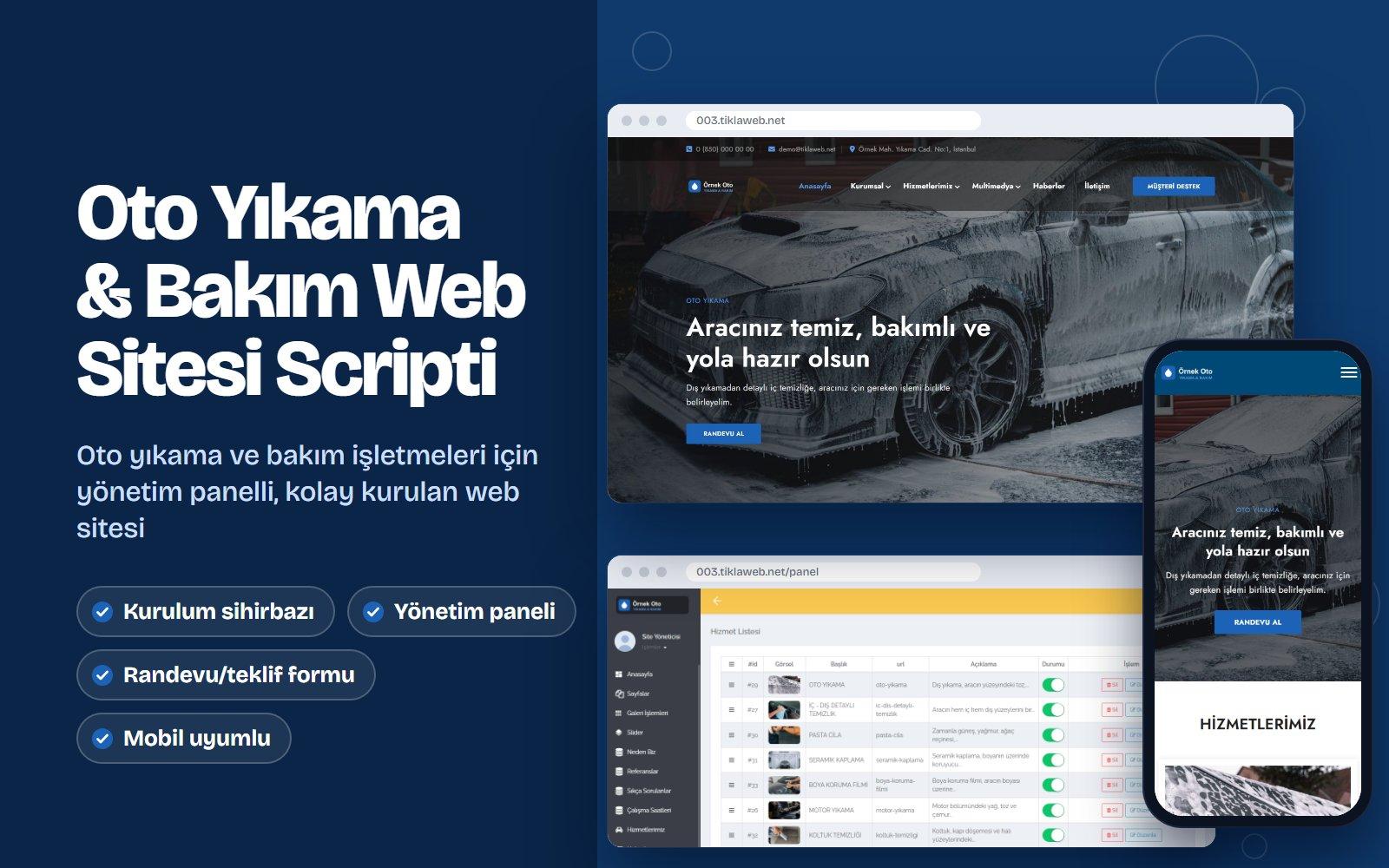
Car Wash & Auto Care Website Script
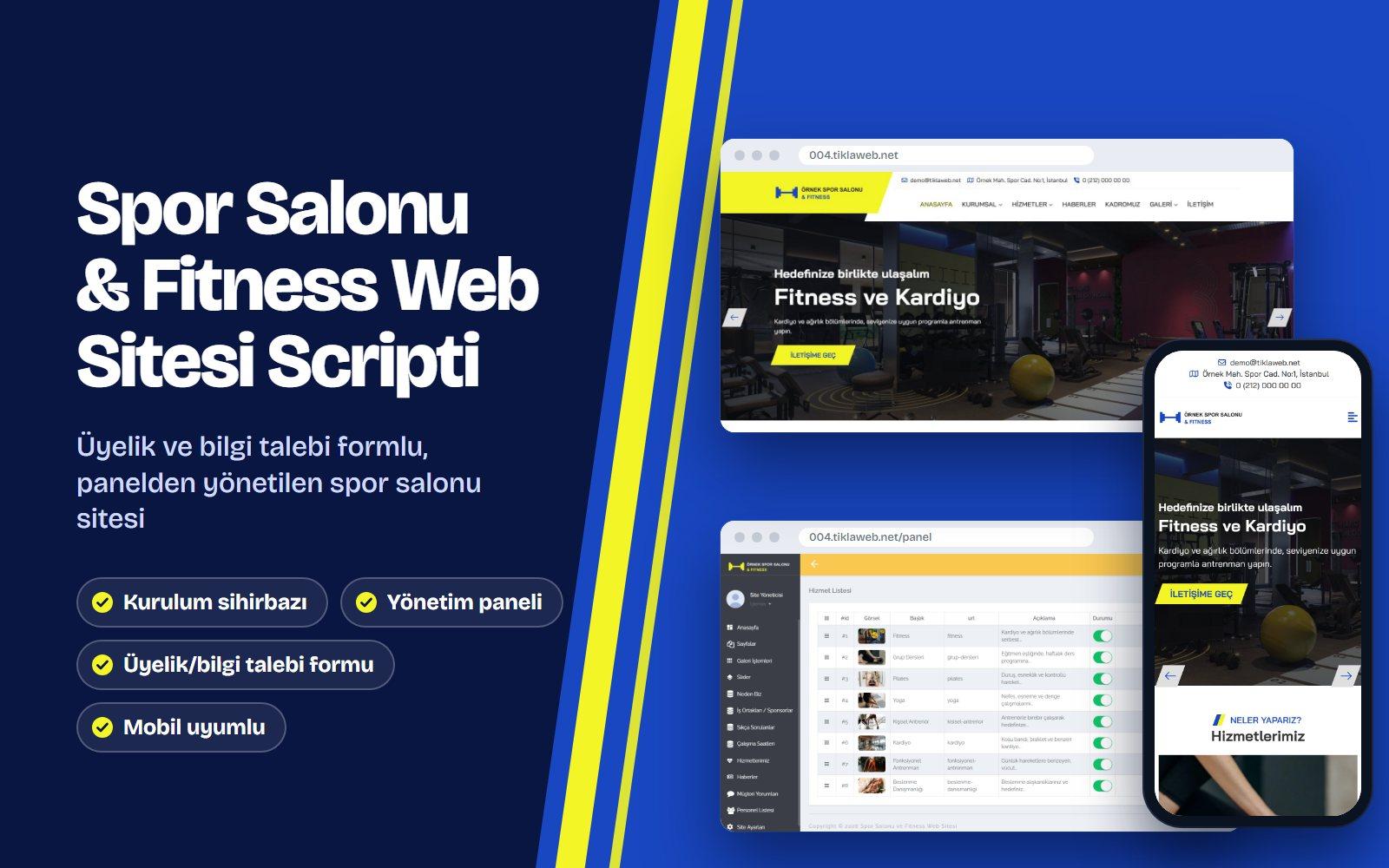
Gym & Fitness Website Script
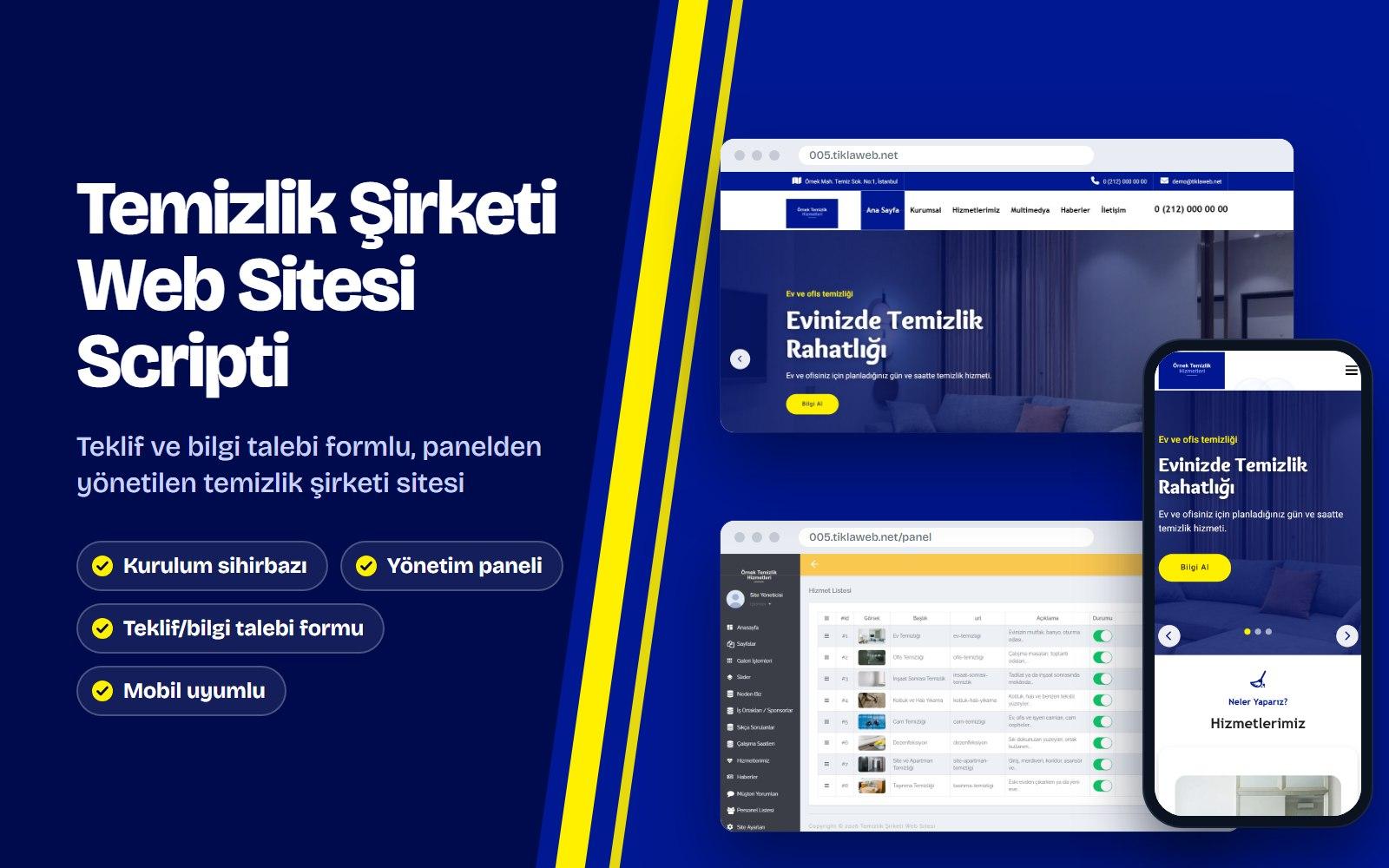
Cleaning Company Website Script
Reach Sales & Support
Have a question before you buy, or need help with an existing account? Call or email us.