


QR Menu Script with Waiter Call
QR menu website with a table-specific QR code and waiter call, two front-end themes and an admin panel















Language note
The interface of the website and the admin panel comes in Turkish and English. You choose the site language and the panel language separately under “Site ayarları” (Site Settings), and you can also switch the panel language with the globe icon at the top right of the panel.
More languages can be added: copy the en.php file in the dil folder of the package and translate it (the steps are in dil/OKUBENI.txt). The language you add appears automatically in the language lists of the site settings, and updates do not touch your language files. Texts that are not translated appear in English; if you prefer, they can be shown in Turkish.
The content you write yourself (products, categories, table names, the About Us text) is not translated; it stays in the language you write it in. Warning messages and amount formats follow the selected language.
Where this page names a section of the panel or of the site, the name is given as it appears in the Turkish interface, in quotation marks, followed by its translation in parentheses; in the English interface the same sections appear under their English names.
Who it is for
Made for restaurants, eateries, cafes and patisseries, and for the agencies that build sites for them. Your customer scans the QR code on the table with the phone camera; the menu, split into categories, opens on the phone with its prices, and the name of the table (for example Table 5) appears at the top of the page. When the customer presses the “Garson Çağır” (Call Waiter) button, the call arrives with the table name on the “Garson Çağrıları” (Waiter Calls) page of the admin panel. When you update the menu and the prices in the admin panel, the printed QR code opens the same menu; you only reprint the codes if your site address changes or you renew the key of a table.
You define your tables in the panel, one by one or in bulk, and a separate QR code is ready for each table. You download the codes as PNG or SVG, or print them as table cards together with your logo and the table name. A main menu code and a separate code for each category are ready in the panel as well.
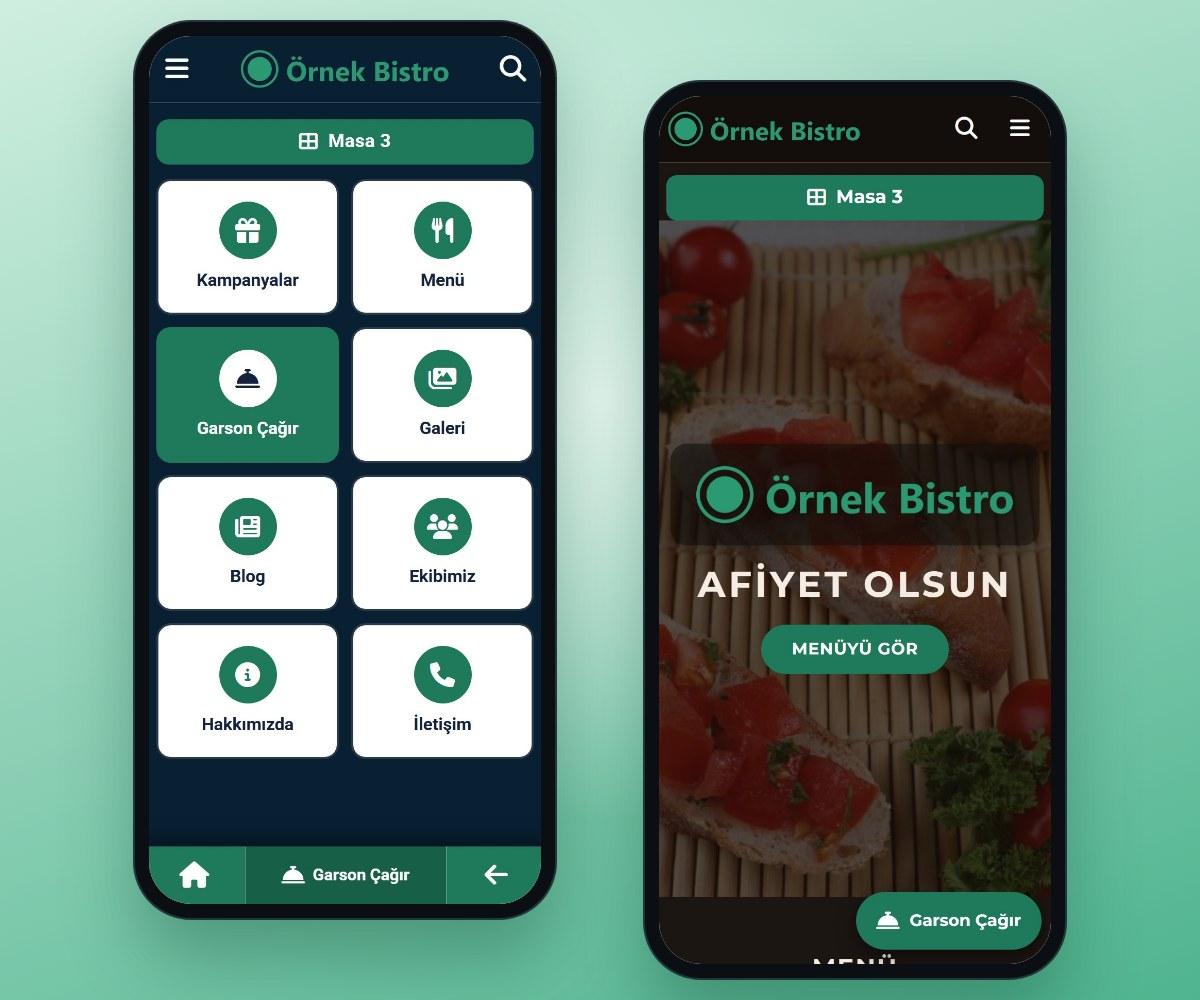
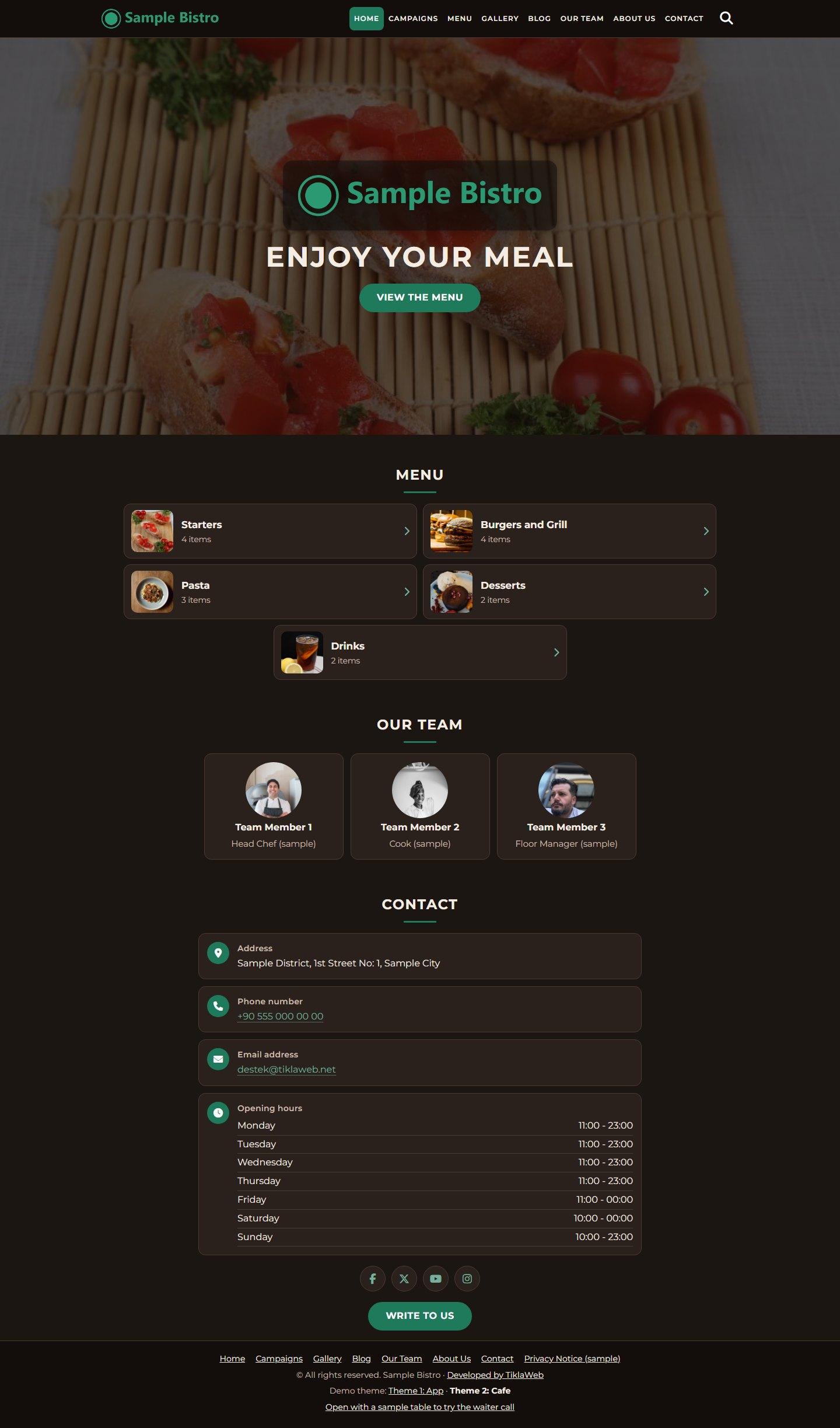
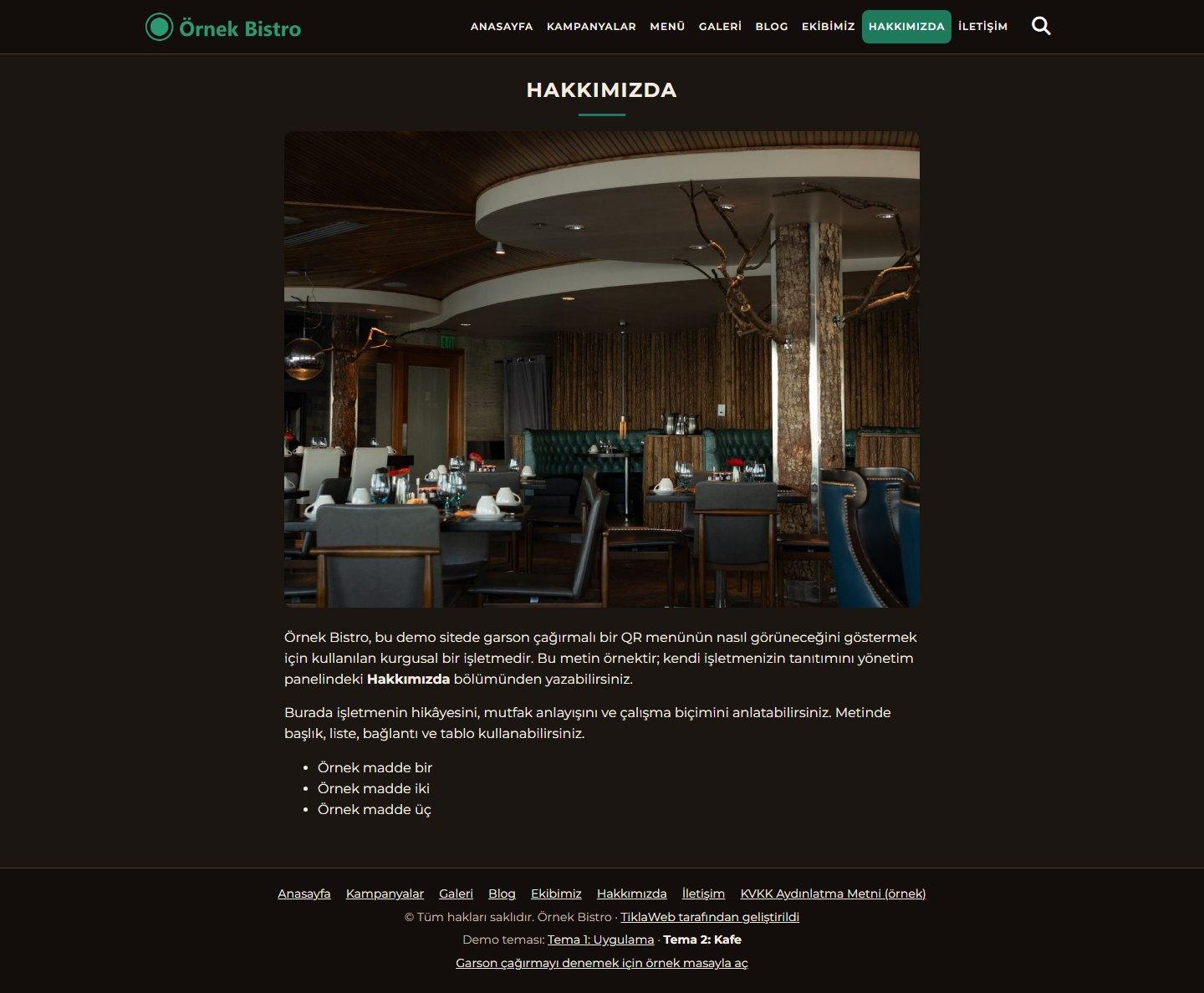
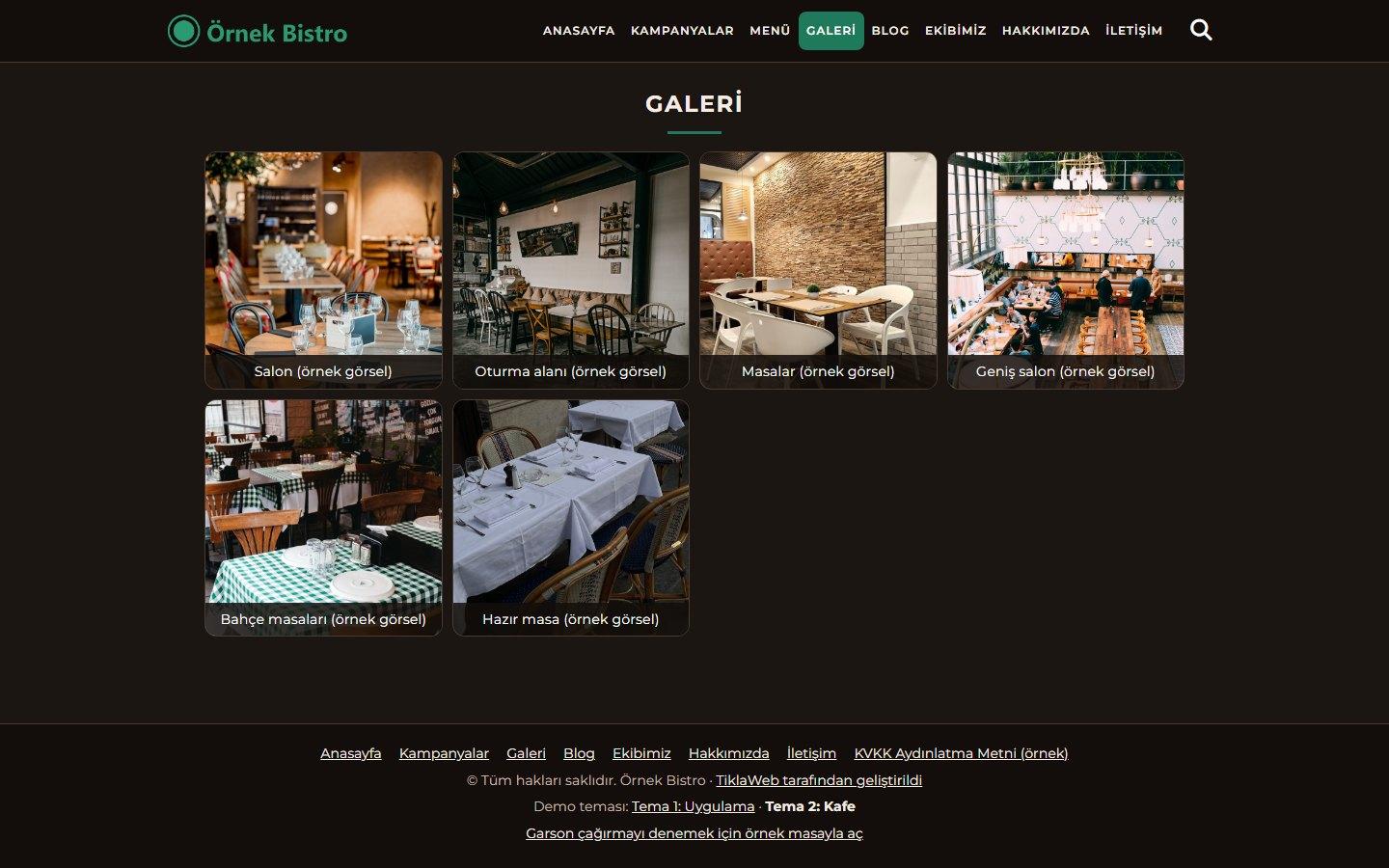
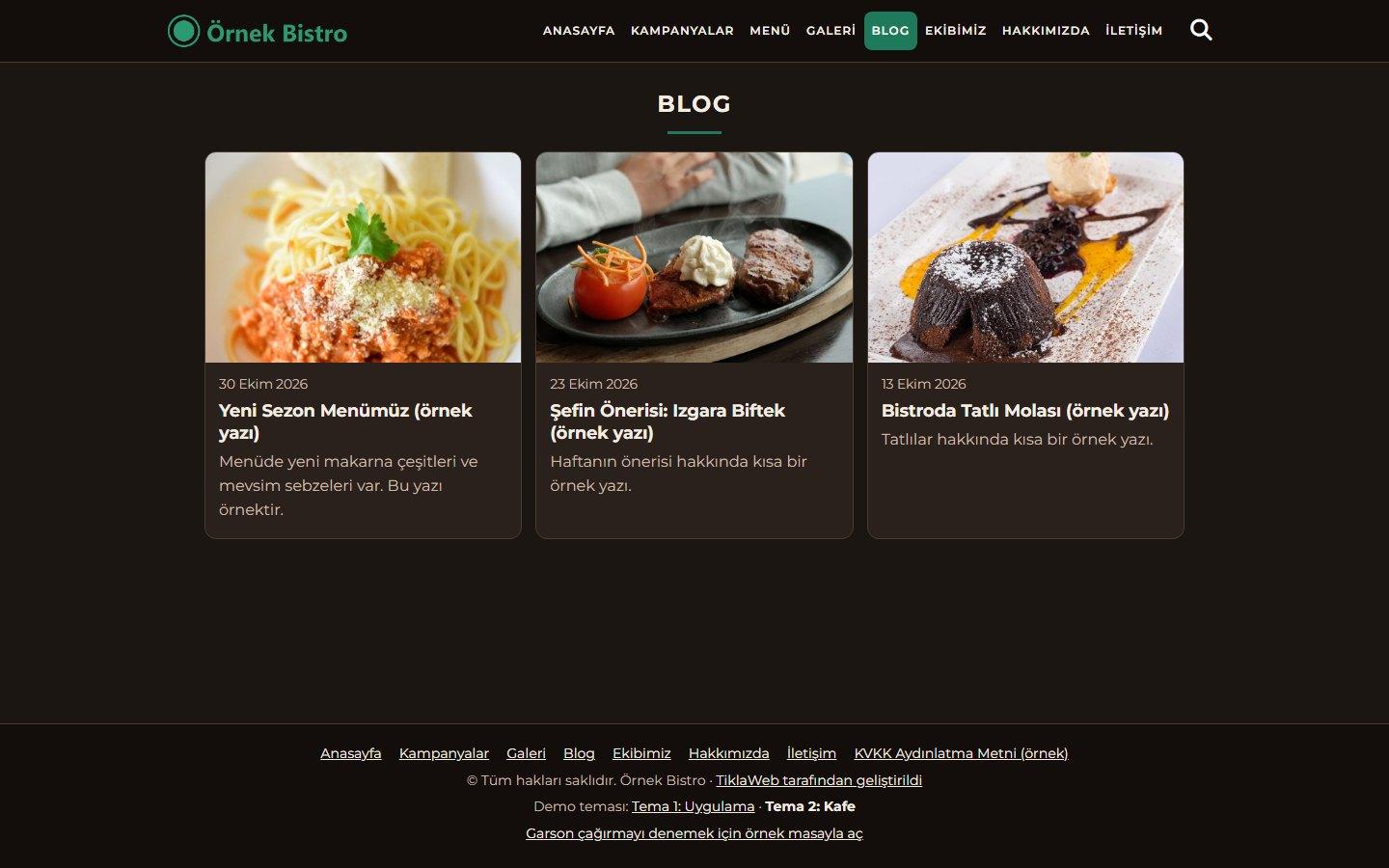
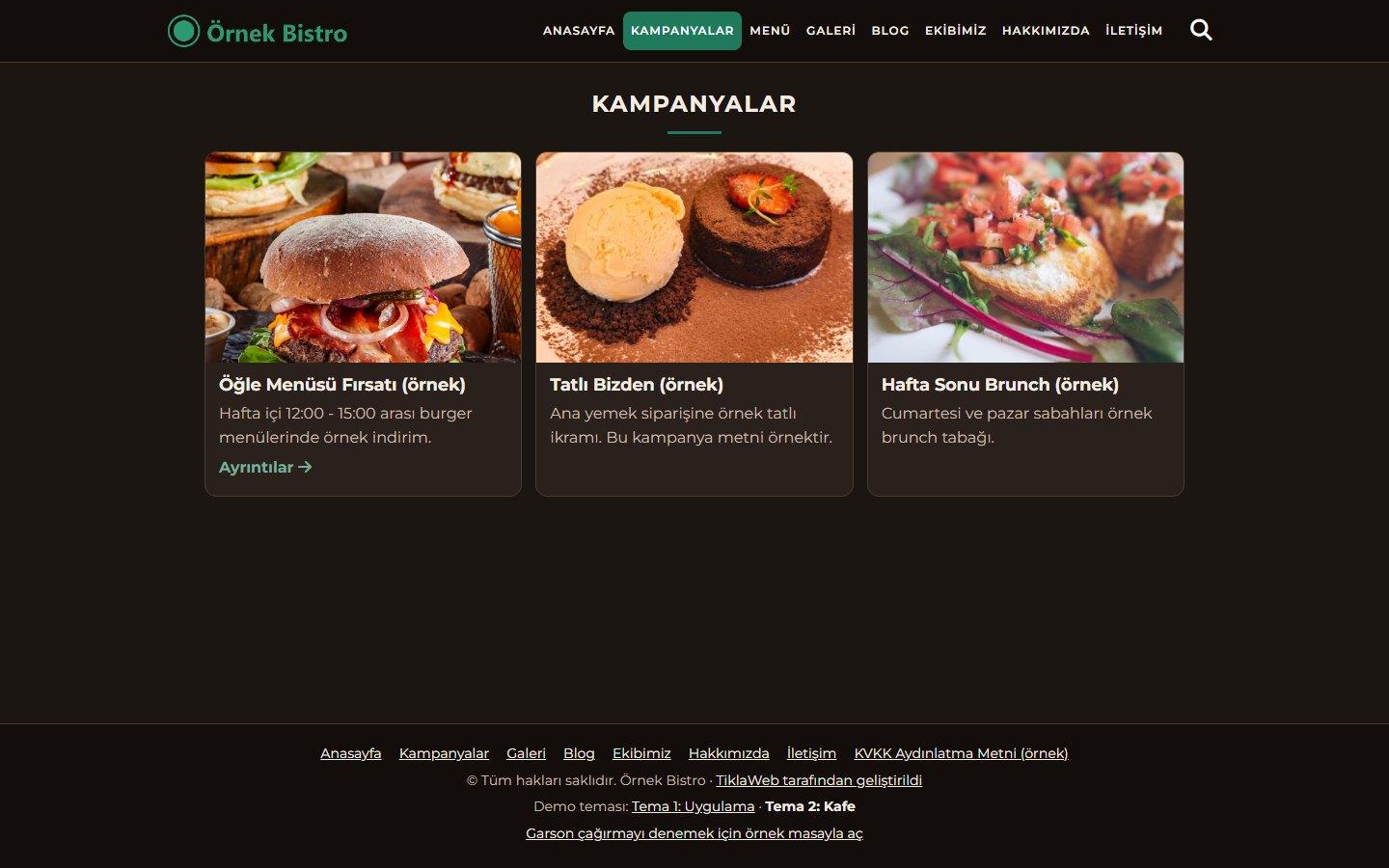
The site comes with two ready front-end themes: “Tema 1: Uygulama” (Theme 1: App) on a dark background with a mobile app look, and “Tema 2: Kafe” (Theme 2: Café) in a warm dark tone with a one-page café layout. You choose the theme in the panel; your menu, tables and QR codes stay the same. Sections for campaigns, a blog, a gallery, the team and extra pages, and a contact form, come ready as well.
You do not need to know how to code. The browser wizard handles the installation, and you enter your content in the admin panel.
Scope
This script is a QR menu, restaurant information and waiter call website. Menu products are shown with their prices; the site has no shopping cart, online payment or online ordering. The “Garson Çağır” (Call Waiter) button is shown only to a visitor who arrives through the QR code of a table, and the call goes to the admin panel; no SMS, e-mail or push notification is sent to the waiter’s phone. The sound alert of the panel and the number of pending calls in the tab title work only while the “Garson Çağrıları” page is open in the browser; calls that arrive while the page is closed appear in the list when you open it. We recommend looking at the demo before you decide.
Website features
Two front-end themes
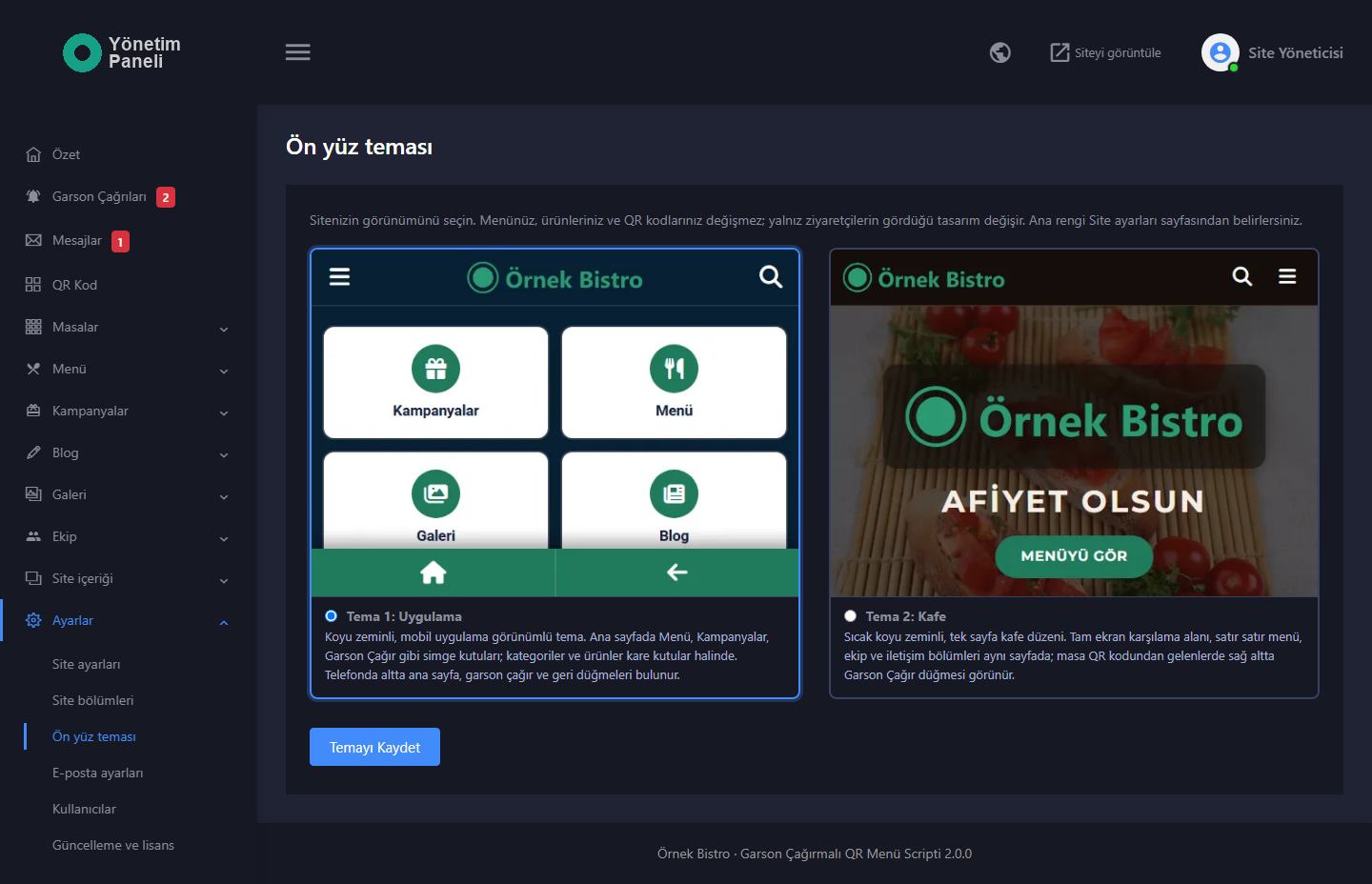
- Theme choice in the panel: on the “Ön yüz teması” (Front-end Theme) page under the Settings menu you see the two themes with preview images and choose one. When the theme changes, only the design your visitors see changes; your menu, products, tables and QR codes stay the same.
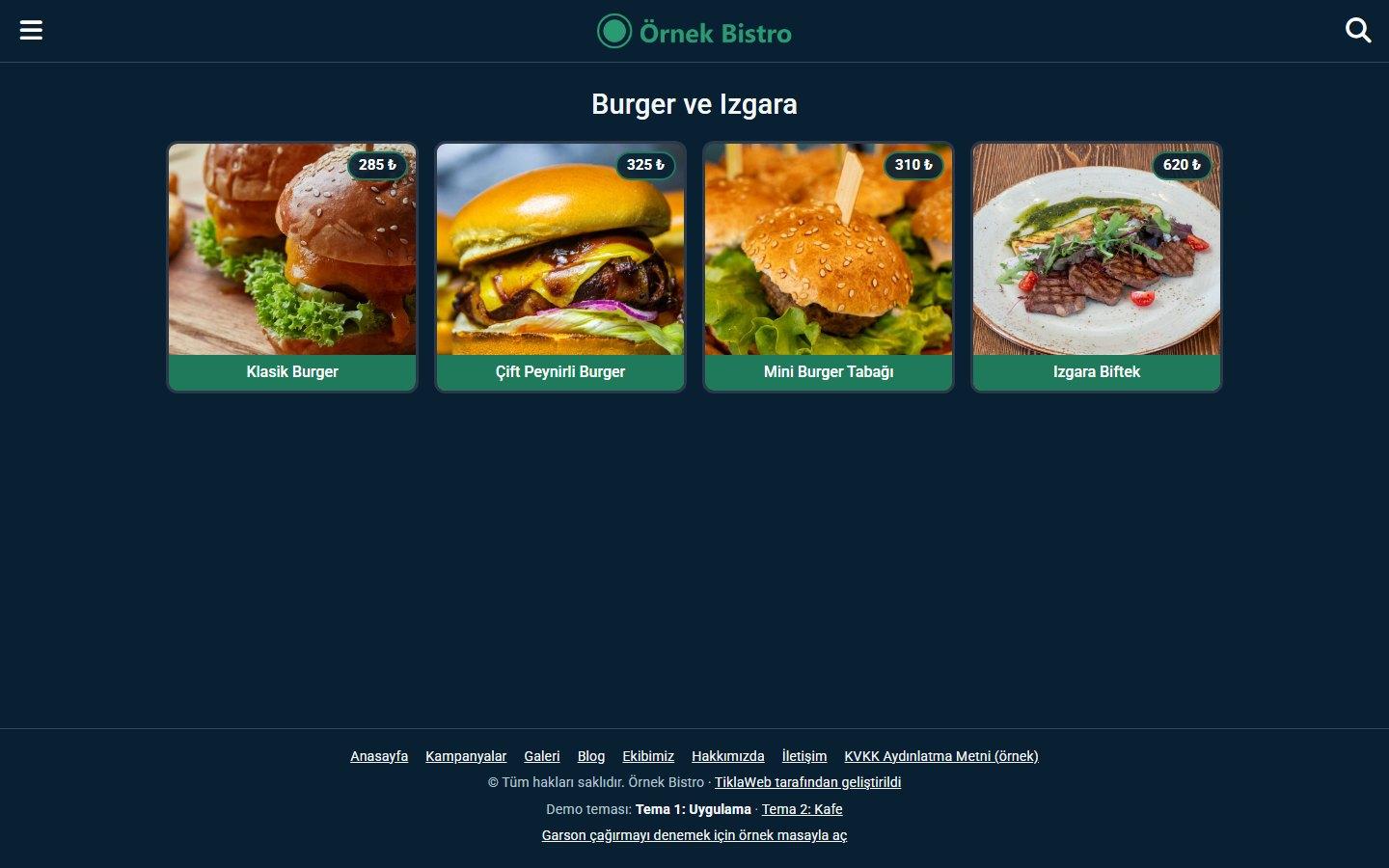
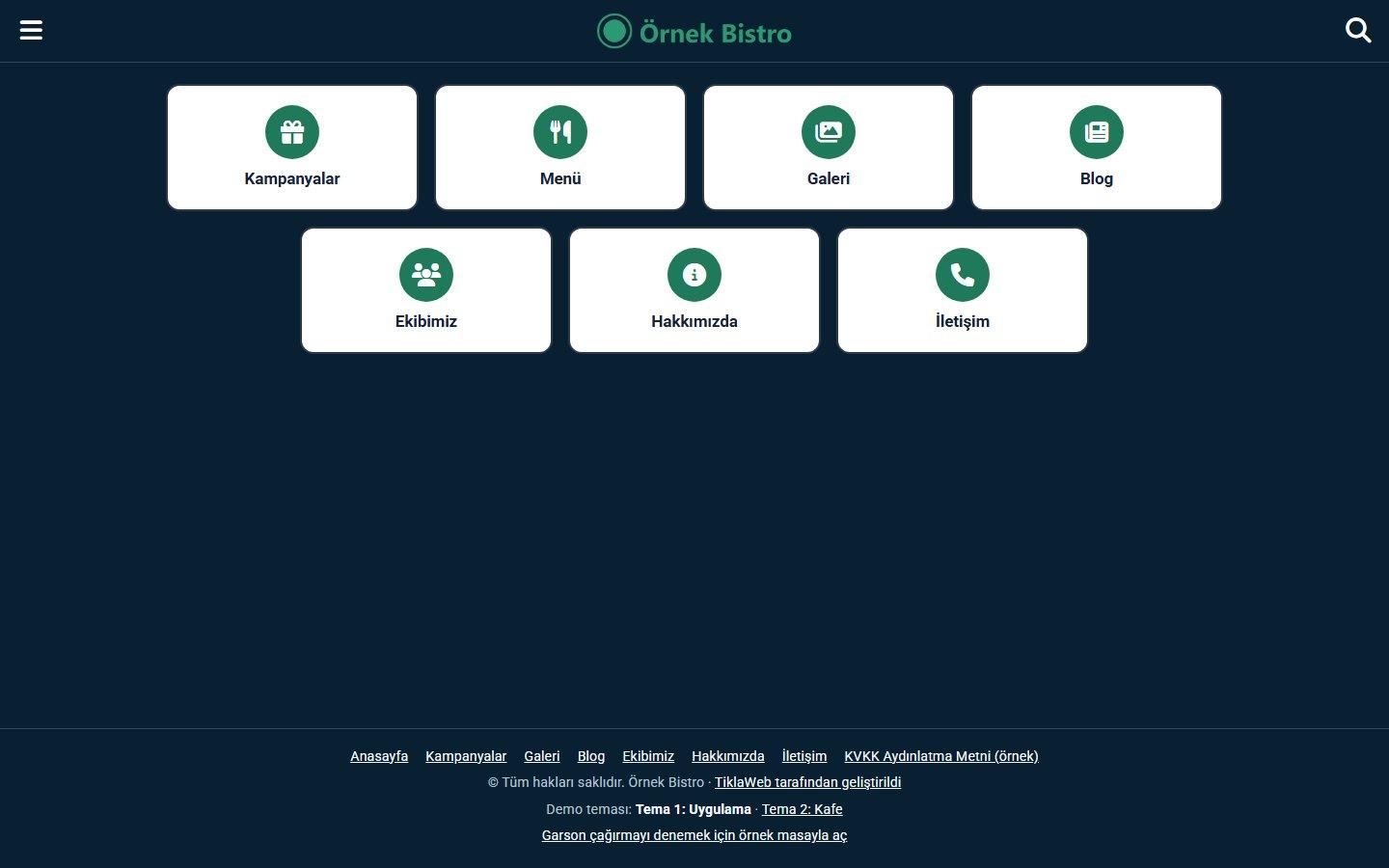
- “Tema 1: Uygulama” (Theme 1: App): a dark theme with a mobile app look. On the home page, sections such as Menu, Campaigns and Gallery are lined up as boxes with icons; for a visitor who comes from a table code, a Call Waiter box appears as well. Categories and products are arranged as square tiles, and product tiles show a price badge. Menu and search buttons sit at the top; on a phone a bar with home and back buttons appears at the bottom (with a Call Waiter button in the middle for visitors from a table code), and on a desktop screen this bar is hidden.
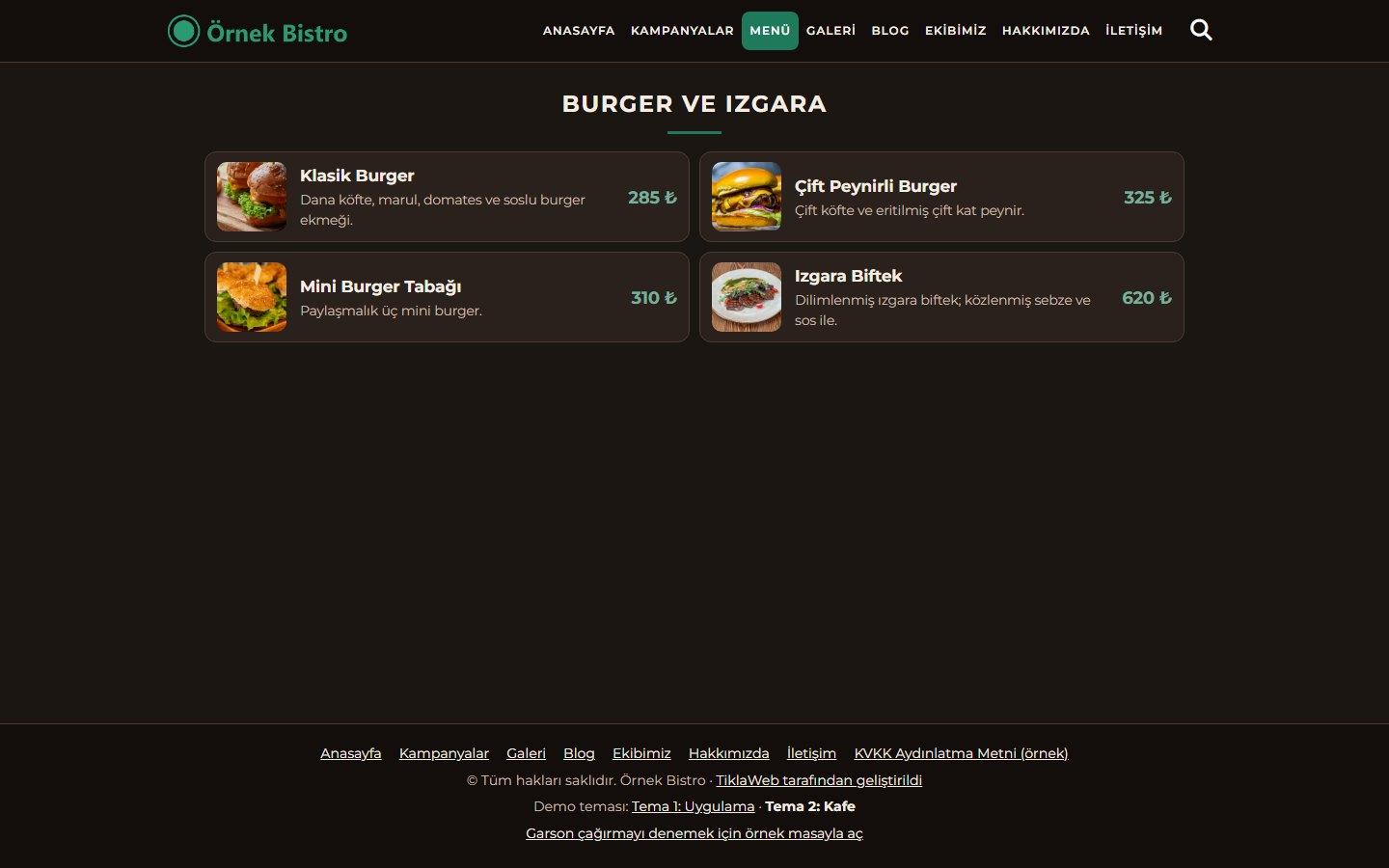
- “Tema 2: Kafe” (Theme 2: Café): a theme in a warm dark tone with a café layout. The home page flows as a single page: a large welcome area, the menu categories, the team and the contact section follow one another. Categories and products are listed as rows with a small image; a product row shows the short description and the price. Menu links and a search button sit at the top, and on a narrow screen the menu is gathered behind a button. For a visitor who comes from a table code, a Call Waiter button floats at the bottom right. On the product page the price is shown in the bottom bar.
- Your own CSS file: if you put a file named ozel.css in the folder of the selected theme, it is loaded on the site automatically; the update package does not touch this file.
Menu, products and search
- Categories: in Theme 1 they are listed on the Menu page as square tiles with an image, in Theme 2 as rows showing the image, the name and the number of products. Every category has an address that shows only its own products; the category QR code opens this page.
- Product list: on a category page the products are shown with image, name and price. A product whose price was not entered shows no price, and a product without an image appears with a neutral icon.
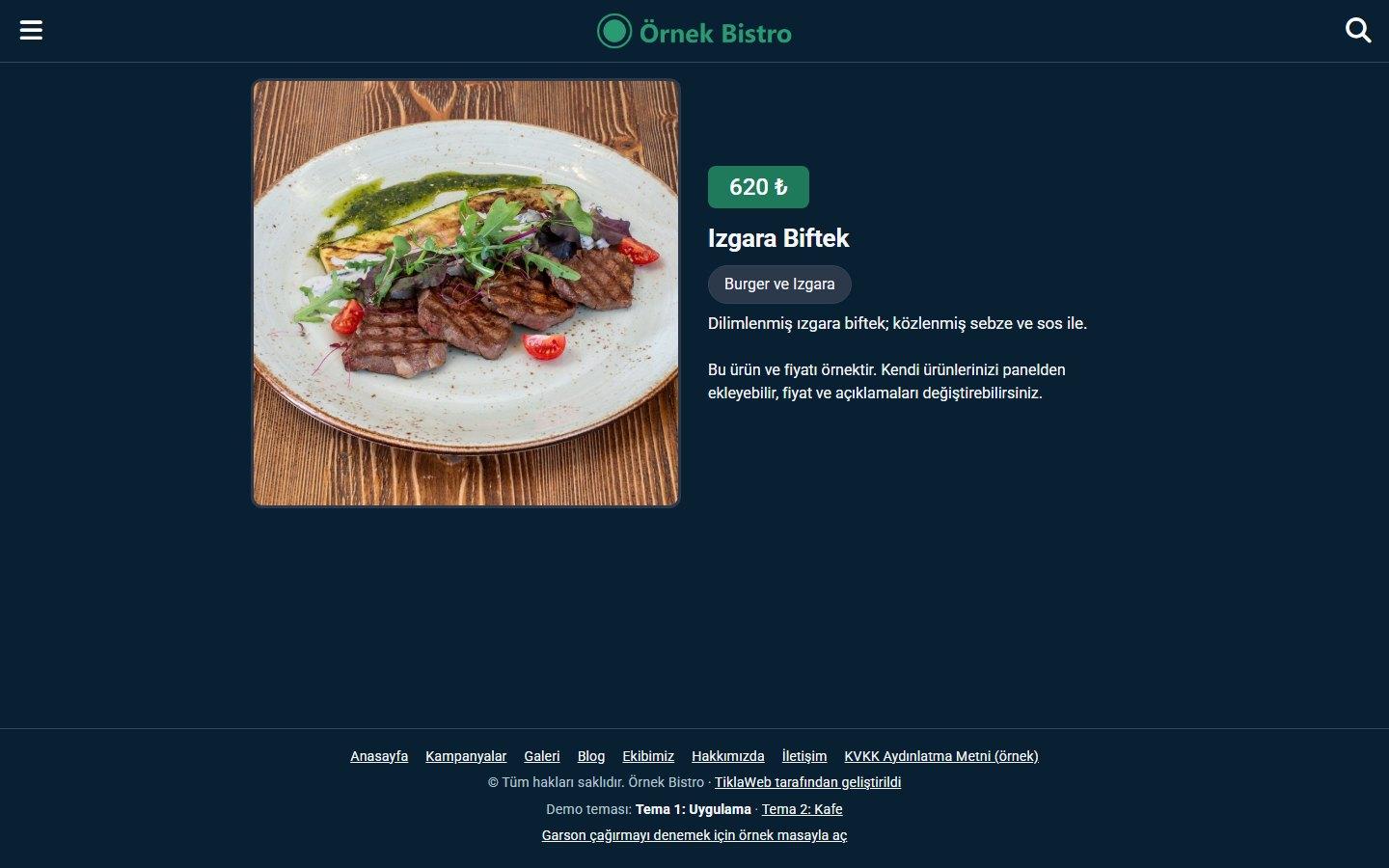
- Product page: a large image, the product name, a link to the category, the short description, a detailed text with rich formatting and the price. A product whose status is “Taslak” (Draft) does not appear on the site.
- Prices: entered and shown in Turkish lira (₺). A product whose price is left empty or 0 is shown without a price.
- Sorting: you arrange categories and products with the “Sıra” (Sort Order) field; the smaller number comes first.
- Tidy grid: the number of columns follows the screen width and the number of items; where possible the columns are chosen so that no single tile is left alone in the last row.
- Live search: visitors search in the product name and the short description; once at least two letters are typed, results open as you type, with image, name, category and price (up to 30 results). In both themes the search field opens with the magnifier button at the top. If JavaScript is off, the search page still works.
Table-specific QR code
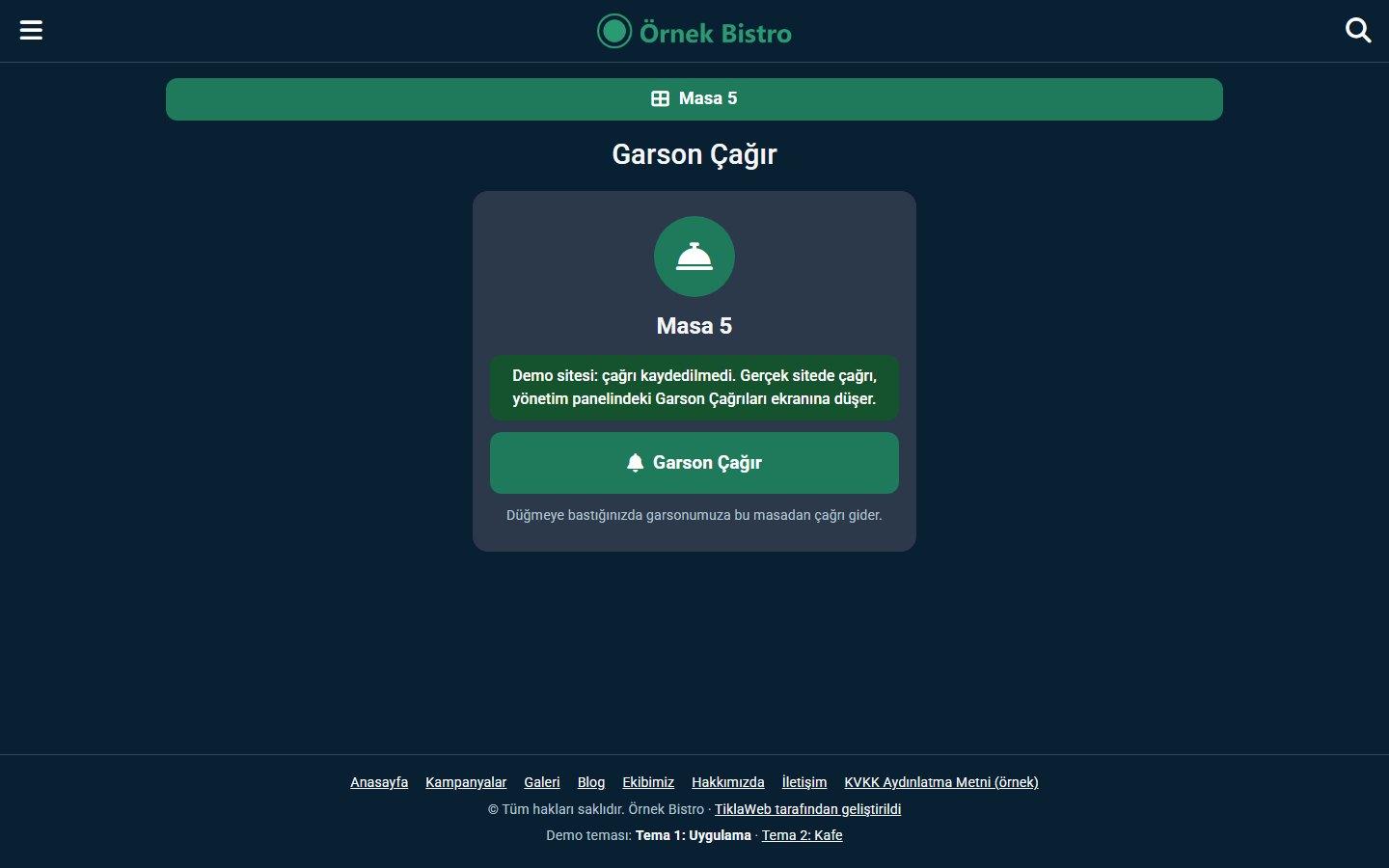
- The table name appears on the page: when the QR code of a table is scanned, the menu opens and the table name (for example Table 5) is shown at the top of the page. The name stays while the visitor moves through the menu and the other sections.
- Unguessable table key: the QR address of every table (?masa=…) carries a randomly generated key; the table number does not appear in the address, so a call cannot be made for another table by changing a number in the address. If a code falls into the wrong hands, you change the key of that table with the “Anahtarı yenile” (Renew key) button in the table list and print the new card; the administrator can also renew the keys of all tables at once.
- Deleted or renewed code: if the old printed code of a table that was deleted in the panel, or whose key was renewed, is scanned, the menu opens normally; only the table name and the Call Waiter button do not appear.
- Search engines: table-specific addresses and search result pages are closed to search engines (noindex); the canonical address of a page has no table in it.
Waiter call
- Call Waiter button: a visitor who arrives through the QR code of a table reaches the Call Waiter page from the box on the home page and the bottom bar on a phone in Theme 1, and from the floating button at the bottom right in Theme 2, and sends the call by pressing the button. A visitor who arrives with the menu code (without a table) does not see the button; the page tells them to scan the QR code on the table.
- Feedback to the visitor: when the call is sent, the message “Garson çağrınız iletildi” (Your waiter call has been sent) appears; the page asks for the status of the call every 10 seconds and shows “Garsonumuz çağrınızı yanıtladı” (Our waiter has answered your call) once the waiter marks it “Yanıtlandı” (Answered) in the panel. A table with a pending call cannot open a second one; a new call can be made one minute after the last call.
Campaigns, blog, gallery and team
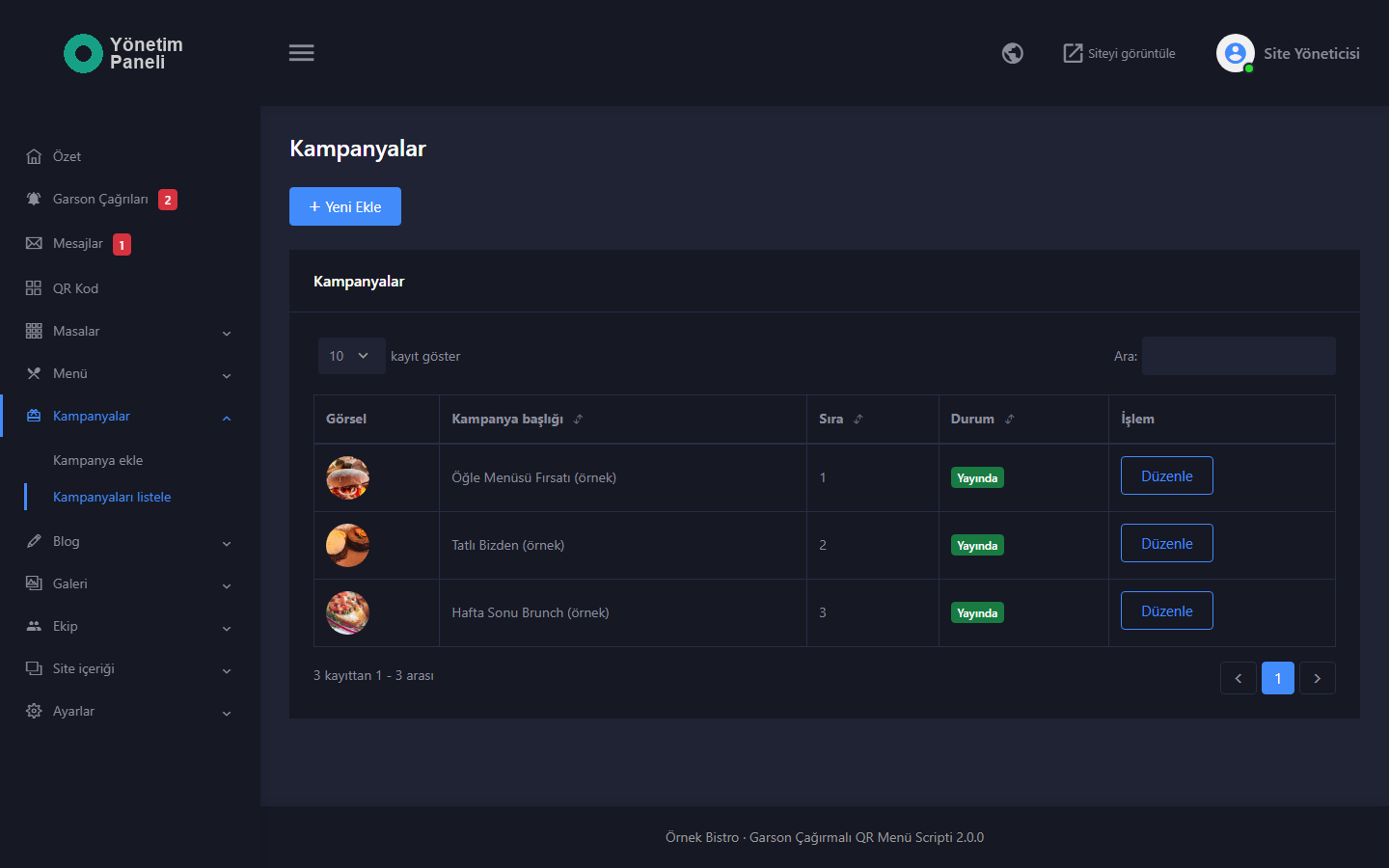
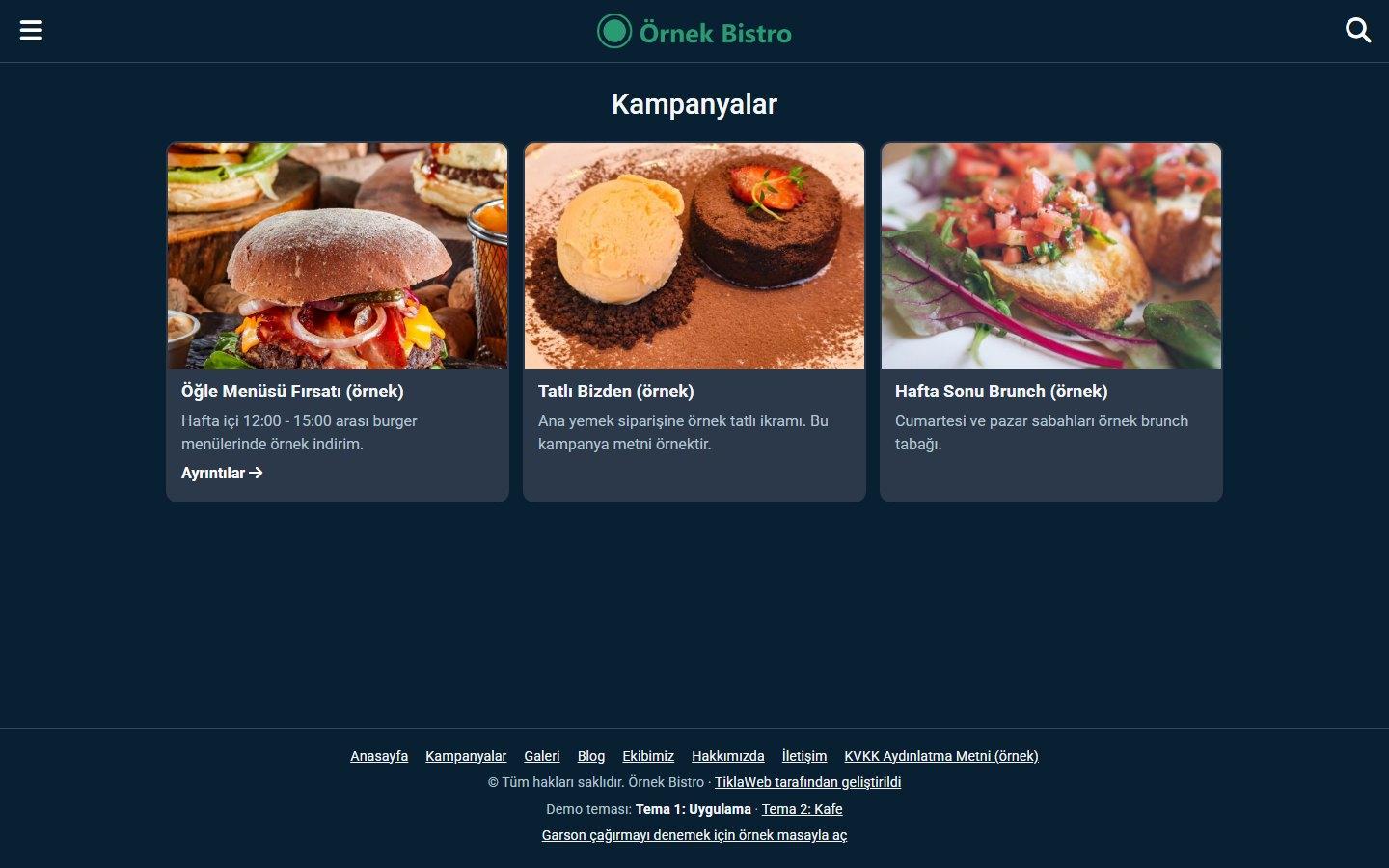
- Campaigns: campaign cards made of a title, a short description and an image. If you wish, you add a link to a card and the card becomes clickable. A campaign whose status is “Taslak” (Draft) does not appear; the cards are arranged by sort order.
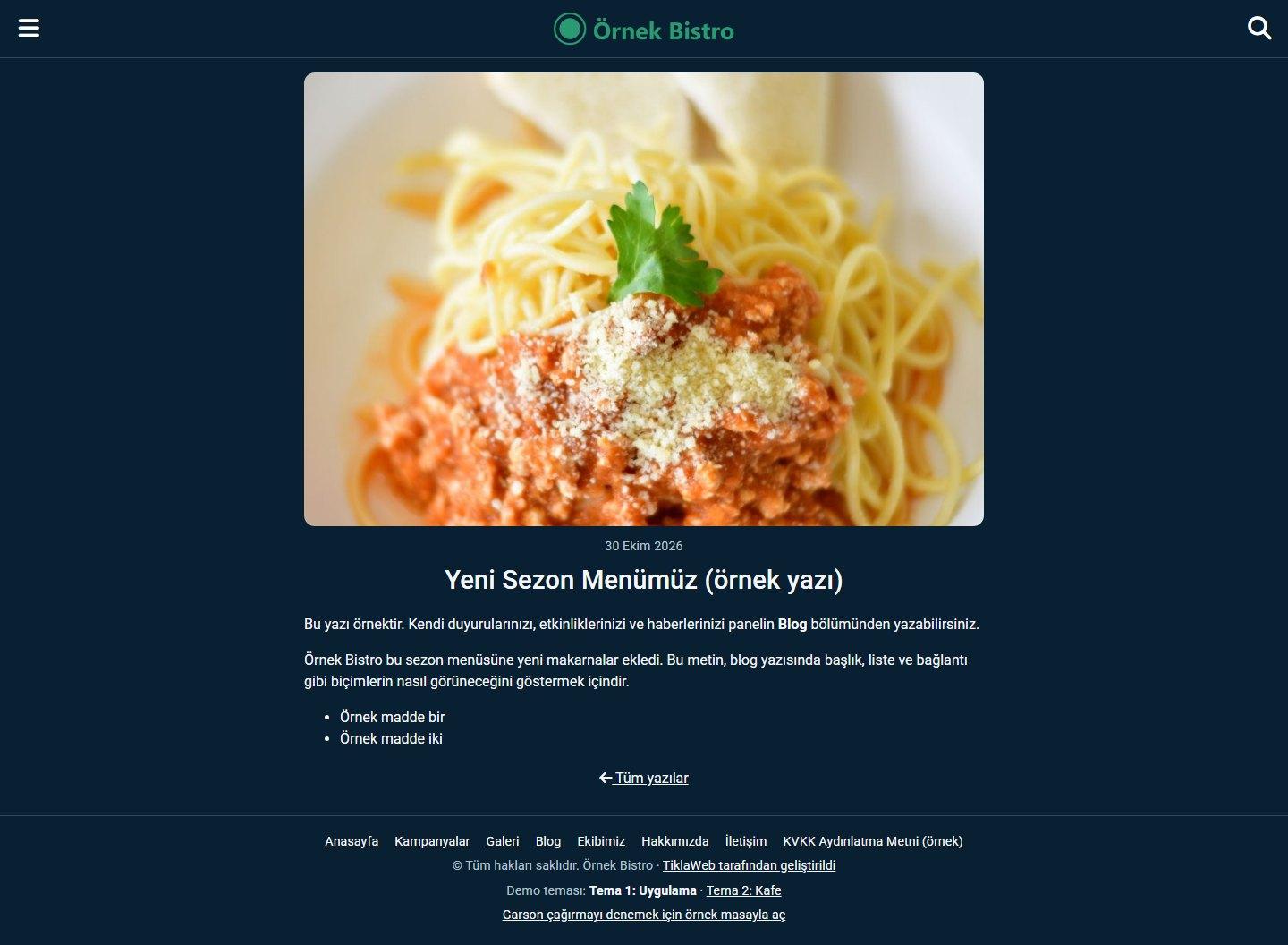
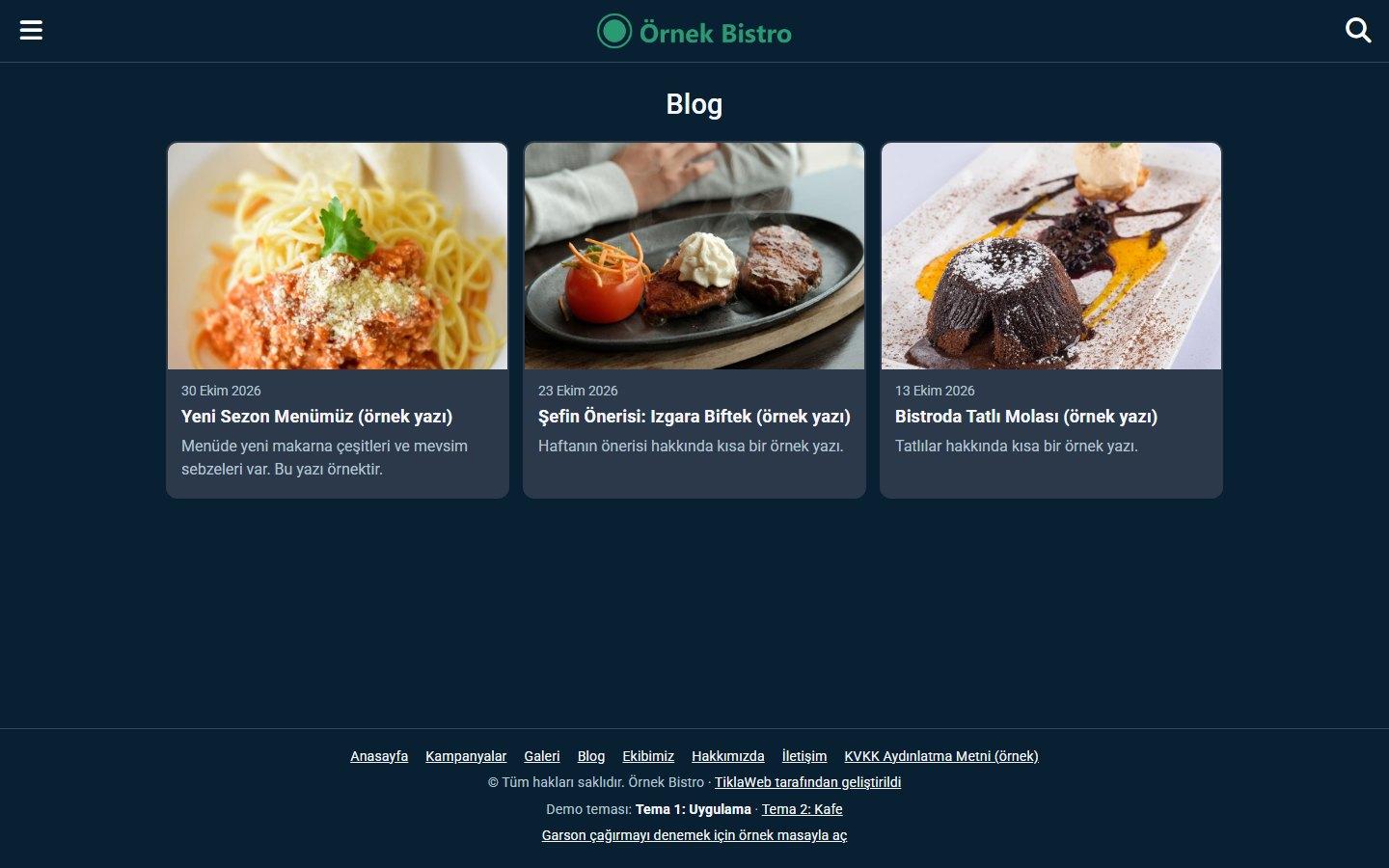
- Blog: announcement, news and event posts. Posts are listed with the newest first; each post has an image, a date, a short description and rich-text content. A “Taslak” (Draft) post does not appear.
- Gallery: the images you upload are arranged as small squares; a clicked image opens in its large size in a new tab. You can write an optional caption for each image. Up to 200 images can be added to the gallery.
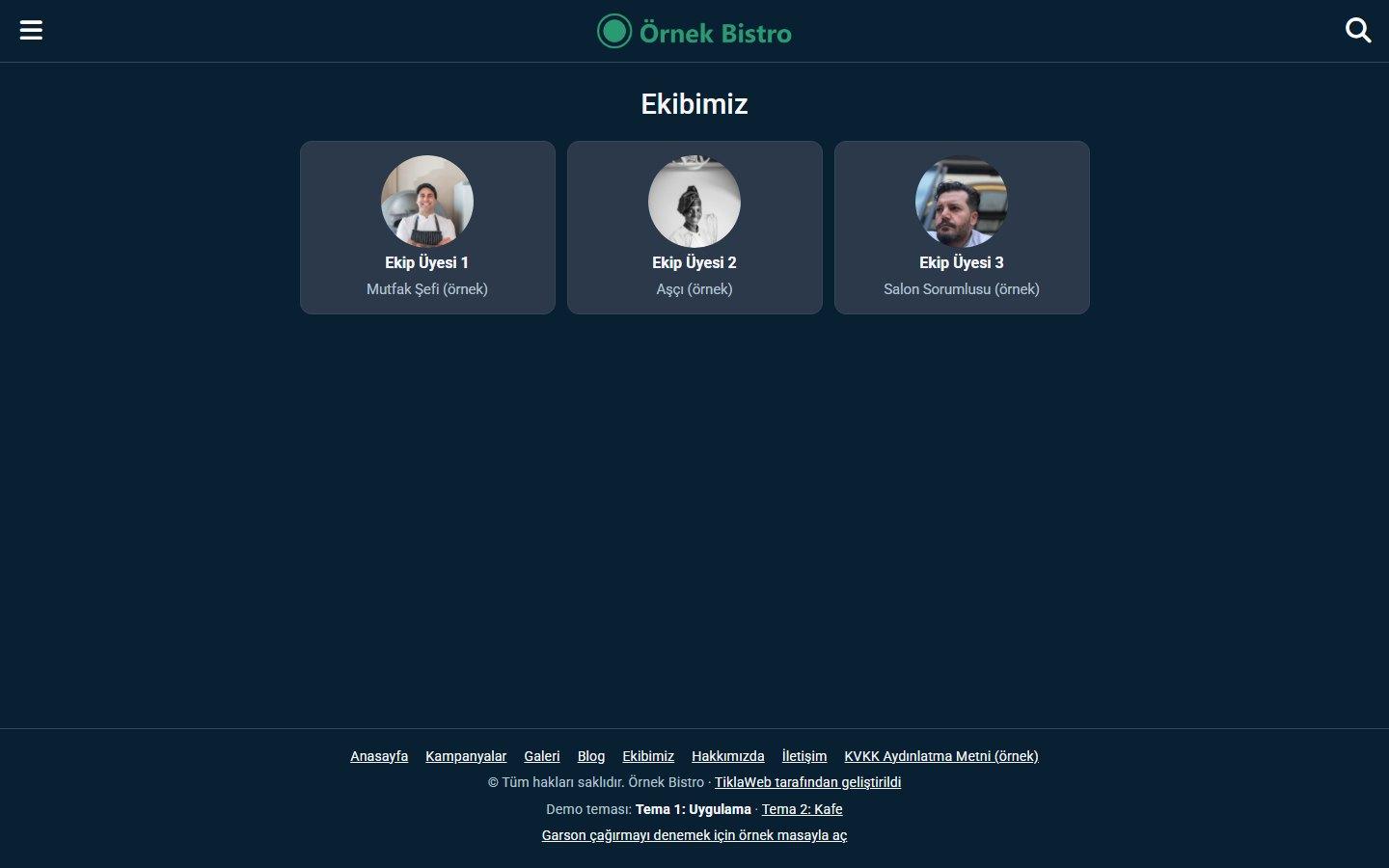
- Team: team members are listed with a photo, a name and a role (for example Chef, Waiter). In Theme 2 the team also appears on the home page.
- Extra pages: you write your own pages, such as the KVKK (Turkey’s personal data protection law) information notice, in the panel. Pages for which you choose “Alt bilgide göster” (Show in footer) appear as links in the lower part of the site.
About Us and contact information
- About Us: a business introduction page made of a title and rich text.
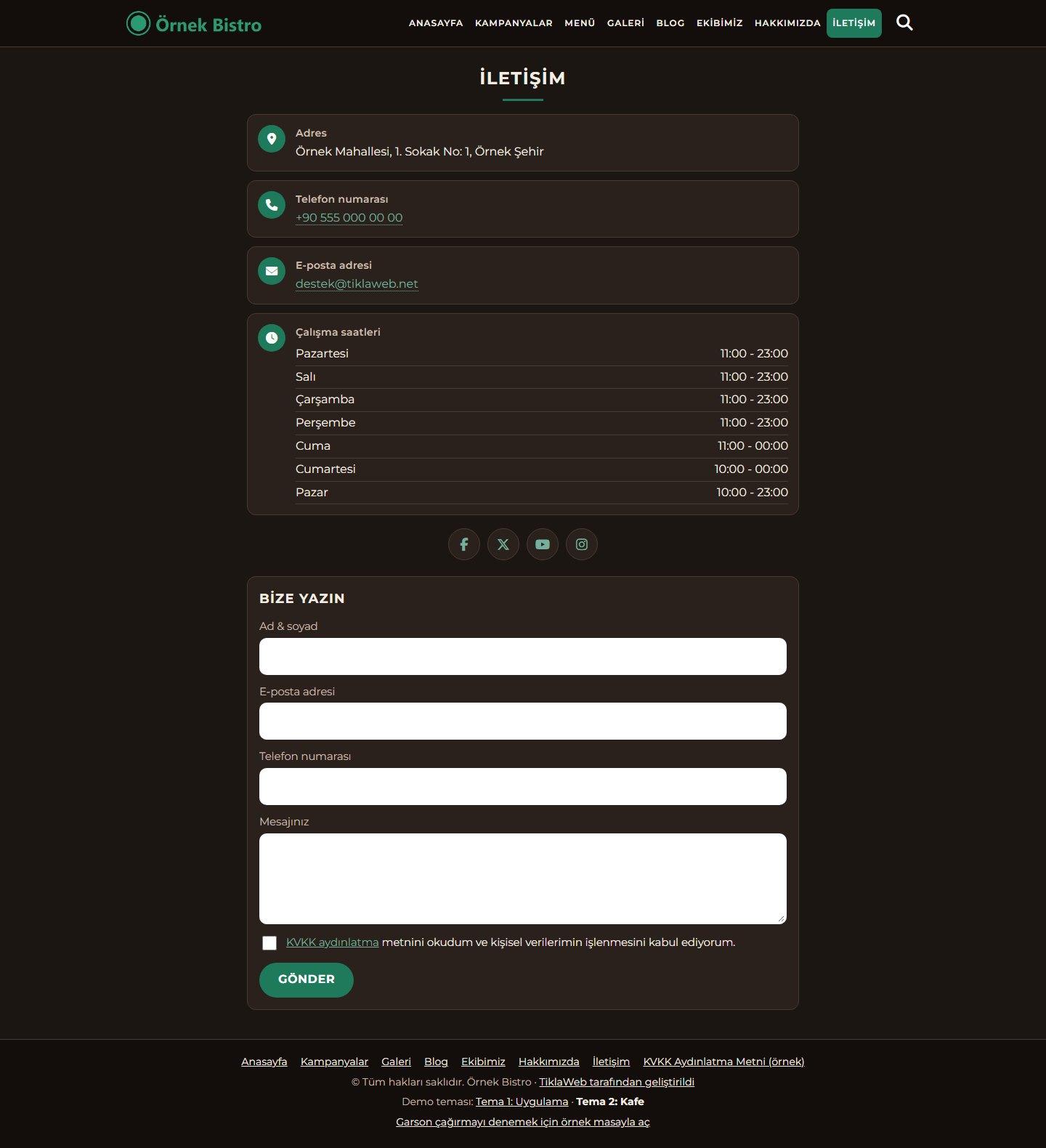
- Contact page: shows the address, a phone number that starts a call when tapped, the e-mail, the opening hours, social media icons and a map (a Google Maps or OpenStreetMap embed code); information you leave empty does not appear. The same page has a message form.
- Contact form: the visitor sends a name, an e-mail, a phone number and a message. To send it, the visitor has to tick the box confirming that they have read the information notice under Turkey’s personal data protection law (KVKK); the link in the box opens the page you choose in the panel. You write the information notice yourself; the text in the sample content is only an example. Incoming messages are listed in the panel; if “E-posta ayarları” (E-mail Settings) is on, a notification e-mail also reaches you.
- Opening hours: you enter a text for each day of the week (for example 11:00 - 23:00, or “Kapalı” (Closed) for a closed day). The text is shown to the visitor as you enter it; a day you leave empty is not shown.
- Social media: your Facebook, X (Twitter), YouTube, Instagram and WhatsApp links appear as icons on the contact page. An icon you did not fill in is not drawn.
Appearance and search engines
- Main color: you choose one main color in the panel. It is applied to the tiles, buttons, the bottom bar and active or selected items. The text color on top of the color is chosen automatically so that it stays readable.
- Logo, site icon and footer: you upload your logo and your site icon (favicon); if you do not upload a logo, the business name appears as text. The footer holds quick menu links, the copyright line and the credit.
- Footer credit: you can change or remove the “TiklaWeb tarafından geliştirildi” (Developed by TiklaWeb) text at the bottom of the site.
- Mobile friendly: the site fits phone, tablet and desktop screens; the fonts and icons are stored locally in the package, and no external font or icon service is called.
- Page-specific title and description: every page carries its own title (“Page | Business”), description and social sharing (Open Graph) tags. On a product page the sharing image comes from the image of the product, on a category page from the image of the category. You enter the site title, description and keywords under “Site ayarları” (Site Settings).
Admin panel
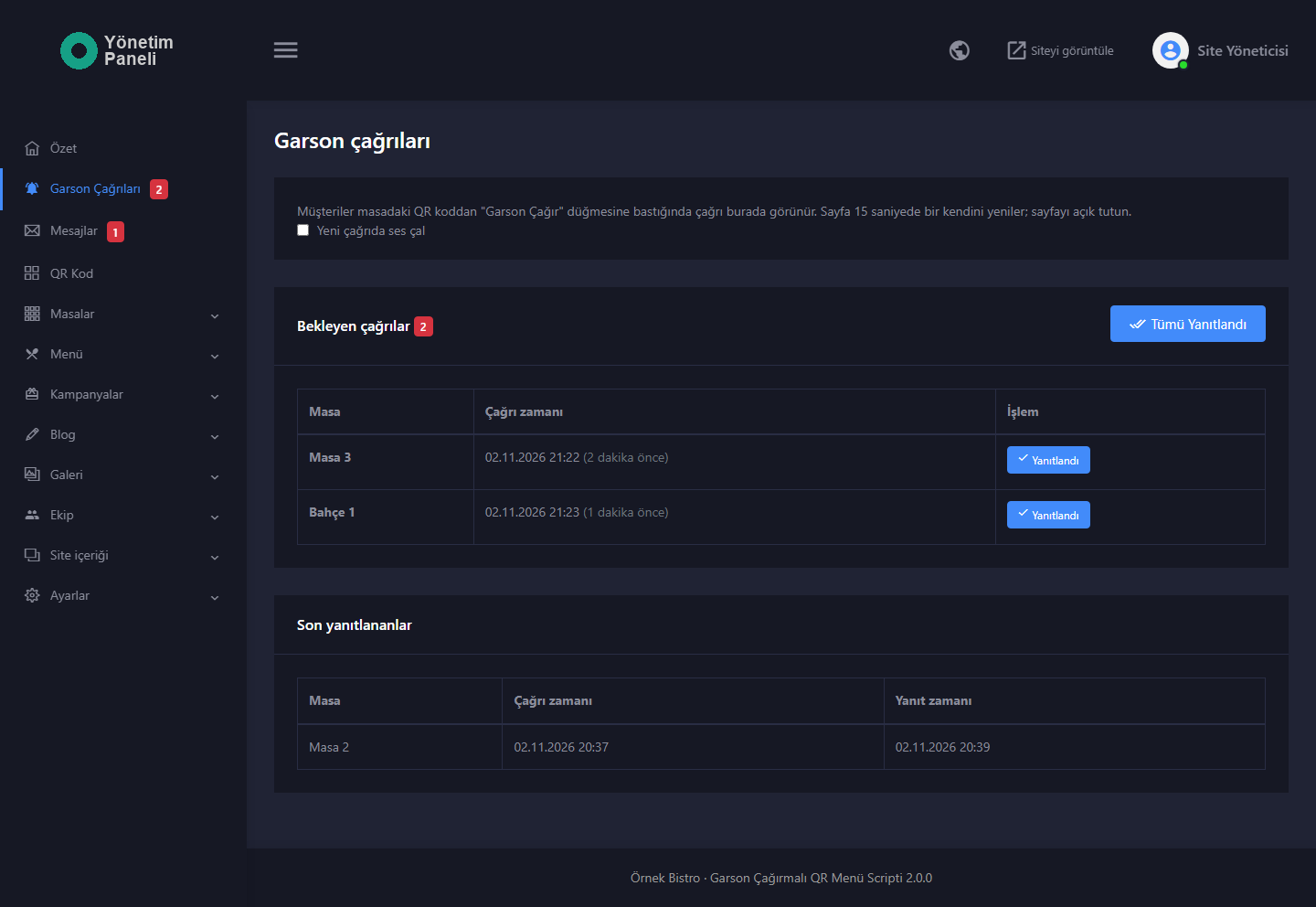
- “Garson Çağrıları” (Waiter Calls): calls from the tables are listed as “Bekleyen çağrılar” (Pending calls) and “Son yanıtlananlar” (Recently answered); each call shows the table name, the time of the call and the time passed. You mark a call one by one or with “Tümü yanıtlandı” (All answered). The page refreshes itself every 15 seconds; when a new call arrives, the number of pending calls is written into the title of the browser tab and an optional short sound is played (the sound and the number work only while the page is open in the browser). The badge in the left menu and the “Özet” (Summary) page show the number of pending calls. Calls are deleted automatically after 7 days.
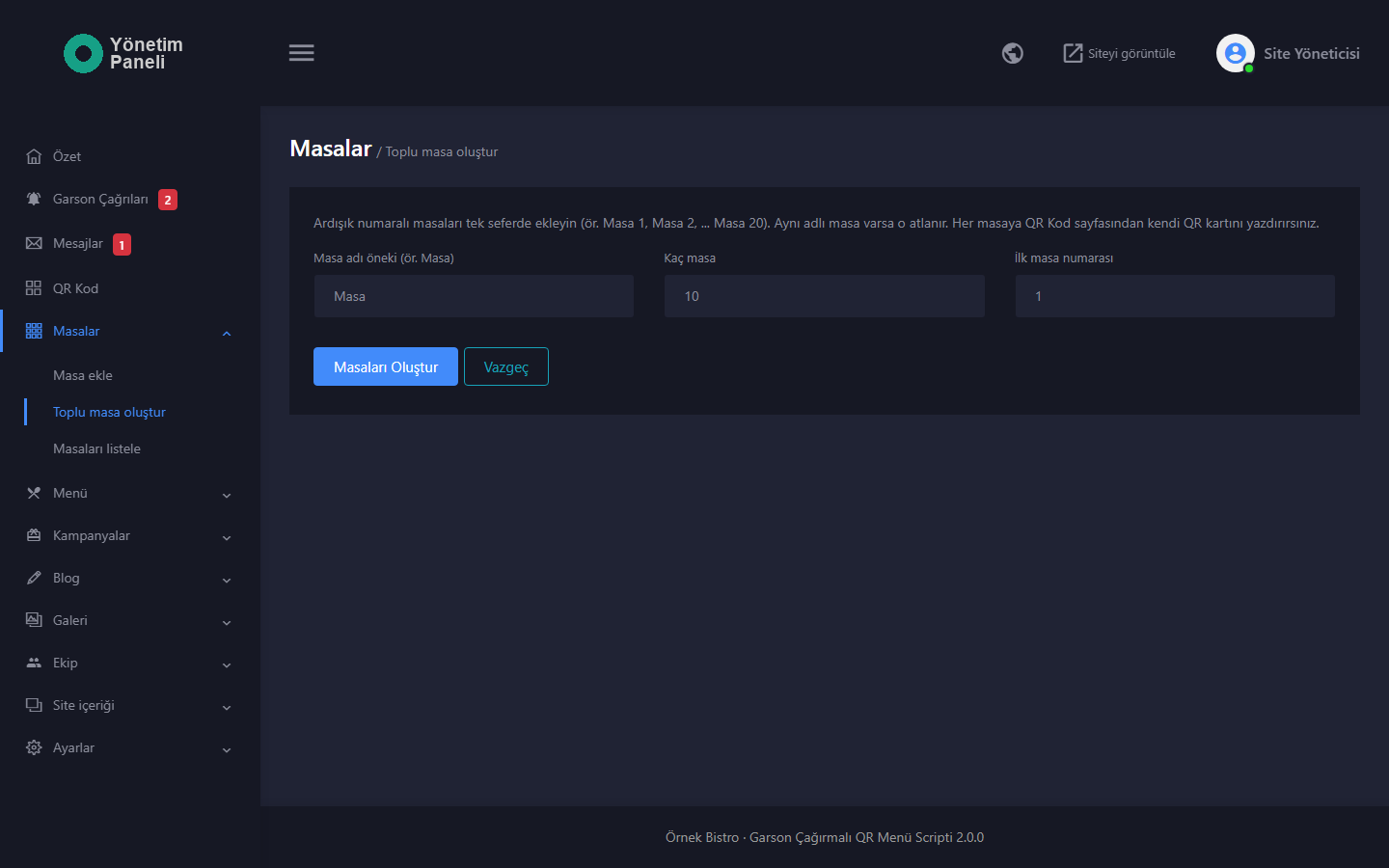
- “Masalar” (Tables): you add, edit and delete tables; for each table you enter a name (up to 60 characters) and a sort order, and the same name cannot be used twice. On the “Toplu masa oluştur” (Create Tables in Bulk) page you add consecutive tables in one go by entering a prefix (for example Masa), the number of tables and the first number (up to 200 at a time; a table with the same name is skipped). Up to 500 tables can be defined in total. The table list has a link to the QR code of each table and an “Anahtarı yenile” (Renew key) button; the “Tüm anahtarları yenile” (Renew all keys) button is open to the administrator only.
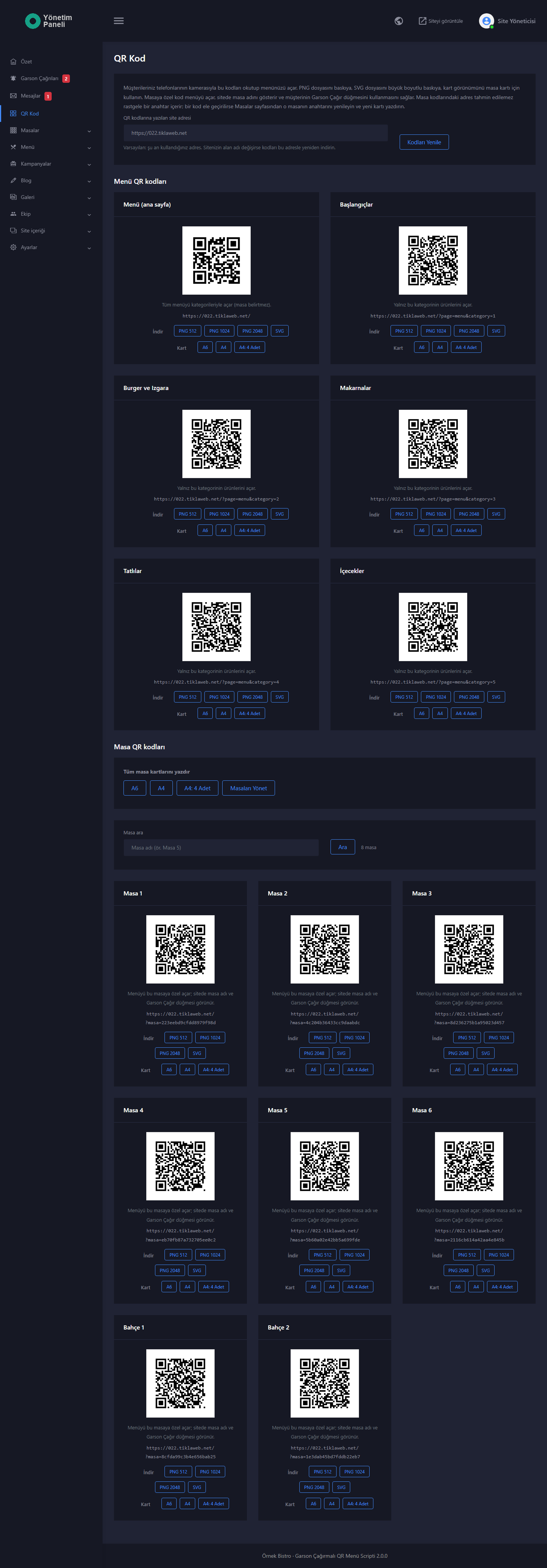
- “QR Kod” (QR Code): the upper part of the page holds the menu codes (home page and each category), and below it each table has its own code. Each box has a preview, the address the code opens and download buttons: PNG in 512, 1024 and 2048 pixel sizes, and SVG.
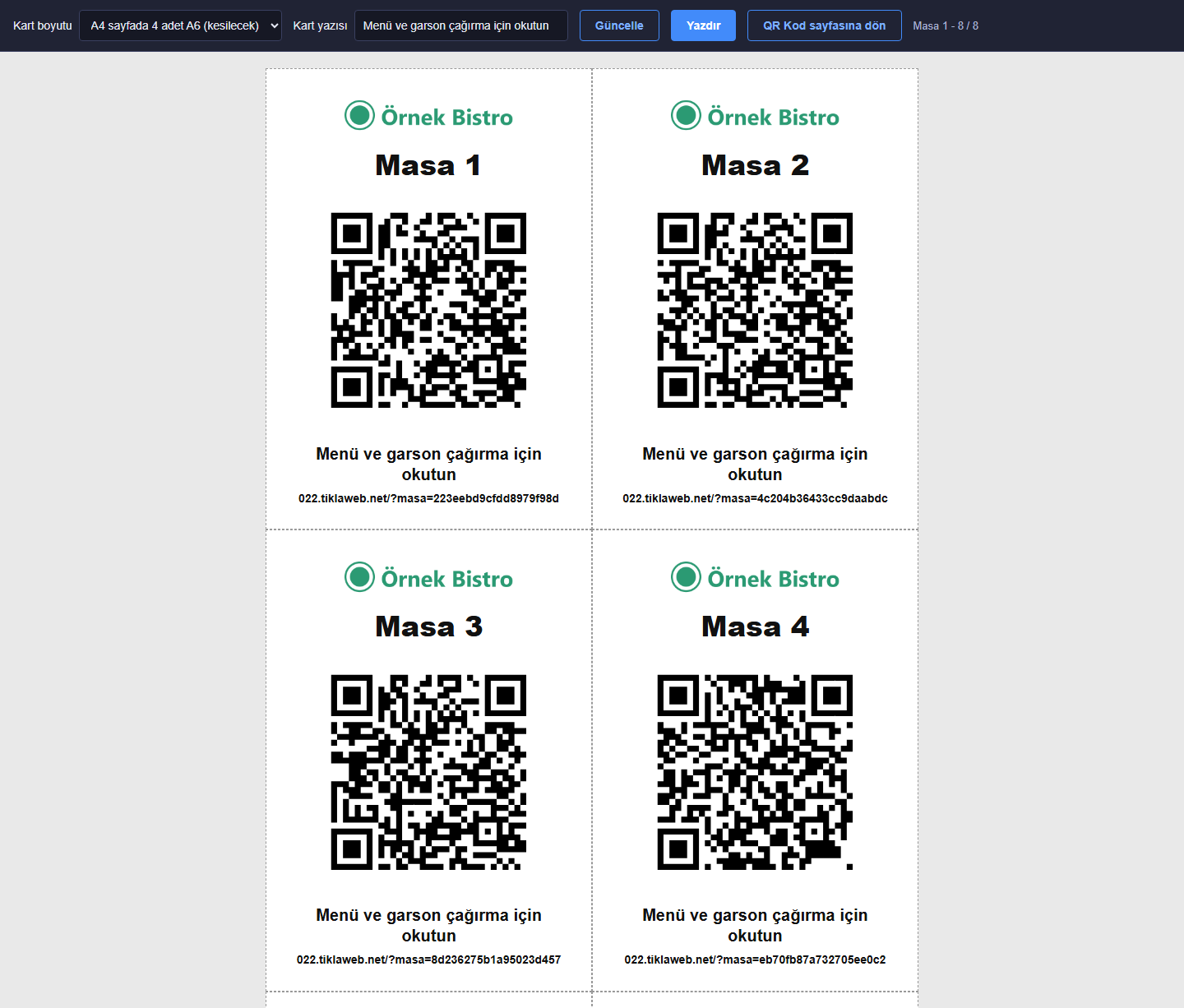
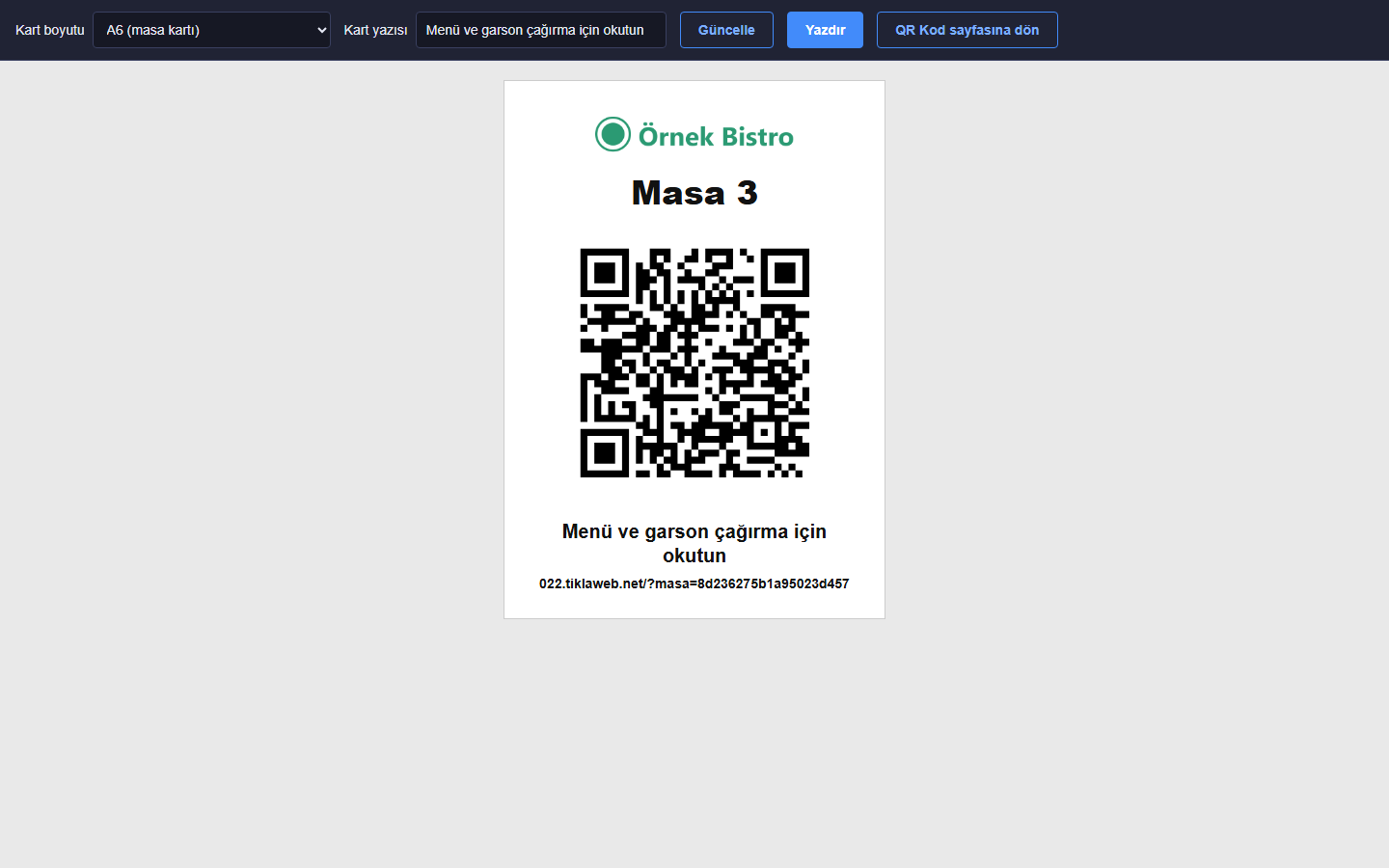
- Table card printing: the print view comes as A6, A4 and four A6 cards on one A4 sheet (to be cut out); the card shows your logo (or the business name if there is no logo), the table name, the QR code, a line of text and the site address. The default text of table cards is “Menü ve garson çağırma için okutun” (Scan for the menu and to call a waiter) if the Call Waiter section is on, and “Menüyü görmek için okutun” (Scan to see the menu) if it is off; you change the text (up to 80 characters) on the print screen.
- Printing all table cards: the cards of all tables are printed with one link as A6, A4 or four per A4. When there are more than 100 tables, you choose a range of tables and print up to 100 cards at a time. On the QR Code page the tables are shown 24 per page and can be searched by name; the download buttons work for each table separately.
- QR address: the codes carry the address of your site that the panel was opened from. If the address changes, you need to download and print the codes again; you can also type the address by hand and refresh the codes.
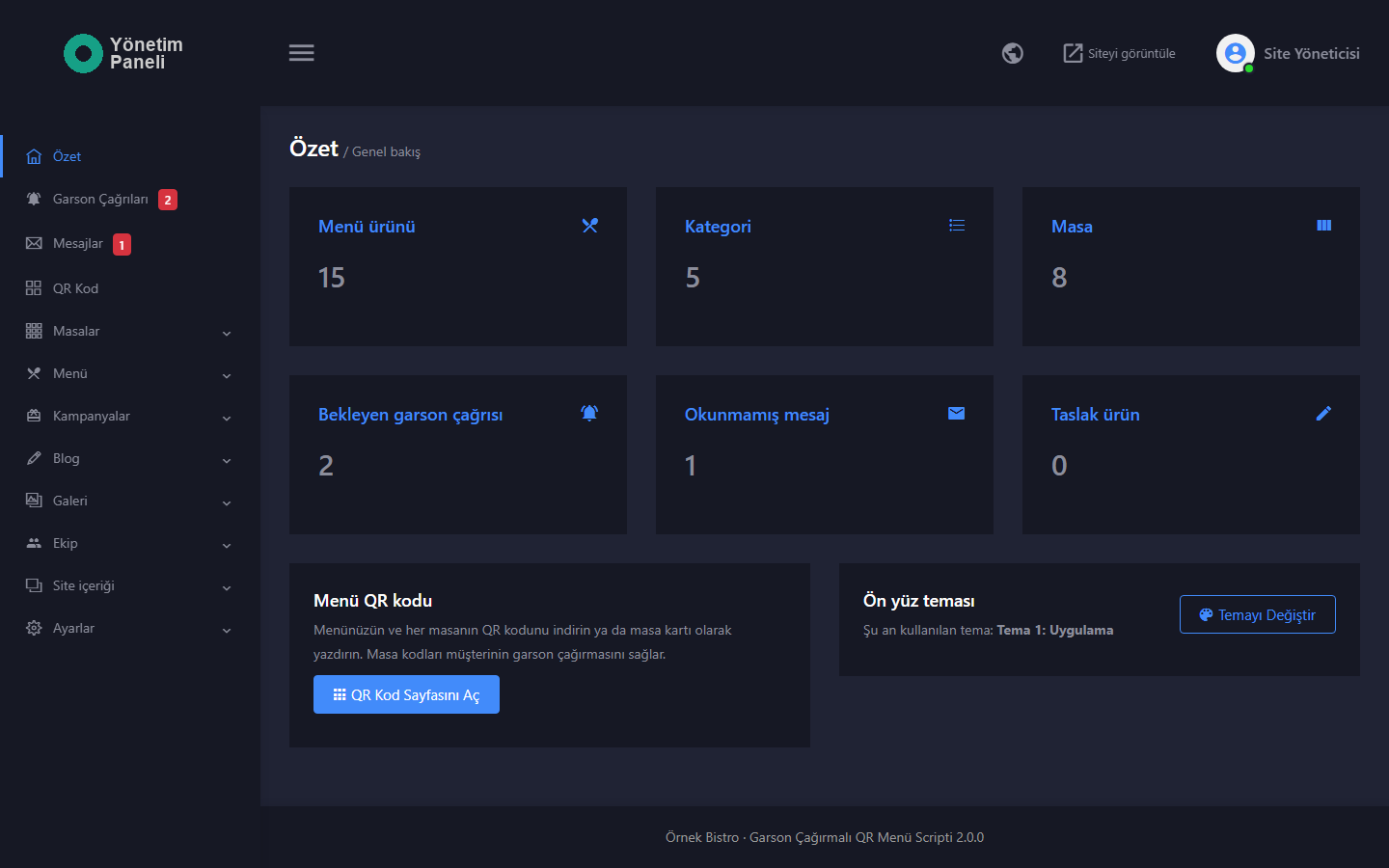
- “Özet” (Summary): the numbers of published menu products, categories, tables, pending waiter calls, unread messages and draft products, a shortcut to the QR Code page and the active theme.
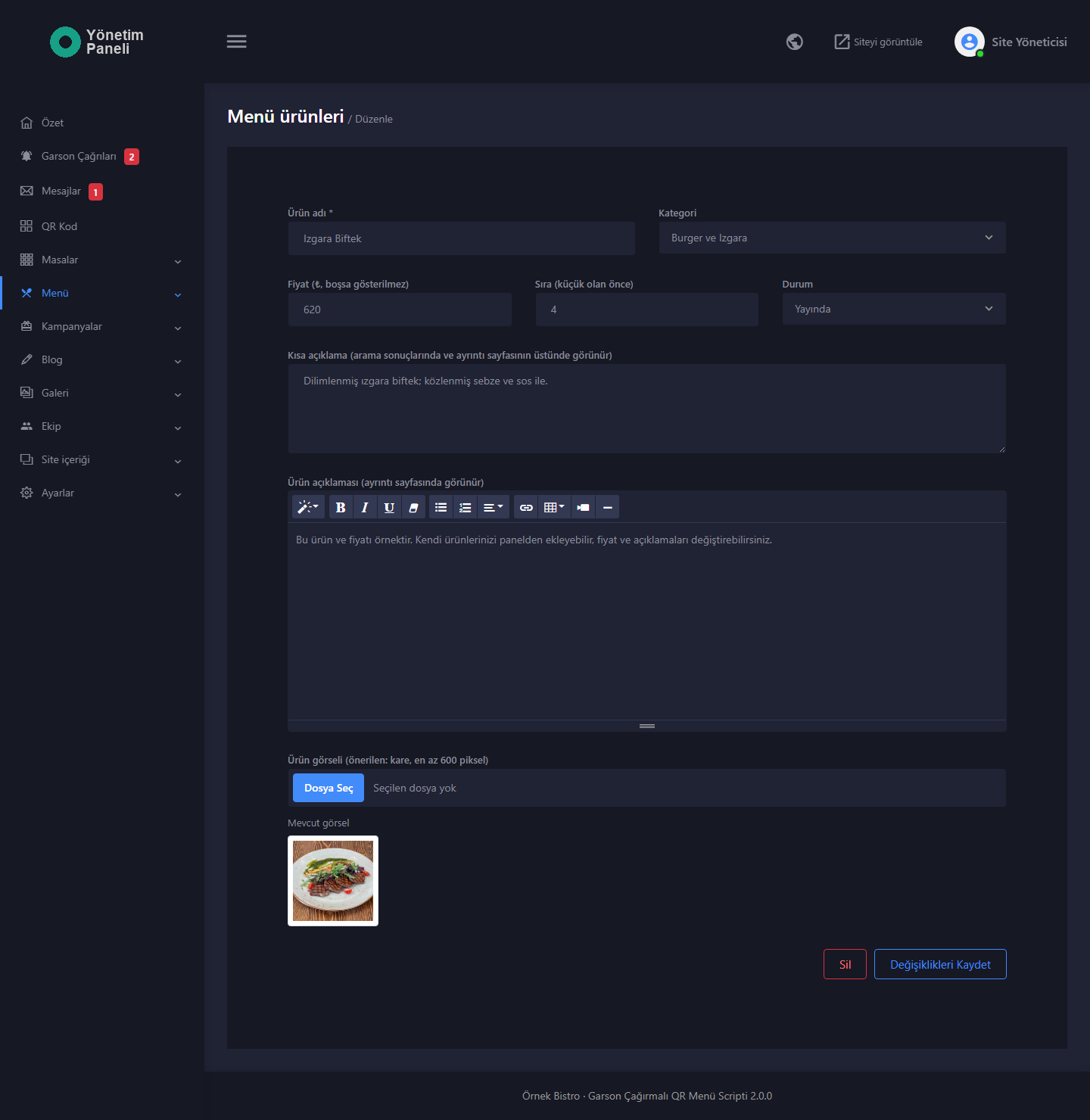
- Menu management: for products you enter a name, category, price, sort order, status (published or draft), a short description, a detailed description and an image. For categories you enter a name, a sort order and an image. The product list can be filtered by category; the lists have search and sorting.
- Campaigns, Blog, Gallery, Team and Site Content: each has add, edit and delete pages in the panel; campaigns and blog posts are saved as “Yayında” (Published) or “Taslak” (Draft). Under “Site içeriği” (Site Content) you find “Hakkımızda” (About Us), extra pages, “Çalışma saatleri” (Opening Hours) and social media links. The Summernote editor is used in rich text fields.
- “Site bölümleri” (Site Sections): on the “Ayarlar > Site bölümleri” (Settings > Site Sections) page you switch Campaigns, Call Waiter, Gallery, Team, Blog, About Us and Contact on and off one by one; a section that is switched off does not open on the site, in the menu or as an address. The menu is always on. This page is open to the administrator only.
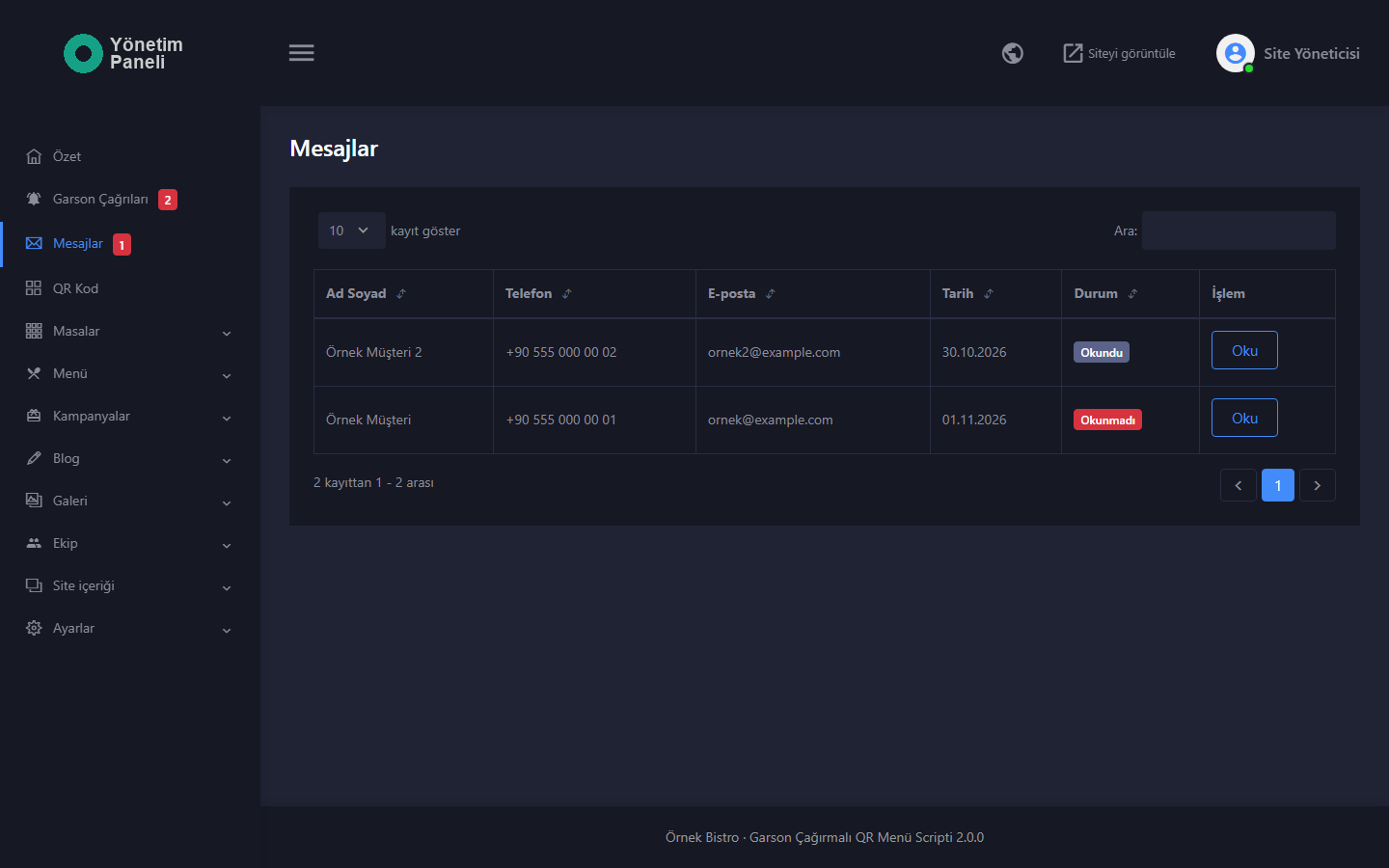
- “Mesajlar” (Messages): the messages from the contact form are listed; the number of unread messages appears in the menu and on the Summary page. Each message shows the name, e-mail and phone of the sender, the date of the message and the time the information notice was confirmed; you can delete a message.
- “Ön yüz teması” (Front-end Theme): a choice between the two themes; open to the administrator only.
- Image upload: JPG, PNG or WebP files are uploaded (up to 8 MB). If the GD extension is on, on the server the images are converted to WebP and images whose long side exceeds 1600 pixels are reduced; this way the menu that opens on a phone loads faster.
- “E-posta ayarları” (E-mail Settings): once you enter your SMTP details and switch sending on, the contact form notification and the “Forgot password” e-mail work. You test the settings with the “Deneme e-postası gönder” (Send test e-mail) button. No e-mail is sent for waiter calls.
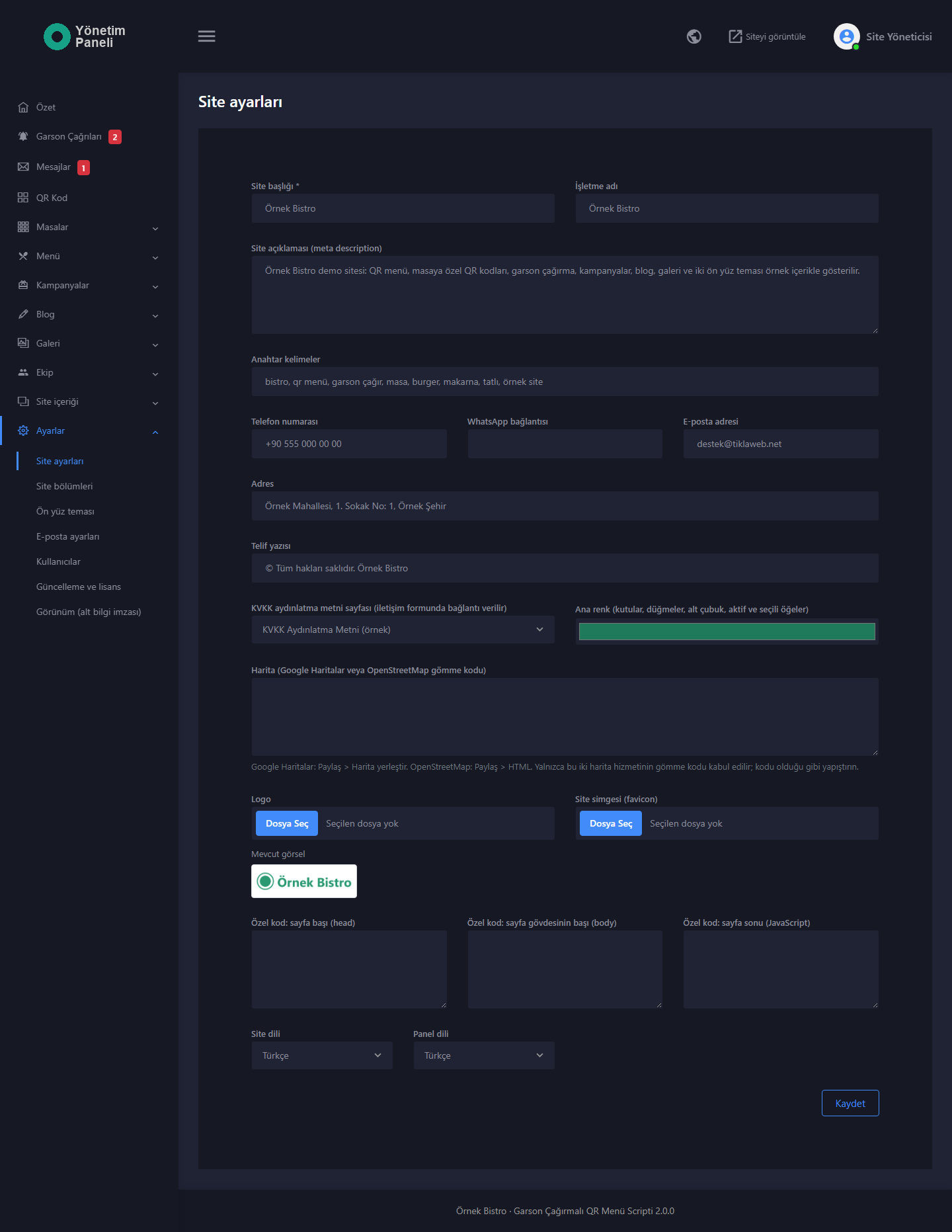
- “Site ayarları” (Site Settings): site title, business name, description and keywords, phone, WhatsApp link, e-mail, address, copyright line, the page of the KVKK information notice, main color, map, logo, site icon, custom code fields, site language and panel language.
- Users and permissions: you add administrator and editor accounts. The editor manages waiter calls, messages, tables, the QR Code page, the menu, the campaign, blog, gallery and team sections and the site content; “Site ayarları”, “Site bölümleri”, “Ön yüz teması”, “E-posta ayarları” and “Kullanıcılar” (Users) under the Settings menu are open to the administrator only. Permissions are checked on the server. Every user changes their own name and password on the “Profil ve şifre” (Profile and Password) page.
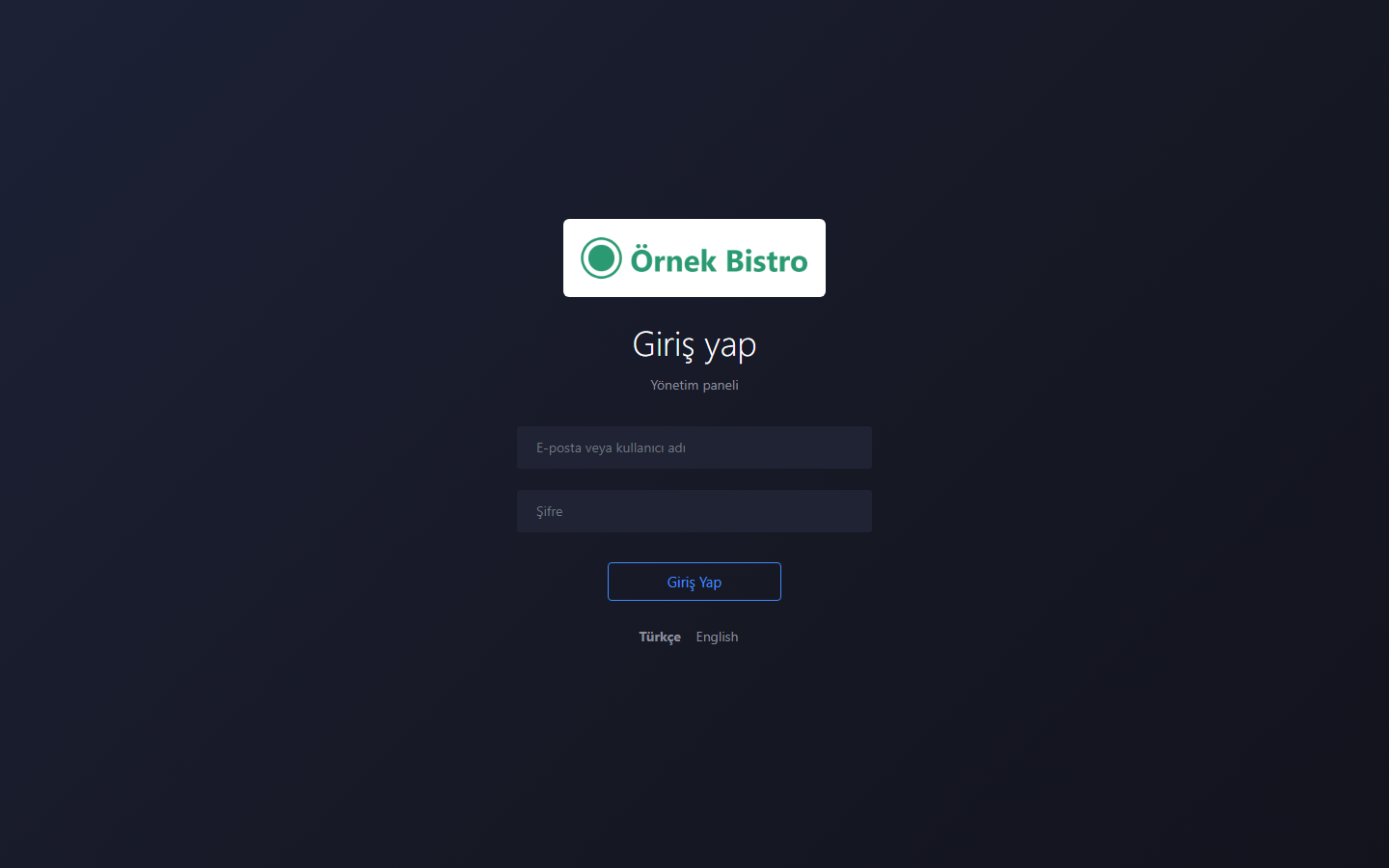
- Forgot password: the password is reset by e-mail through the link on the panel login (if “E-posta ayarları” has been set up). The reset link is valid for 1 hour and can be used once.
- Custom code: under “Site ayarları” you add your own code (for example an analytics script) to the head of the site, the start of its body and the end of the page. These fields are open to the administrator only.
Setup and updates
- Five-step setup wizard: requirements, license, database, site and administrator details, finish. The wizard checks your server itself.
- Setup language: Turkish or English is chosen at the top right of the wizard. With an English setup, the starting and sample content also come in English.
- Setup with sample content or empty: you can start full like the demo, with sample categories, products, tables, images and opening hours, and edit it, or enter the content from scratch.
- Update from the panel: you download the zip package of the new version from your tiklaweb.net customer panel and upload it on the “Güncelleme ve lisans” (Update and License) page of the admin panel. A file and database backup is taken before the operation. If an error occurs, the site returns to its previous state. The images you uploaded, your settings and your content are preserved.
- Verified packages: the signature of the update package is checked; only packages downloaded from tiklaweb.net are installed.
The detailed setup guide comes in the package you download as the KURULUM.html file (written in Turkish).
License
Each license is for a single domain name that you give when you order. A domain name change is a paid service and is handled through a support request. The license is not transferred free of charge. The site does not open on an unlicensed domain name, and the visitor is redirected to a license warning page. You need a separate license to use it on another domain name.
Technical specifications
- PHP 8.2 or higher, MySQL or MariaDB
- Foundation: plain PHP, PDO and prepared statements. Site: no framework and no jQuery, each of the two themes has its own small script; the icons are Font Awesome Free 6 and the fonts (Roboto and Montserrat) are stored locally in the package, and no external font service is called. Panel: Bootstrap 4, DataTables and the Summernote content editor
- The QR codes are generated on your server with the MIT and Apache-2.0 licensed chillerlan/php-qrcode library; no request goes to an external QR service. The PNG file is written without the GD extension
- Only your site’s own addresses are written into the QR codes, together with category numbers and table keys; a site address you enter by hand is carried with signed links
- E-mail is sent with PHPMailer 6.9; the SMTP password is stored encrypted
- Interface texts are kept in the language files of the package (Turkish and English ready, new languages can be added)
- CSRF verification on panel actions; attempt limits on panel login and password reset
- Waiter call: the table key is a random value of 20 characters (80 bits), and the table number does not appear in the address; the call form works with a signed, time-limited token; the per-table rule is enforced in the database with a row lock (presses that arrive at the same time produce a single call); at most 60 new calls from the same network are accepted in 10 minutes; call records are deleted after 7 days
- The contact form has a mandatory information notice confirmation, a signed form token, a hidden trap field and a submission limit (8 submissions in 10 minutes)
- The type of images uploaded in the panel is verified from content (JPG, PNG, WebP; up to 8 MB); PHP does not run in the upload folder
- The rich text fields of the panel are filtered on the server when saved (HTMLPurifier); the admin panel sends a Content Security Policy (CSP) header; administrator passwords are stored hashed
- The map field accepts only Google Maps and OpenStreetMap embed addresses
- The theme templates cannot be opened directly by address; search queries run as prepared statements and the output is escaped
- Database details and backups are kept in a folder outside the web root if the hosting allows
- Security headers, HSTS on HTTPS; time zone Europe/Istanbul
- A security audit made of a code review and live attack tests was carried out before sale
Demo
You can explore the site and the admin panel in a read-only demo. With the “Demo teması” (Demo Theme) links at the bottom of the demo site, or by adding ?tema=tema2 to the address, you can browse both themes; this choice works only in the demo, and on your own site you choose the theme in the panel. To try the waiter call, use the “Garson çağırmayı denemek için örnek masayla aç” (Open with a sample table to try the waiter call) link at the bottom of the site: the table name appears and the Call Waiter button shows up. In the demo no call is saved, and a “call was not saved” message appears on the screen; the contact form shows only the success message and saves no message. In the panel the “Garson Çağrıları” and “Mesajlar” pages come with sample records. The demo is installed in Turkish; in the admin panel you can switch the panel language to English with the globe icon at the top right (this choice is kept only in your browser). The business name, products, prices, tables, campaigns, posts and photos in the demo are all sample content. In the demo panel you can open the “Masalar” (Tables) and “QR Kod” (QR Code) pages, download the codes and try the table card view; the codes carry the address of the demo site. The map and the WhatsApp link are left empty in the demo; they appear on the contact page once they are filled in the panel.
- Site: https://022.tiklaweb.net
- Admin panel: https://022.tiklaweb.net/admin
- Demo e-mail: demo@tiklaweb.net
- Demo password: demo1234
Changes cannot be saved in the demo. The demo is reset every night. Sensitive pages such as e-mail settings, users and password forms cannot be viewed in demo mode, and “Forgot password” is off in the demo. These login details are only for the demo site. In the installation you buy, you set the administrator account yourself.
Support
If you get stuck, you can open a support request from your tiklaweb.net customer panel or write to destek@tiklaweb.net.
- Step 1, preparation: On your hosting, set the PHP version to 8.2 or higher and create an empty MySQL/MariaDB database and user.
- Step 2, files: Upload the contents of the public_html folder in the package you downloaded (including the hidden .htaccess file) to the publishing folder of your domain.
- Step 3, wizard: Open your domain in the browser. The setup wizard starts automatically; you can choose Turkish or English with the links at the top of the page.
- Step 4, installation: In the wizard, check the requirements and the license, enter your database details, then your site and administrator details. Choose sample content or an empty setup.
- Step 5, panel: Log in at yourdomain.com/admin with your administrator account and fill in the “Site ayarları” (Site Settings) page, add your categories and products under the “Menü” (Menu) section and your tables under “Masalar” (Tables), download your codes from the “QR Kod” (QR Code) page, then try a table code while keeping the “Garson Çağrıları” (Waiter Calls) page open.
The detailed setup guide comes in the package you download as KURULUM.html (written in Turkish).
2.0.0 — First release for sale
First sales release of the QR Menu Script with Waiter Call.
Added
- Browser setup wizard (requirement check, license, database, site and administrator steps).
- Option to install with sample content or empty.
- Turkish and English interface for the site, the admin panel and the setup wizard; language selection under “Site ayarları” (Site Settings); adding a new language by copying the language file.
- Domain-bound license; the site does not open on an unlicensed domain.
- Update from the panel with a zip: automatic backup, return to the previous version on error, content and added language files preserved.
- Tables: adding tables one by one or in bulk (up to 500 in total), an unguessable QR key for every table, a QR link in the table list and key renewal.
- Waiter call: a Call Waiter button for visitors who arrive through a table QR code, a per-table waiting rule, call status shown to the visitor; the “Garson Çağrıları” (Waiter Calls) page in the panel (pending and answered calls, refresh every 15 seconds, number in the tab title, optional sound, automatic cleanup after 7 days). There is no cart, payment or ordering.
- QR Code page in the panel: a QR code for the menu (home page), each category and each table; PNG (512, 1024, 2048 pixels) and SVG download; a print view of A6, A4 and four A6 cards on an A4 sheet, an editable card text; printing all table cards (by choosing a range when there are more than 100 tables), table search and paging. A table code opens the menu, shows the table name and brings the Call Waiter button.
- Two front-end themes (Theme 1: App, Theme 2: Café) and theme selection in the panel; adding your own ozel.css file.
- Categories and a priced product showcase: sort order, status, short description, rich text and image; live product search. There is no cart and no ordering.
- Campaigns, blog, gallery, team and extra pages; switching sections on and off one by one from the Settings menu.
- About Us, contact information, a contact form with a KVKK consent box and a “Mesajlar” (Messages) section in the panel, opening hours and social media links.
- Main color choice in the panel, text color chosen automatically to fit the background.
- WebP conversion on image upload (if GD is on) and limiting the long side to 1600 pixels.
- Changing or removing the footer credit from the panel.
- Forgot password: reset link by e-mail, valid for 1 hour and usable once.
- Administrator and editor user permissions.
Fixes
- Invalid addresses and the addresses of unpublished products, posts and extra pages show a 404 page instead of an error.
- Image, social media and map fields left empty are not drawn on the site.
Security
- CSRF verification, attempt limits and permission checks on panel actions.
- Table addresses carry an unguessable random key; the waiter call works with a signed, time-limited form token and limits per table and per network; the contact form has KVKK confirmation, a trap field and a submission limit.
- Only addresses set by the server are written into the QR codes; a site address typed by hand is carried with signed links.
- The type of images uploaded to the panel is verified from content.
- The panel’s rich text fields are filtered when saved, and a Content Security Policy was added to the panel.
- Administrator passwords are stored hashed and the SMTP password is stored encrypted.
- The theme templates cannot be opened directly by address; search queries run as prepared statements and the output is escaped.
The setup guide is the KURULUM.html file inside the package.
QR Menu Script with Waiter Call
Restaurant & QR Menu- QR menu website with waiter call. A QR code for each table, two themes, menu, campaigns and prices managed from the panel. Wizard setup.
| Released | 2 November 2026 |
|---|---|
| Last Update | 2 November 2026 |
| Version | 2.0.0 |
| Built With | PHP 8.2+, MySQL/MariaDB, Düz PHP (PDO), Font Awesome 6, DataTables, Summernote, PHPMailer, php-qrcode |
| Pages Included | 12 ready-made sections |
| License | 1 domain, lifetime use |
| Updates | Included while active |
- PHP 8.2 or higher
- PHP extensions: pdo_mysql, mbstring, openssl, curl, zip, fileinfo, json, sodium (gd recommended)
- MySQL or MariaDB: a new, empty database. Enter localhost in the database server field.
- A domain name and an SSL certificate are recommended.
- Apache-based hosting with .htaccess support (mod_rewrite is not required). If you use Nginx, open a support ticket before installing.
- Writable folders: tiklaweb, uploads
- For the contact form notification and the “Forgot password” e-mail, the SMTP details provided by your hosting company (entered on the “E-posta ayarları” (E-mail Settings) page)
- The site and the admin panel come in Turkish and English, and a new language can be added. The setup guide (KURULUM.html) is in Turkish.
Other Products
Browse All Products
Home Appliance Repair Service Website Script
Car Wash & Auto Care Website Script
Gym & Fitness Website Script
Cleaning Company Website Script
Reach Sales & Support
Have a question before you buy, or need help with an existing account? Call or email us.